Appearance
Account settings
Account settings are your personal settings: the language and time zone of the dashboard, light or dark mode, your name, email and password, extra sign-in security, and a copy of your data. Most of them only affect you; a few (marked below) apply to the whole account and can only be changed by its managers.
Where to find it: in the sidebar, Account › Settings, or Settings in the menu under your name at the top right.
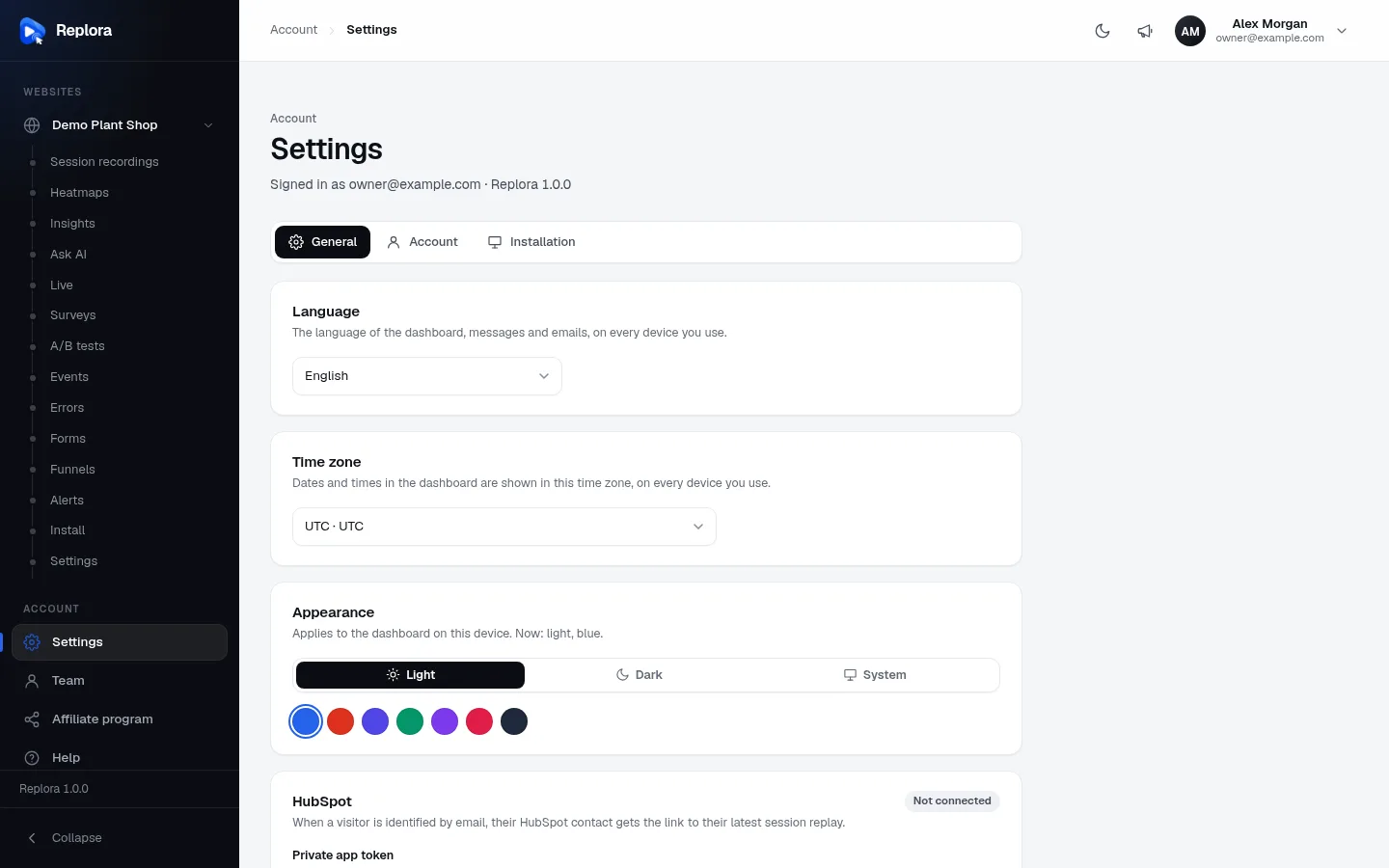
1. TabsGeneral: language, time zone, appearance and integrations. Account: your profile, password and security. Installation appears only for administrators of the Replora installation.
The subtitle under Settings shows the address you’re signed in with and the Replora version, for example Signed in as [email protected] · Replora 1.0.0.
General tab
Language
Choose the language of the dashboard, its messages and the emails Replora sends you: English, Español, Français, Deutsch, Português, Italiano, Русский, 简体中文, 日本語, 한국어, Türkçe, Bahasa Indonesia or العربية (Arabic, shown right to left). It is saved at once and follows you on every device.
Time zone
All dates and times in the dashboard (session lists, replays, reports) are shown in this time zone, on every device you use. Saved at once.
Appearance
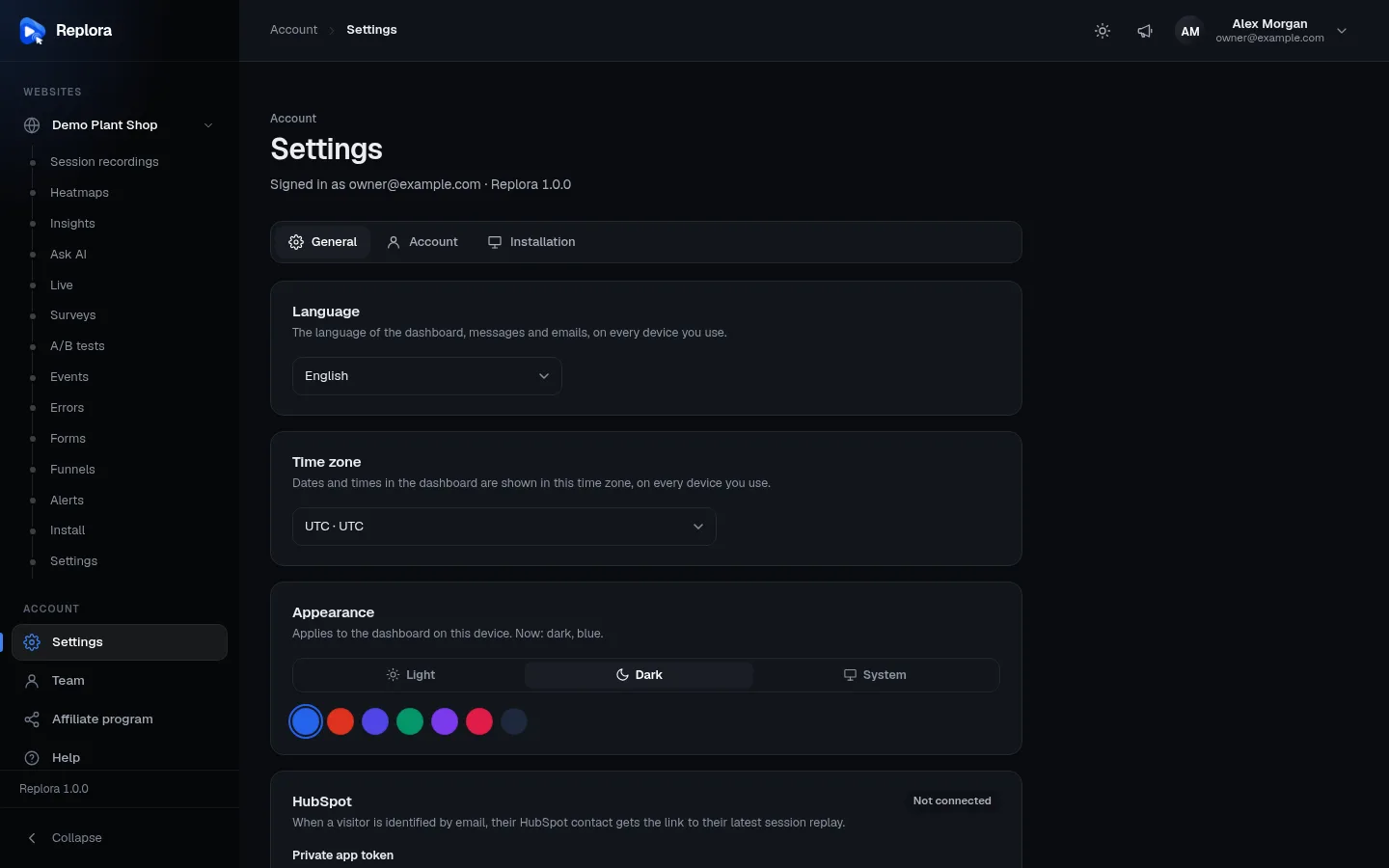
Applies to the dashboard on this device. Now: light, blue.
| Option | Choices |
|---|---|
| Colour mode | Light, Dark, or System (follows your computer’s or phone’s setting). |
| Accent colour | Blue, Orange, Indigo, Emerald, Violet, Rose or Slate: the colour of buttons, links and highlights. |
The moon / sun button in the top bar switches between light and dark too. The administrator of your Replora installation may turn off dark mode or the accent colours; the card then shows only what is allowed (or is hidden).
Integrations and agreements
More cards appear here depending on your plan and edition:
| Card | What it does | Who can change it |
|---|---|---|
| HubSpot | When a visitor is identified by email, their HubSpot contact gets the link to their latest session replay. Paste a HubSpot Private app token (created in HubSpot under Settings → Integrations → Private apps, with the scopes crm.objects.contacts.read, crm.objects.contacts.write and crm.schemas.contacts.write) and click Connect HubSpot; Disconnect removes it. Shown when your plan includes the HubSpot integration. | Account managers |
| Data Processing Agreement | Required under the GDPR when you record visitors from the EU or the UK. Read the Data Processing Agreement, then tick I accept the agreement for this account. Shows Accepted or Not accepted, and asks again when the agreement changes. SaaS edition. | Account managers |
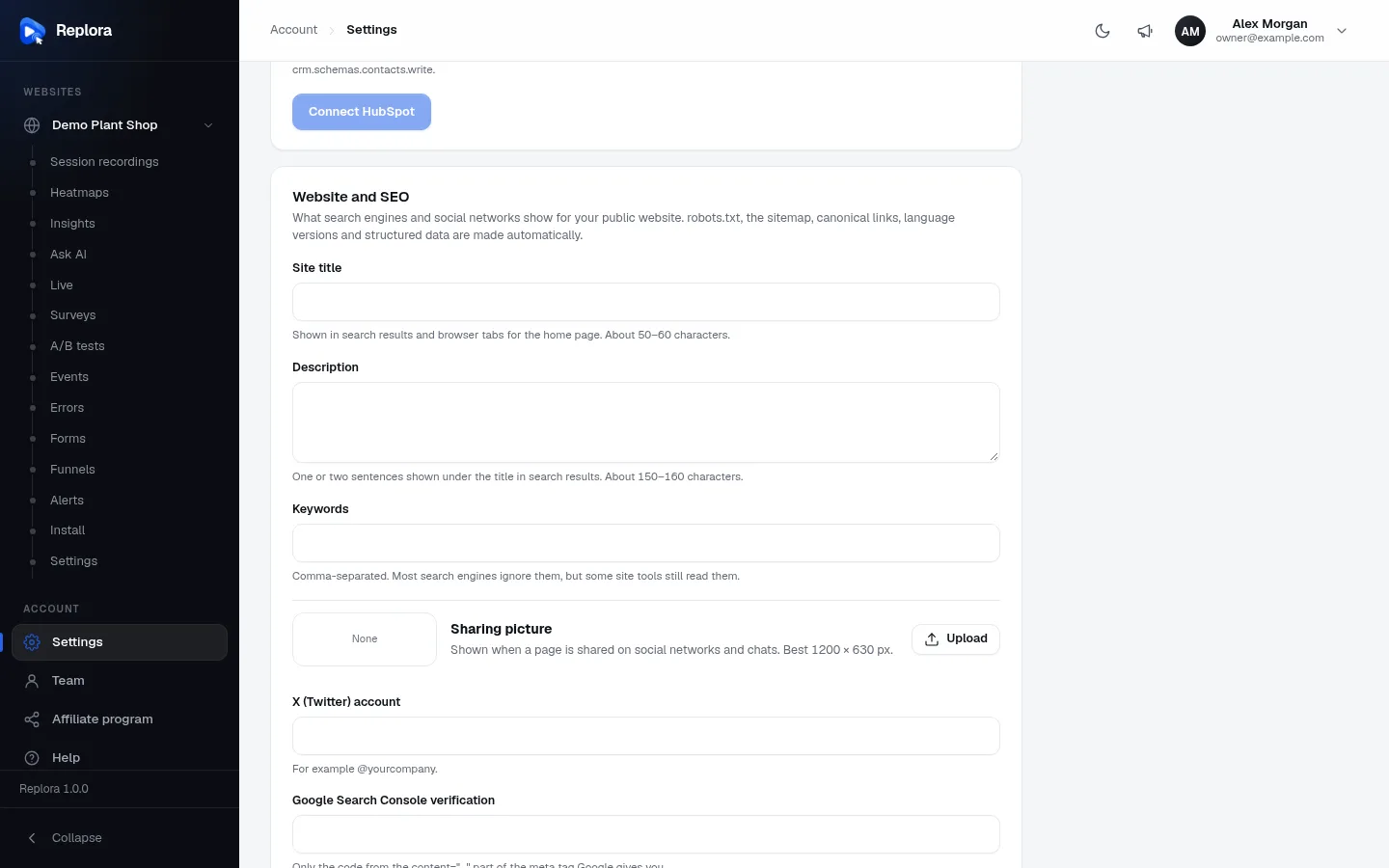
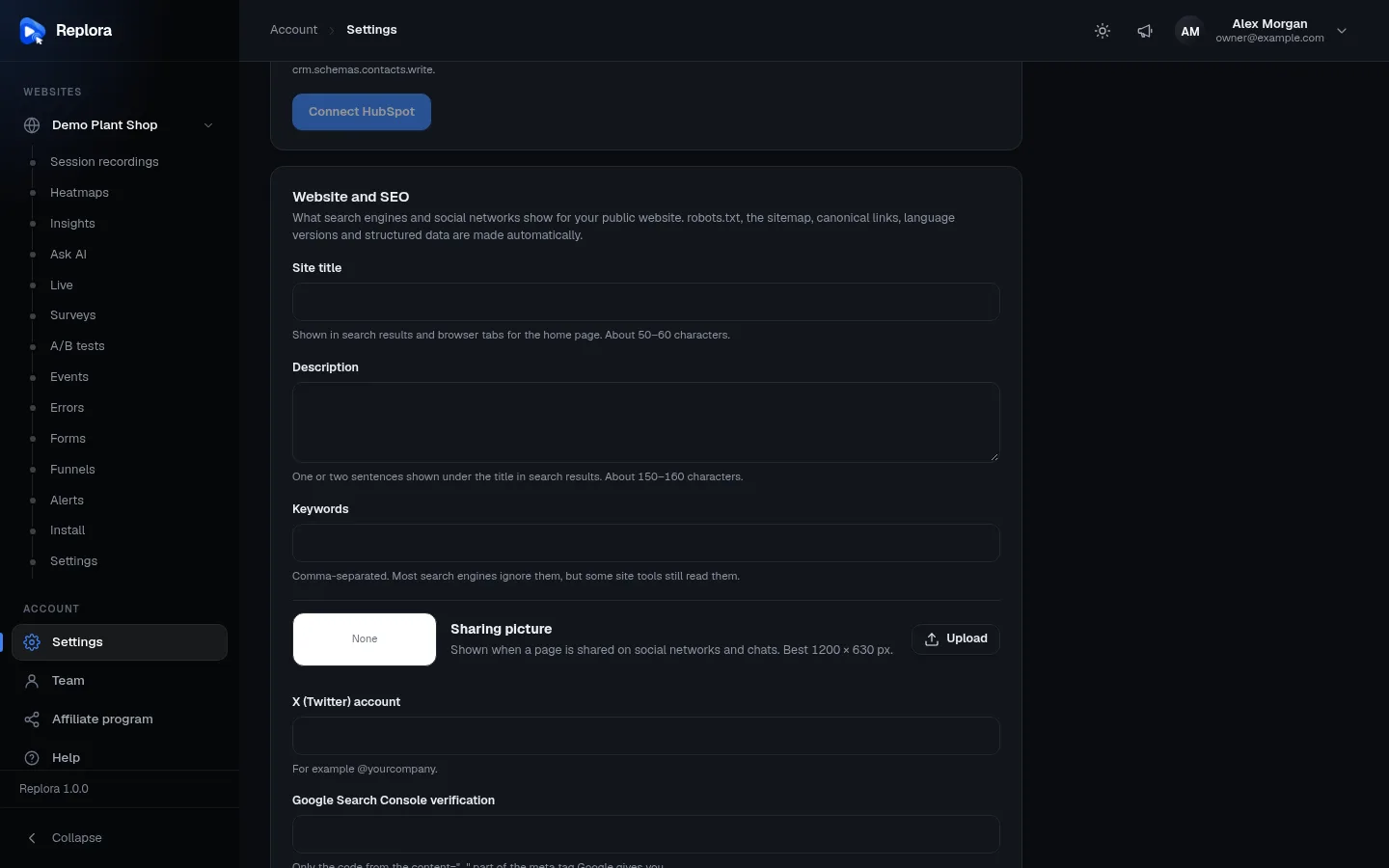
Administrators of the installation also see cards such as Website and SEO and the location database here; they are described in the Replora Docs.
Account tab
Name
Your name as the team sees it. Click Save name.
Email
You sign in with this address. To change it, type the new address; a Current password field appears (Needed to change the address you sign in with.). Click Save email.
Password
- Enter your Current password.
- Enter the New password (at least 10 characters) and Repeat the new password.
- Click Change password.
Two-factor sign-in
Protect your account with a second step at sign-in: a 6-digit code from an authenticator app on your phone (Google Authenticator, Microsoft Authenticator, 1Password, Authy…). The card shows On or Off, and how many recovery codes are left.
Turn it on:
- Click Turn on two-factor sign-in and enter Your password, then Continue.
- 1. Scan this code with your authenticator app (or type the key).
- 2. Enter the 6-digit code the app shows in Code, and click Turn on.
- Save these recovery codes somewhere safe. Each one signs you in once if you lose your phone. They are shown only now. Use Copy or Download, then I saved them.
From then on, signing in asks for a code from the app (or a recovery code).
| Button | What it does |
|---|---|
| New recovery codes | Replaces your recovery codes (asks for your password). Do it when Only a few recovery codes are left (3 or fewer). |
| Turn off | Turns two-factor sign-in off (asks for your password). |
Google account
Sign in with Google instead of typing your password. Your password keeps working. Click Connect Google account and choose your Google account; the card then shows Connected as …. Disconnect asks for your Current password. (Signed up with Google and never set a password? Sign out and use Forgot your password? first.) Shown when the installation has Google sign-in.
Visitor privacy
For every site of the account. Applies to new visits.
Anonymize visitor IP addresses more strongly: keeps only the first two parts of IPv4 addresses (203.0.x.x) instead of three. Required in some countries; location and IP filters become less precise. Only account managers can change it; others see it greyed out.
Your data
A copy of everything kept about you: profile, account, sign-in settings, API tokens, sites and plan. Secrets such as your password are never included. Download my data saves it as a JSON file named my-data-date.json.
Delete account
Removes your sign-in. When nobody else is in your account, its sites, recordings and subscription go too.
- Click Delete my account.
- Enter Your password and click Delete for good. This can’t be undone.
You can’t delete your account while you are the last manager of a team with other people: Make another team member a manager before you delete your account. When you are alone in the account, a running paid subscription is cancelled first.
Notifications
Replora has no separate notification settings page. Emails come from the features that send them, and are set up there:
- Alerts: who gets which alert, by email, Slack or webhook.
- Funnels: account managers get an email when a funnel converts worse than the week before.
- Password resets and answers to your support tickets are sent to your sign-in email.
Related
- Team & roles
- API tokens: including the devices signed in to the mobile app.
- Plan & billing
- Website settings: settings of one website (privacy, masking, recording).