
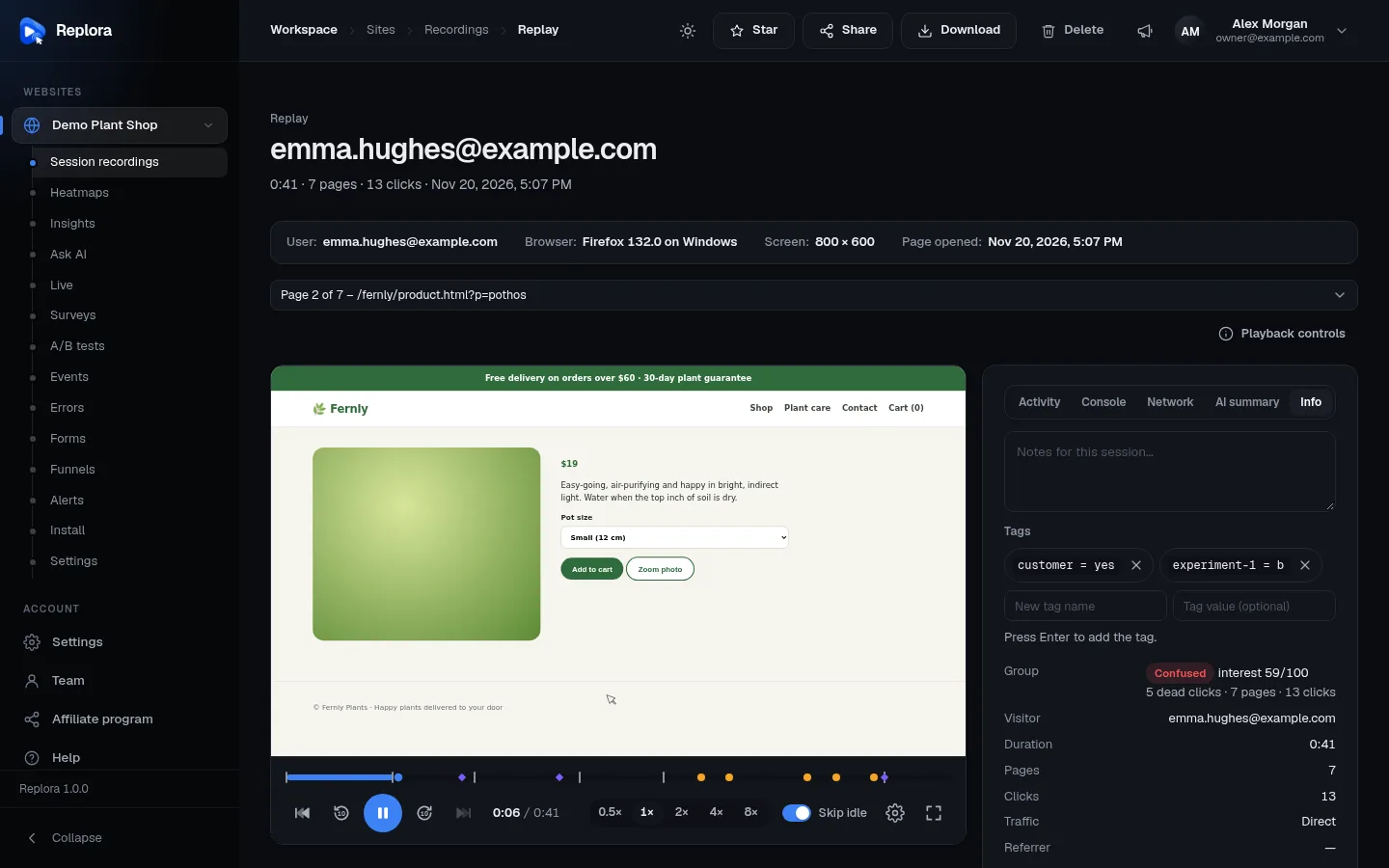
Appearance
Share, export & notes
A replay is most useful when the right person sees it: a developer who has to fix a bug, a designer, a client, your manager. Replora lets you send a session as a link (with a QR code), download it as a file that plays offline, and keep notes, tags and stars on sessions so your team finds them again.
| You want to… | Use |
|---|---|
| Show one session to someone, even without a Replora account | A share link |
| Keep a session after its retention period, or send it as a file | Download |
| Analyse many sessions in a spreadsheet | Export CSV |
| Leave a remark for your team | Notes |
| Group and filter sessions by a fact | Tags |
| Mark sessions to come back to | Stars |
Share a recording with a link
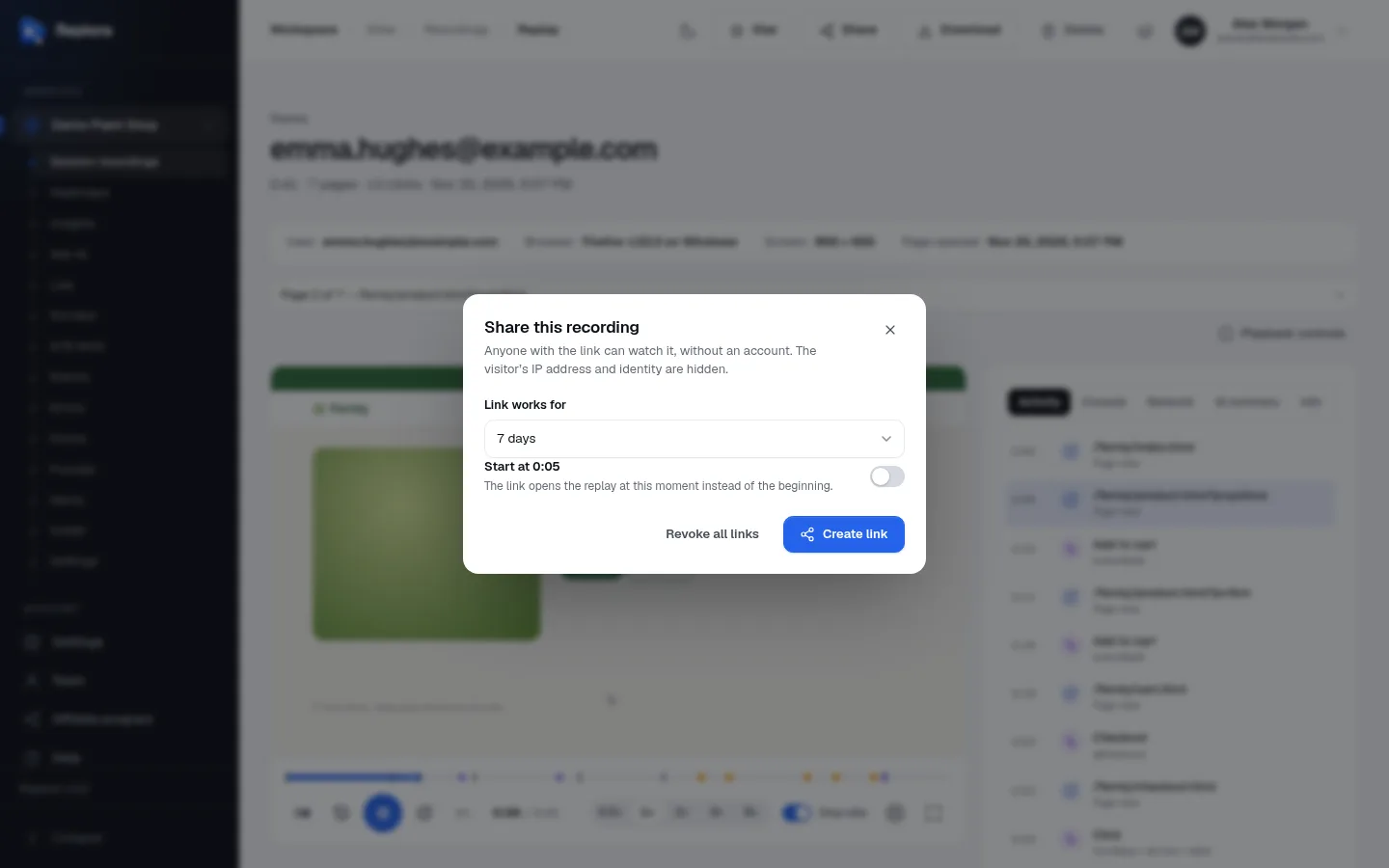
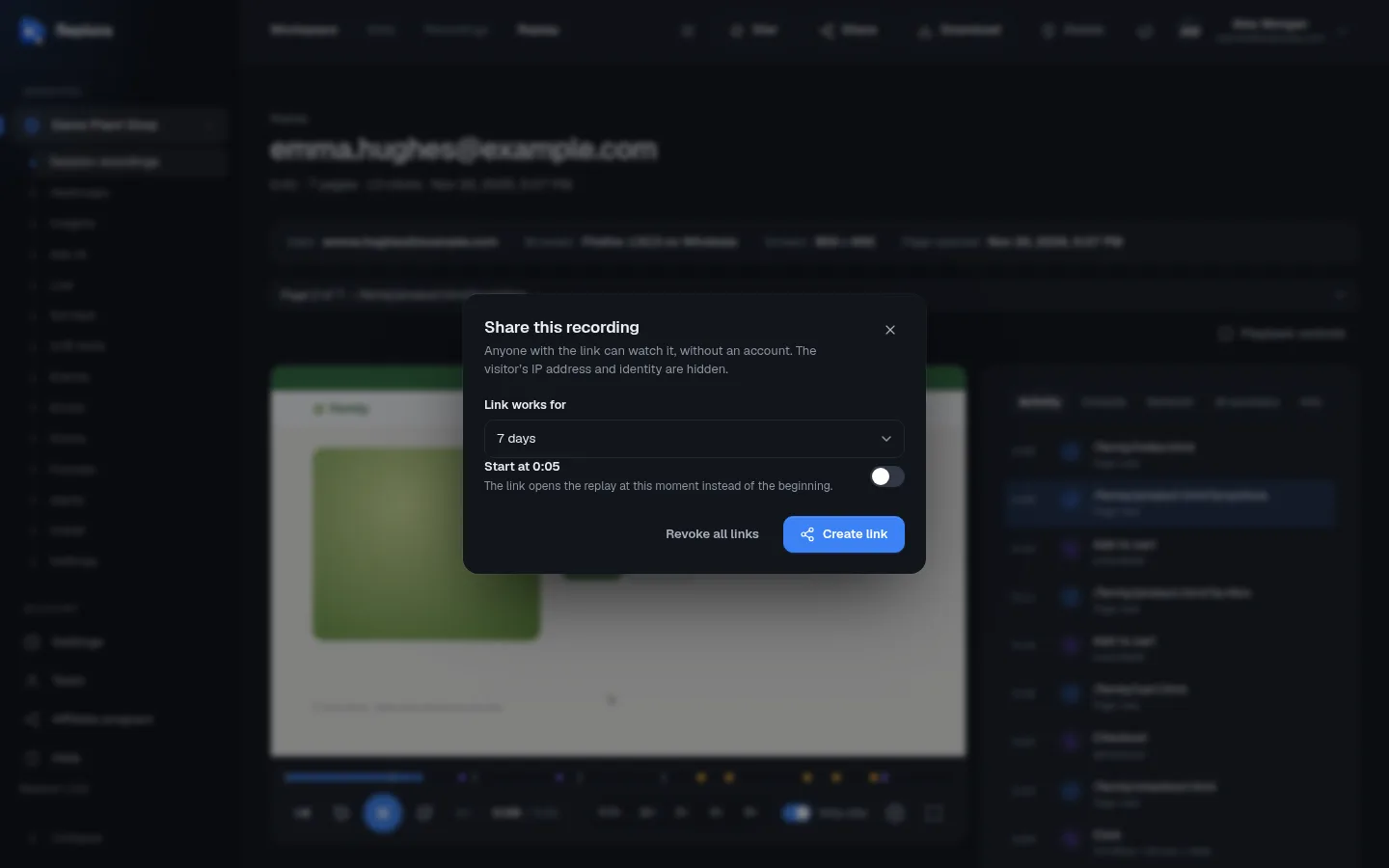
Where: on a replay, click Share at the top right.
Anyone with the link can watch it, without an account. The visitor’s IP address and identity are hidden.
| Option | What it does |
|---|---|
| Link works for | 1 day, 7 days (default), 30 days or Until revoked. After that the link stops working. |
| Start at 0:05 | Shown when you opened the dialog during playback. Turn it on and the link opens the replay at that moment instead of the beginning: handy to point at the exact problem. |
| Create link | Creates the link. |
| Revoke all links | Stops every link ever made for this recording, at once. |
Step by step
- Open the replay and, if you like, pause at the moment that matters.
- Click Share.
- Choose how long the link works for, and switch on Start at … to start there.
- Click Create link.
- Click Copy link and paste it in an email, a chat or a ticket.
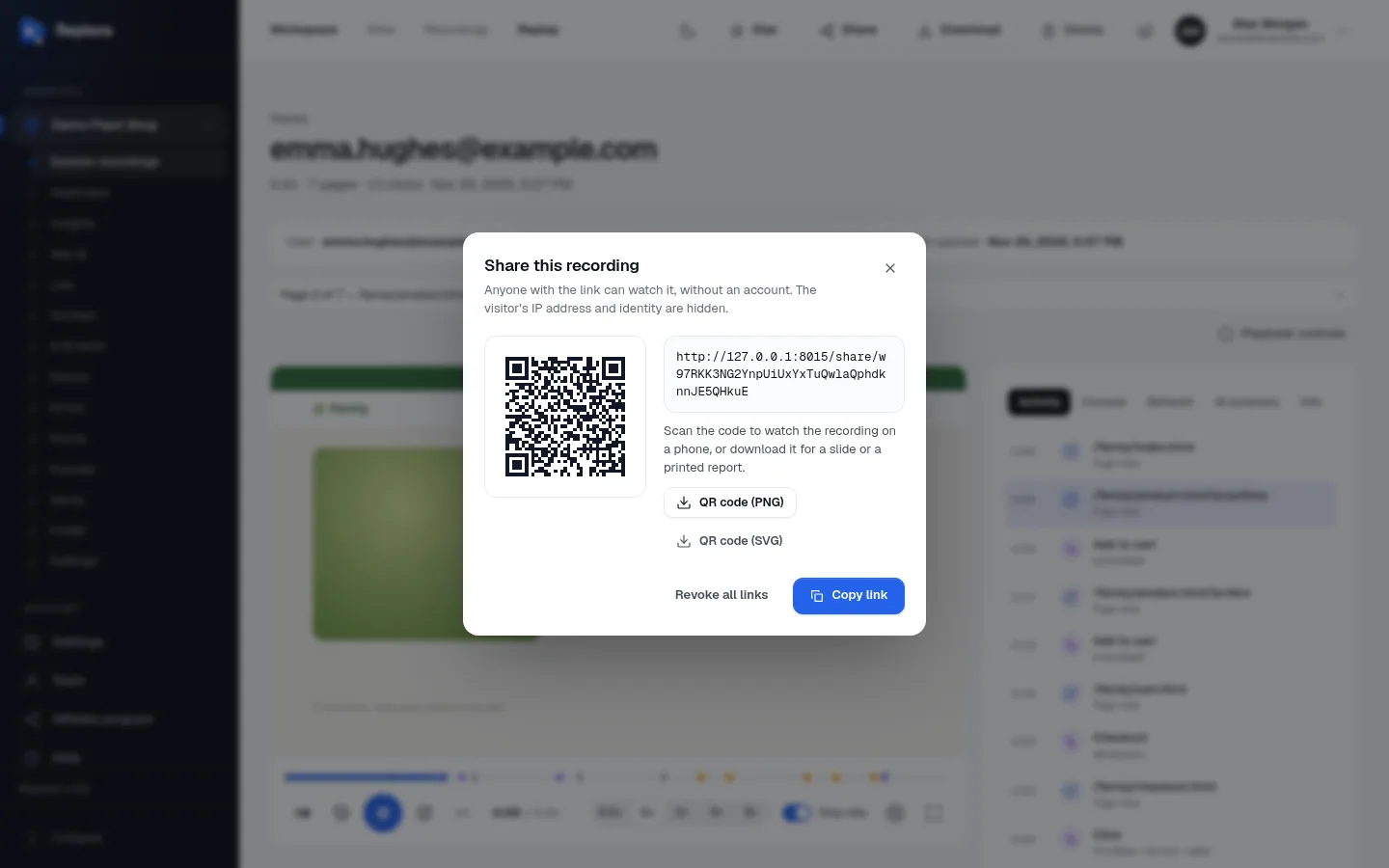
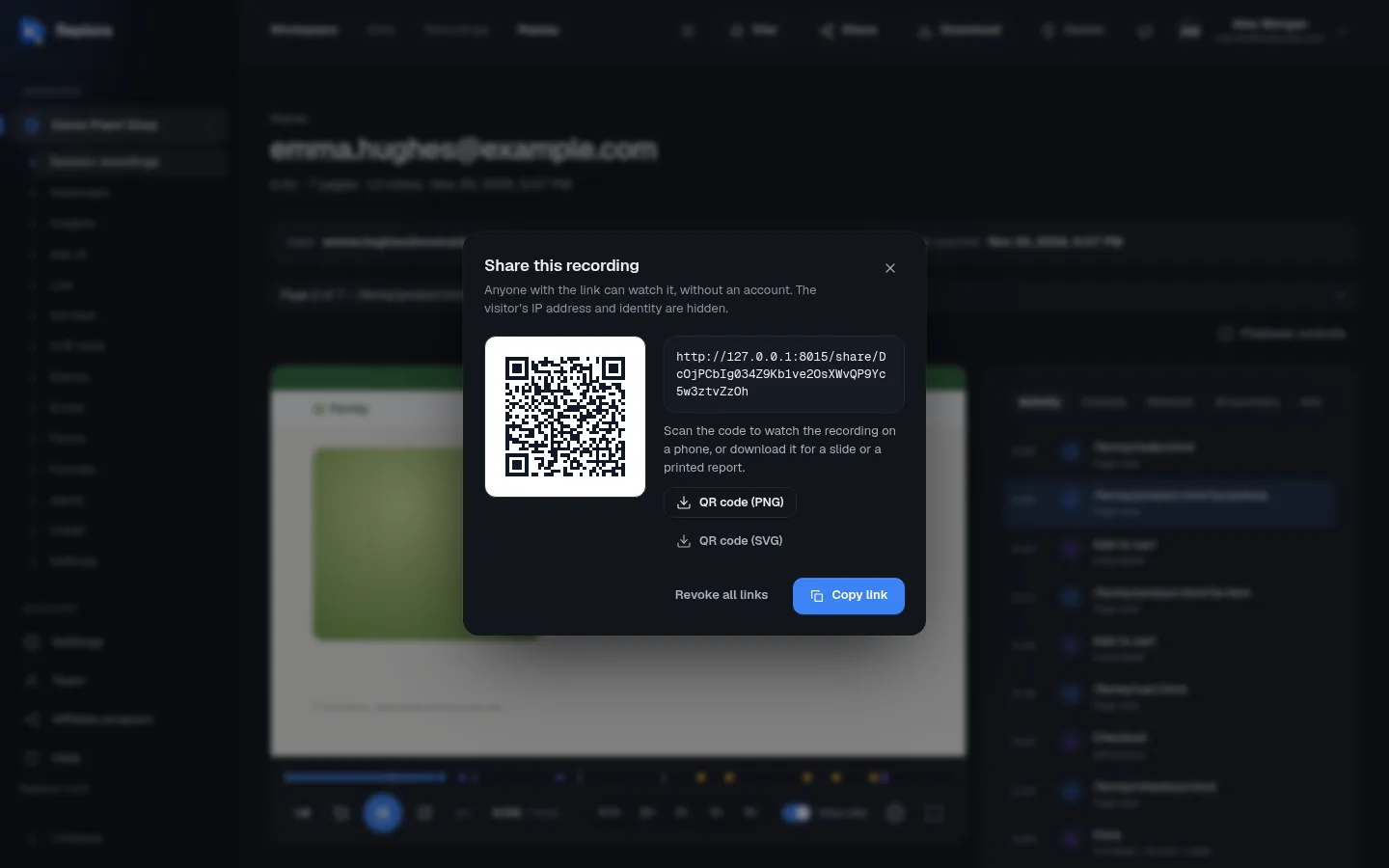
After Create link, the dialog shows:
| Part | What it does |
|---|---|
| The link | The address to send. It is shown only now: copy it before closing (you can always create another one). |
| QR code | The same link as a QR code. Scan it to watch the recording on a phone. |
| QR code (PNG) / QR code (SVG) | Download the QR code as a picture (PNG, 1024 × 1024 pixels) or a drawing (SVG), e.g. for a slide or a printed report. |
| Copy link | Copies the link. |
What the person you share with sees
The link opens a page with your Replora’s name and Shared recording · length, the player with the timeline and controls, and the Activity, Console, Network and Info tabs. No sidebar, no other sessions, no IP address, no identity, no notes. When the link has expired or was revoked, the page says This link doesn’t work any more: it expired or was revoked.
Treat links like the recording itself
Anyone who has the link can watch it until it expires. Share links in private channels, choose a short duration for sensitive pages, and use Revoke all links when a link went somewhere it shouldn’t.
Sharing needs the Manager or Member role. To give a colleague access to all of a website’s recordings instead, use Share this site or invite them to your team.
Download a recording
Where: on a replay, click Download at the top right.
You get one HTML file that replays the session offline: open it in any browser, from your computer, without Replora and without internet. It holds the player, a few facts about the visit (website, start time, duration, pages, landing page, device, country) and every event. Like share links, it leaves out the visitor’s IP address and identity.
Use it to:
- keep an important session after its retention period deletes it;
- attach a session to a bug report or a client email;
- archive evidence of a problem.
The button is there only for sessions that can be replayed, and only if your plan includes downloads.
Export sessions to a spreadsheet
On the session list:
- Export CSV (top right) downloads every session that matches your filters, up to 10,000.
- Tick sessions and click Export selected to download only those (up to 100 at a time).
The CSV has one row per session (start time, duration, pages, clicks, frustration counts, identity, entry and exit pages, referrer, source, campaign, location, device, browser, system), ready for Excel, Google Sheets or Numbers.
Notes
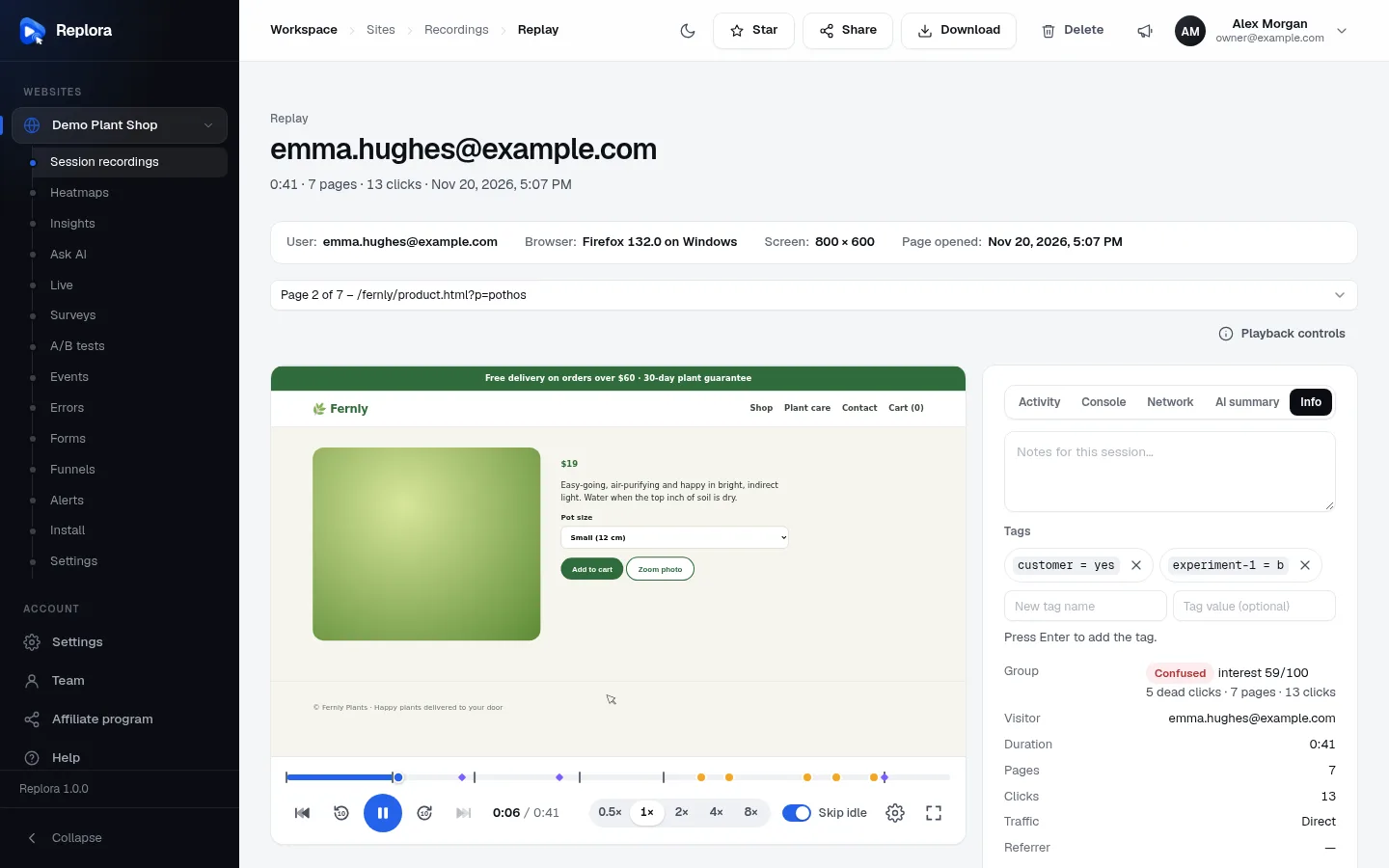
Where: on a replay, the Info tab, at the top.
Type in Notes for this session… to leave a remark for your team: what you noticed, a ticket number, who should look at it. Notes save by themselves a moment after you stop typing and when you click elsewhere (up to 5000 characters). Empty the box to remove the note.
Everyone in your account sees notes; the people you share a link with don’t. Find sessions with notes with More filters › With notes only.
Tags
Tags are facts on a session, written name = value (or just a name). Your website can add them automatically (with tagSession or identify), and you can add them by hand. You use them to filter sessions, as columns in the list, and in alerts.
| To… | Do this |
|---|---|
| Add a tag to one session | On the replay’s Info tab, type a New tag name (up to 64 characters) and optionally a Tag value (up to 255), then press Enter. |
| Change a tag | Add it again with the same name and the new value. |
| Remove a tag | Click the × next to it. This also works for tags your website set. |
| Tag many sessions at once | In the session list, tick them and click Add tag. |
Tag ideas
reviewed = yes after someone watched it, bug = 1234 with a ticket number, issue = checkout to group a problem, share = client for sessions to show in a meeting.
Stars
Click the star on a row of the session list, or Star on a replay. Stars are shared with your whole account. To star many sessions at once, tick them in the list and click Star in the selection bar. Filter with More filters › Starred only.
Stars don’t stop a session from being deleted at the end of its retention period: download the sessions you want to keep.
Delete recordings
| To delete… | Do this |
|---|---|
| One session | On the replay, Delete, then confirm Delete this recording? |
| Several sessions | In the list, tick them, click Delete in the selection bar and confirm Delete N recordings? |
| Every session of a website | Delete the website in its settings. |
Deleted recordings are deleted for good; they can’t be restored. Sessions are also deleted automatically when they are older than the website’s retention period.
Who can do what
| Action | Manager | Member | Viewer |
|---|---|---|---|
| Watch, download (if the plan allows), export CSV | ✓ | ✓ | ✓ |
| Share links, notes, tags, stars | ✓ | ✓ | |
| Delete recordings | ✓ | ✓ |