
Appearance
A/B tests
An A/B test shows some visitors your page as it is (the original) and others a changed version, then measures which one gets more visitors to do what you want: click “Buy”, reach the thank-you page, sign up. You make the changes in a visual editor, without code; the tracking code you already installed does the rest. Replora tells you when one version is a clear winner.
Where to find it: in the sidebar, under your website, click A/B tests (for example Demo Plant Shop › A/B tests).
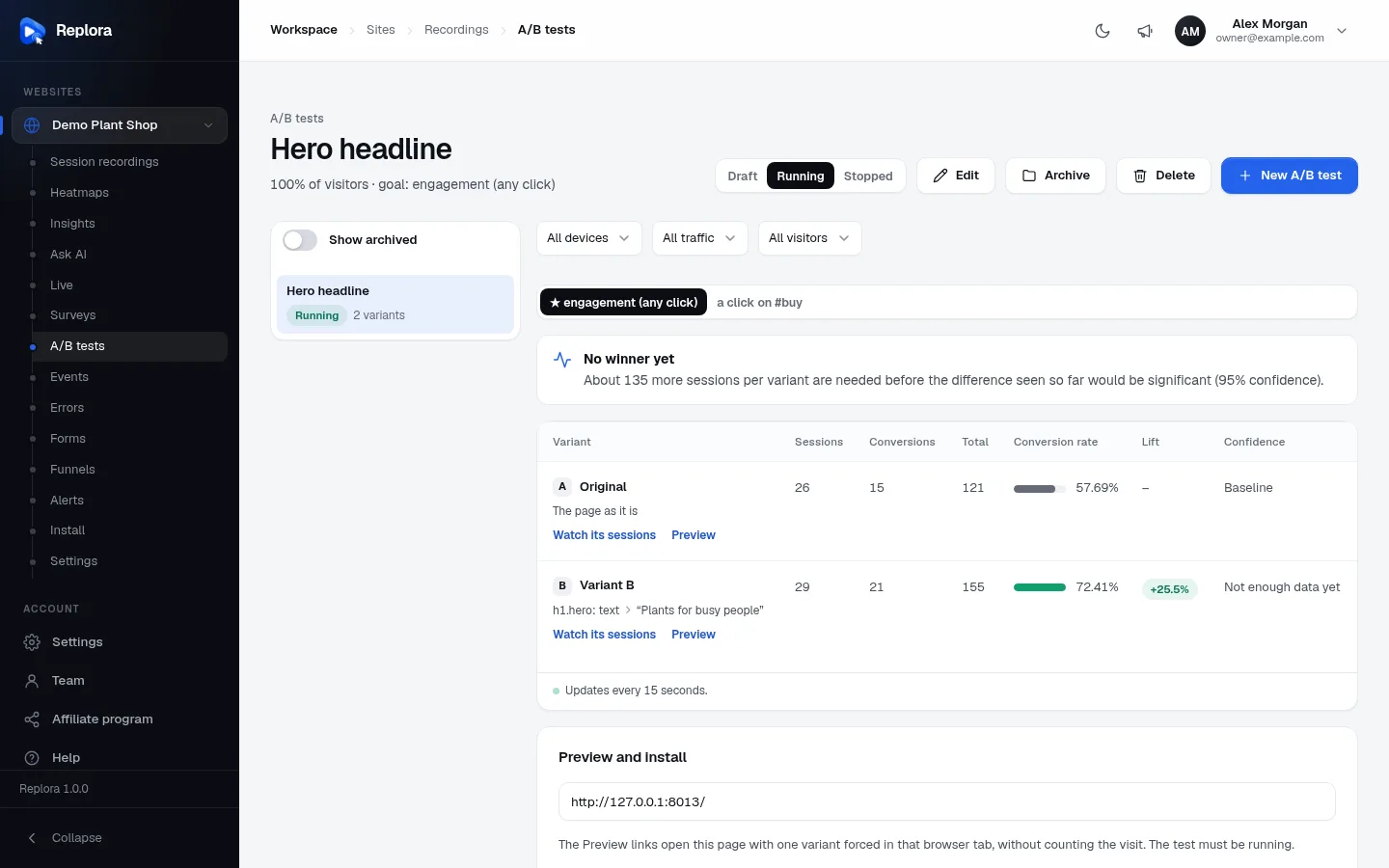
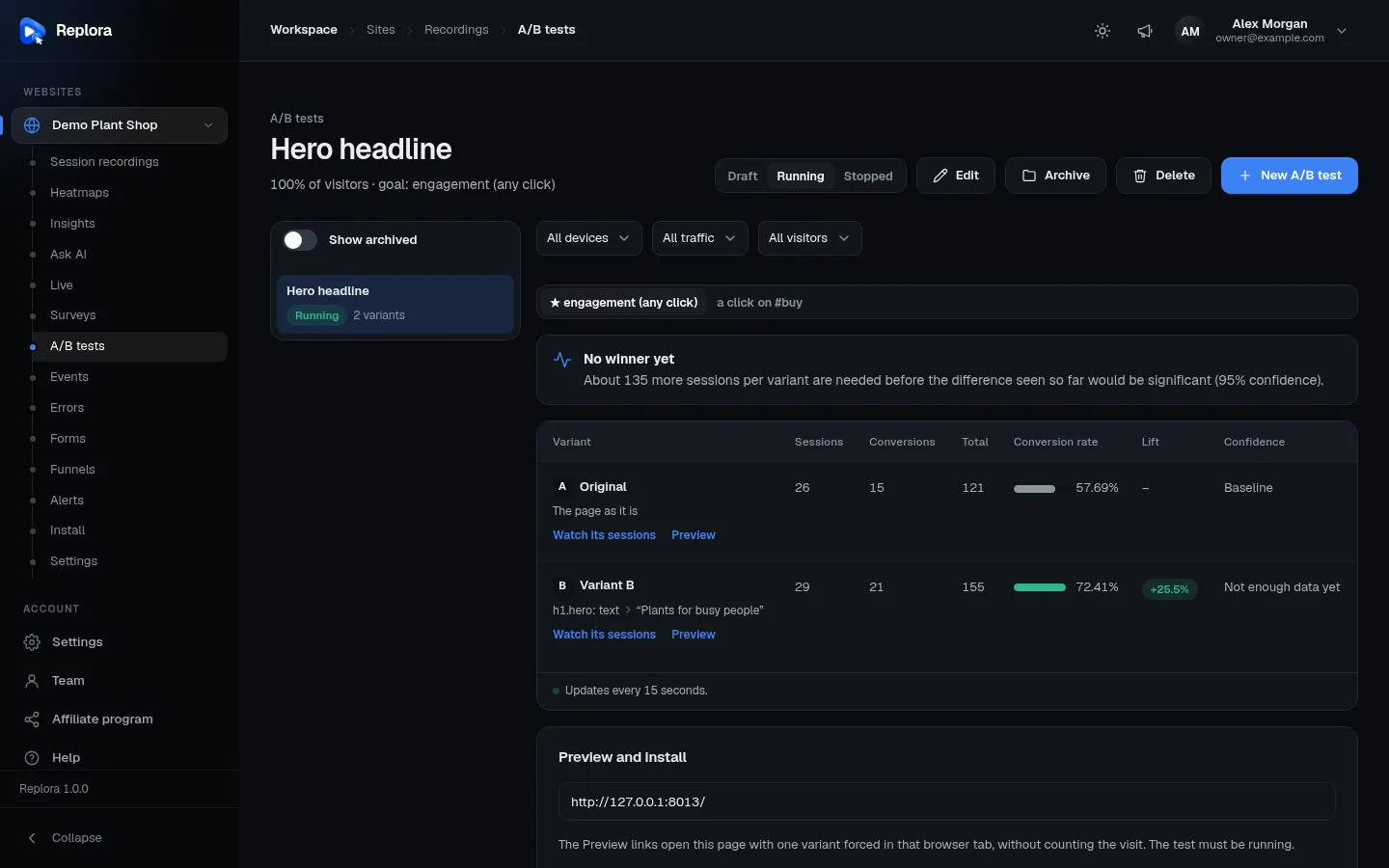
1. StatusDraft (visitors see the original), Running (the test is on) or Stopped (back to the original; results stay).
How an A/B test works
- The test runs on the pages you choose (Runs on), for the share of visitors you choose (Visitors in the test).
- Each visitor in the test is assigned one variant and always sees the same one (their browser remembers it). Visitors outside the share are remembered too, and keep seeing the original.
- The first variant, A · Original, is your page as it is. The others (B, C, D) apply their changes in the visitor’s browser as the page loads.
- Every goal is measured for every variant. The first goal (the primary goal) decides the winner.
- Results update every 15 seconds while the page is open.
Create an A/B test
- Click New A/B test.
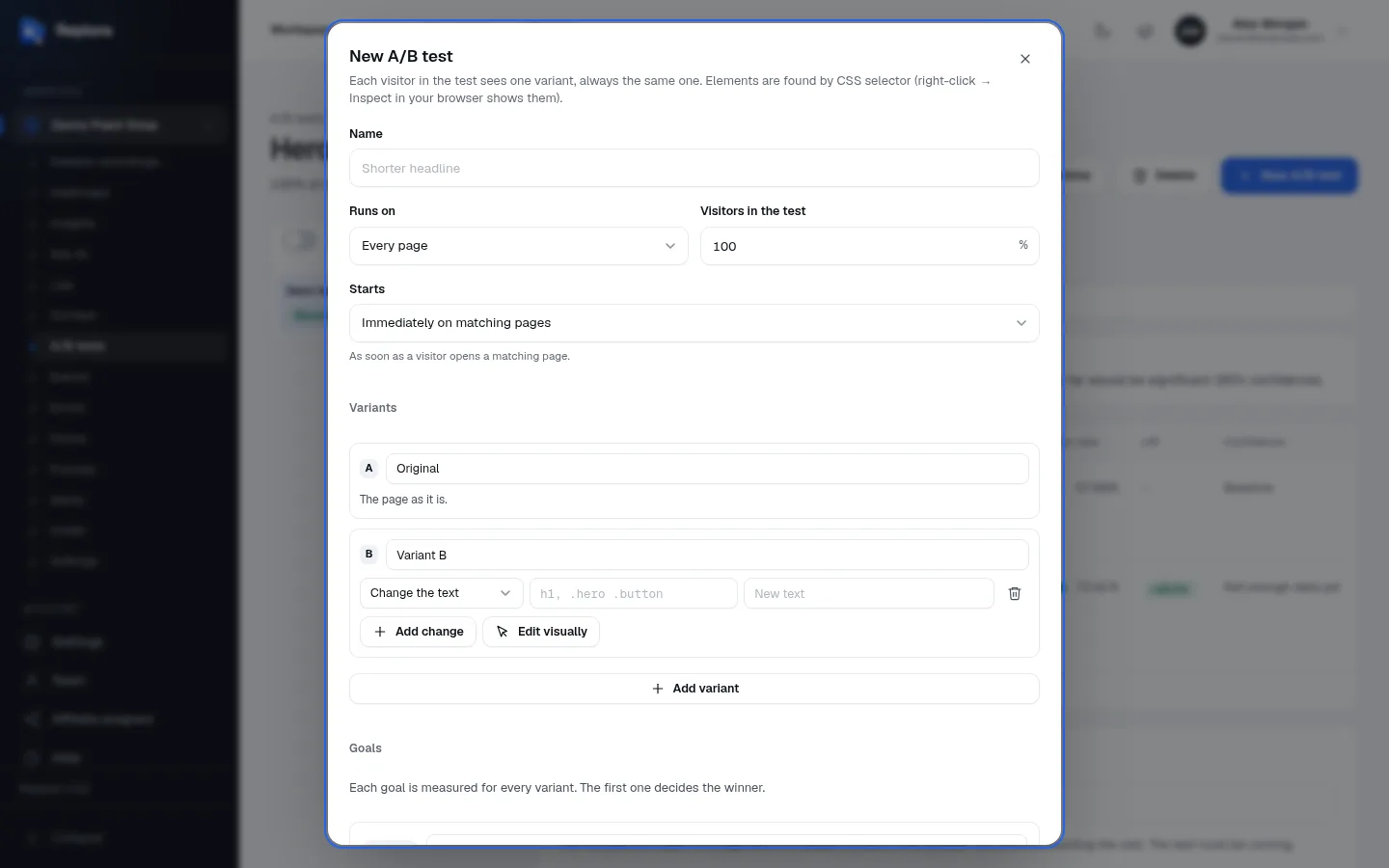
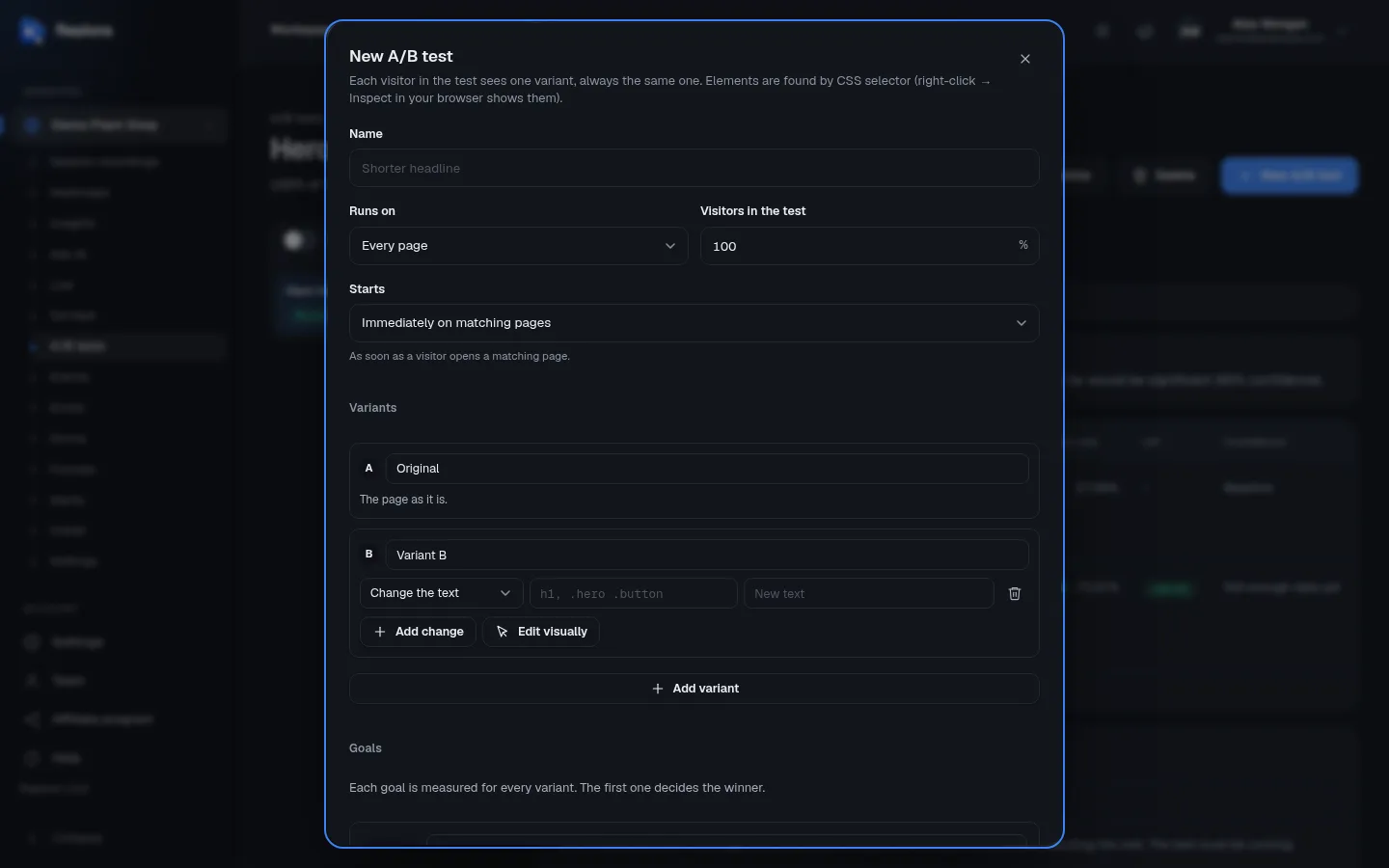
- Enter a Name (up to 120 characters), for example Shorter headline.
- Choose where it Runs on and, unless it is Every page, the Address.
- Set Visitors in the test (1 to 100%; default 100%). Visitors outside the share see the original and aren’t counted in the results.
- Choose when it Starts (see Activation).
- Under Variants, give Variant B its changes: click Edit visually to point and click on your page, or Add change to type one in. Add up to two more variants with Add variant.
- Under Goals, replace the starting goal (Engagement (any click)) with what success really means, for example Clicks on an element “Add to cart”. Add up to 5 goals.
- Click Create test. It is saved as a draft: visitors see the original.
- Check each variant with the Preview links, then click Start test.
If Create test stays greyed out, a line under the form says what is missing, for example Add a variant with at least one change (the original stays as it is).
Pages and traffic
| Setting | Choices | Notes |
|---|---|---|
| Runs on | Every page, Address contains, Address is, Address begins with, Address matches (* = anything), Address matches the regular expression, Address doesn’t match the regular expression | Regular expressions are for advanced patterns; Replora checks they are valid. |
| Address | The address or part of it, such as /pricing | Up to 500 characters. |
| Visitors in the test | 1 to 100 % | Default 100%. |
Activation
| Starts | When the variant is applied |
|---|---|
| Immediately on matching pages (default) | As soon as a visitor opens a matching page. |
| When the page’s code activates it | Only when your page calls __sr.push(['activateExperiment', ID]); with the test’s number (shown in the hint once the test is saved). Use it for pages where the part you test appears later: a popup, a step of a single-page checkout. See the JavaScript API. |
Variants
A test has 2 to 4 variants: A · Original (no changes) plus up to three more, named Variant B, Variant C, Variant D (rename them freely, up to 60 characters). Each variant can hold up to 20 changes.
Add variant asks what the new variant does:
| Choice | What it is |
|---|---|
| Edit the original page in the visual editor | Change texts, colours, images and layout, no code. The visual editor opens. |
| Redirect to another address | Visitors in this variant are sent to another page (split URL test). Enter a full https:// address. |
| Run custom variation code | JavaScript that changes the page. Only when the installation allows it, and only account managers may save it. |
Changes
Each change has an element (found by its CSS selector, such as h1 or .hero .button; right-click → Inspect in your browser shows them) and what to do with it:
| What to change | Value | Example |
|---|---|---|
| Change the text | New text | h1.hero → Plants for busy people |
| Hide | none | hide a distracting banner |
| Change the style | CSS declarations | color: #0a7; font-size: 20px |
| Set an attribute | the attribute’s name and value | href = /pricing; links must be http(s) or relative addresses. Event-handler and style attributes can’t be set this way. |
| Move it | before or after another element (its CSS selector) | move the reviews above the description |
| Send to another address | a full https://… address | split URL test |
| Run custom code | JavaScript | only when allowed (see above) |
The bin (Remove change) deletes a change. The variants’ texts can be up to 2,000 characters.
The visual editor
Edit visually opens your page with the variant’s changes, so you can point and click instead of typing selectors.
- The editor opens the Live site inside the dashboard (your tracking code helps it). If your site refuses to be shown inside another page, choose Open in a new window, or Use a recorded page to edit a recorded copy instead.
- Enter another Page address and click Open (or Load) to change the page you edit.
- Switch Mode to Interact to use the page normally (open a menu, go to a step), then back to Edit.
- Click an element on the page to change it. Then:
- New text and Change the text (each new line becomes a line break);
- Text colour, Background, Text size (px) and Apply the look;
- Link address / Image address with Change the link / Change the image;
- Move before… / Move after…, then click the other element;
- Hide;
- More: any CSS for any other style.
- Changes in this variant lists what you did; remove any of them. Undo and Redo step back and forth.
- Switch variants at the top with Variants, and click Done to return to the dialog.
Redirects aren’t shown in the visual editor.
After the test has run
Once a test has started, its variants can’t change (the results would mix two versions). Create a new test to try other changes. Goals that existed at the start can only be renamed; you can still add new goals at the end.
Goals
Each goal says what counts as a conversion. A session converts when the visitor reaches the goal after seeing the variant.
| Counts | Fields | A session converts when… |
|---|---|---|
| Clicks on an element | Text of what is clicked contains (such as Add to cart) or the element (CSS selector) (such as #buy) | the visitor clicks it. |
| Views of a page | Address match (contains, is, begins with, matches, regular expression…) and Page (such as /thanks) | the visitor opens that page. |
| A custom JavaScript event | Event name (such as signup); the hint shows the line your site sends | your site sends that custom event. |
| Engagement (any click) | none | the visitor clicks anywhere after seeing the variant. The starting goal of a new test. |
| A session tag | Tag and Value (optional) | the session gets that tag (with that value). |
- Goal name (optional): a short name for the goal (up to 60 characters).
- The first goal is marked Primary, the others Goal 2, Goal 3… Up to 5 goals.
Status
| Status | Visitors see | Results |
|---|---|---|
| Draft | the original. A notice offers Start test. | none yet |
| Running | their variant | collected |
| Stopped | the original page. Run it again restarts it. | kept |
Archive stops the test and moves it out of the list (switch on Show archived to see archived tests; Restore brings one back). Delete asks “Delete this A/B test?”: the test and its results are deleted; recordings stay.
Read the results
The verdict
| Verdict | Meaning |
|---|---|
| No winner yet | The difference isn’t significant yet. Replora says about how many more sessions per variant are needed (at 95% confidence), or that each variant needs at least 30 sessions and some conversions. Keep it running. |
| Variant is the winner | It converts n% better than the original, with c% confidence. You can stop the test and make the change on your site. |
| The original is the winner | Every variant converts worse than the original, with at least 95% confidence. Keep the page as it is. |
The results table
| Column | Meaning |
|---|---|
| Variant | Letter, name, its changes in short (The page as it is for the original), a Winner badge, Watch its sessions (the session list filtered to that variant) and Preview. |
| Sessions | Sessions that saw the variant. |
| Conversions | Sessions that reached the goal after seeing it. |
| Total | Every page view, click or event of the goal, also repeated ones. |
| Conversion rate | Conversions ÷ sessions, with a bar; the best one in green. |
| Lift | How much better (+) or worse (−) than the original, in percent. |
| Confidence | How sure Replora is that the difference is real: Baseline for the original, Not enough data yet, n% — keep it running, or n% — significant from 95%. |
Filter the results by device, traffic source or new/returning visitors, and switch goals with the goal tabs (★ marks the primary goal).
Declaring the winner
Replora doesn’t change your website by itself. When a variant wins, stop the test and make the change on your site (or ask your developer). Then archive the test to keep your list tidy.
Preview and install
| Part | What it does |
|---|---|
| Preview page | The address the Preview links open (your site’s address unless you change it; remembered in this browser). |
| Preview links | Open this page with one variant forced in that browser tab, without counting the visit. The test must be running. |
| Optional A/B loader + Copy | A two-line snippet for the top of your page’s <head>, before the tracking code. It hides the page for up to a second until the variant is applied, so visitors never see the original flash. |
Limits and who can do what
- 2 to 4 variants, up to 20 changes each, up to 5 goals.
- In the SaaS edition your plan sets how many A/B tests your account may have, and how many A/B test visitors per month. When this month’s visitors are used up, a notice says so and visitors see the original pages until next month.
- Managers and members create, edit, start, stop, archive and delete tests. Viewers see the results. Custom code variations can only be saved by account managers, and only when the installation allows them.
Tips
- Test one idea at a time. If B changes the headline and the button, you won’t know which one worked.
- Choose a goal close to the change. A new button text is best measured by clicks on that button; revenue goals need far more visitors.
- Wait for the verdict. Early numbers jump around; stopping as soon as B looks better often picks the wrong winner.
- Watch both variants. Watch its sessions shows how visitors actually react to the change.