
Appearance
Surveys
Surveys show a small card on your website that asks visitors one question at a time: an NPS score, a star rating, “did you find what you needed?”, or anything you like. The tracking code you already installed shows them, so there’s nothing else to add. Every answer is linked to the visitor’s recording: when someone gives you 2 out of 10, you can watch what happened to them.
Where to find it: in the sidebar, under your website, click Surveys (for example Demo Plant Shop › Surveys).
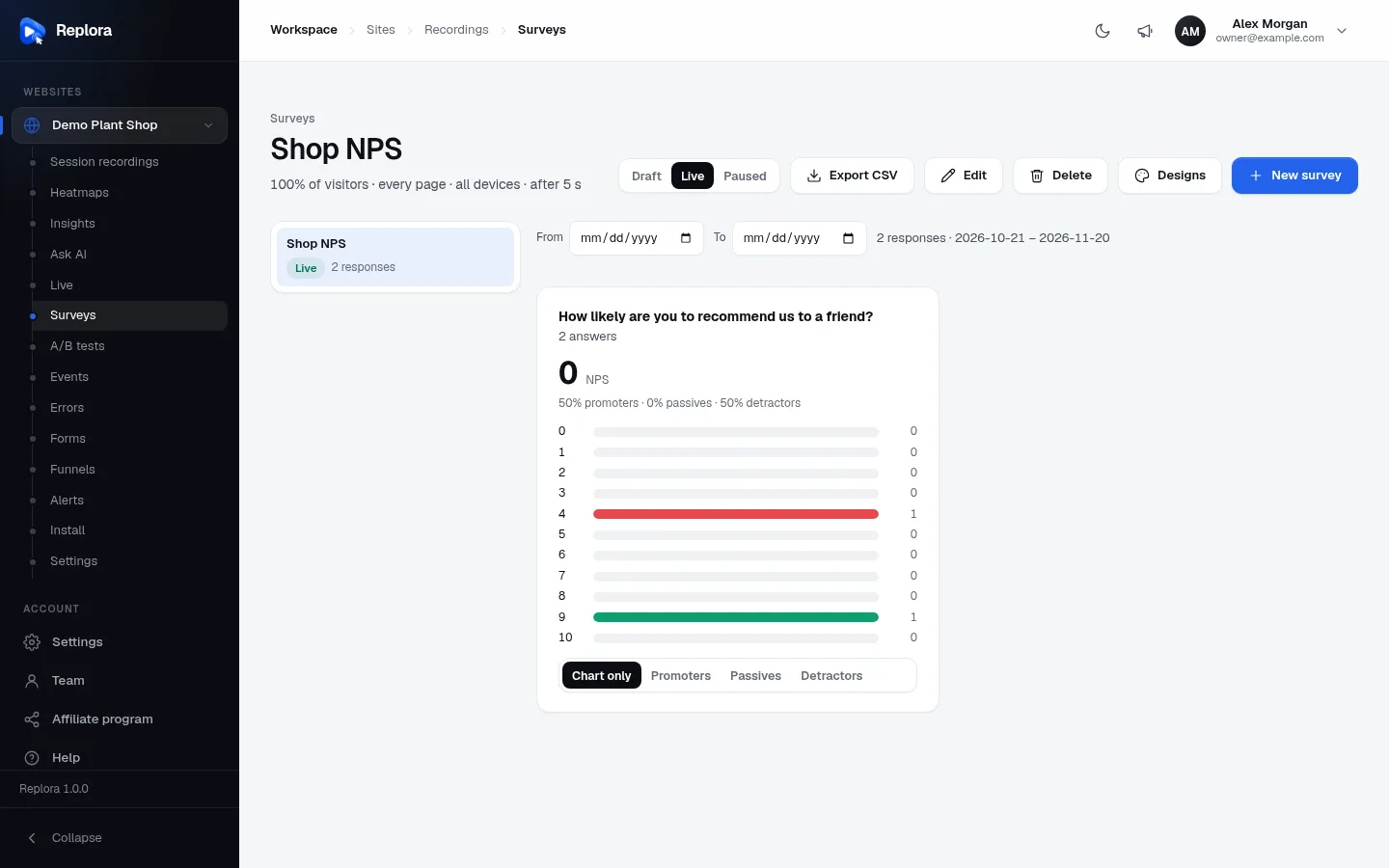
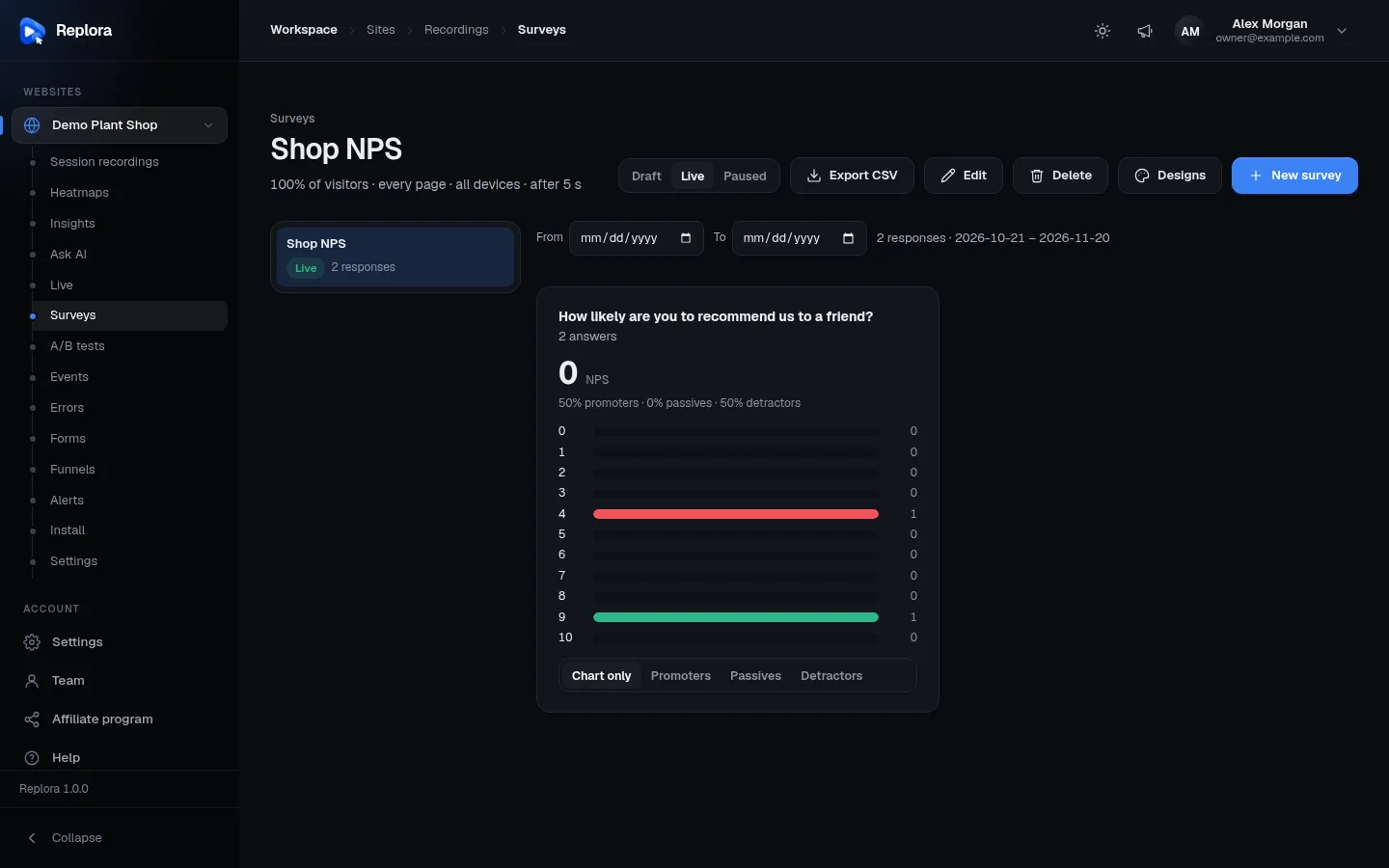
The surveys page
| Part | What it does |
|---|---|
| Subtitle | Who sees the survey, for example 100% of visitors · every page · all devices · after 5 s. |
| Draft / Live / Paused | The survey’s status (see Status). |
| Export CSV | Downloads every response of the chosen period as a spreadsheet file. |
| Edit | Opens the survey editor. |
| Delete | “Delete this survey?”: the survey and all its answers are deleted; recordings stay. |
| Designs | Opens the survey designs: prepared looks you can adjust. |
| New survey | Creates a survey. |
| List on the left | Your surveys, each with its status badge and number of responses. Click one to see its results. |
| From / To | The period of the results and the export. Empty: the last 30 days. Next to it: “n responses · from – to”. |
Create a survey
- Click New survey.
- Enter a Name (up to 120 characters) for yourself, for example Checkout feedback. Visitors don’t see it.
- On the Content tab, write your questions (a new survey starts with an NPS question, How likely are you to recommend us to a friend?).
- On the Appearance tab, choose the design, position and colour.
- On the Behavior tab, choose who sees it and when.
- Check the Live preview on the right: you can click through it, answers there aren’t saved.
- Click Create survey. The survey is saved as a draft: visitors don’t see it yet.
- Click Set live (or Live in the status switch) when you’re ready.
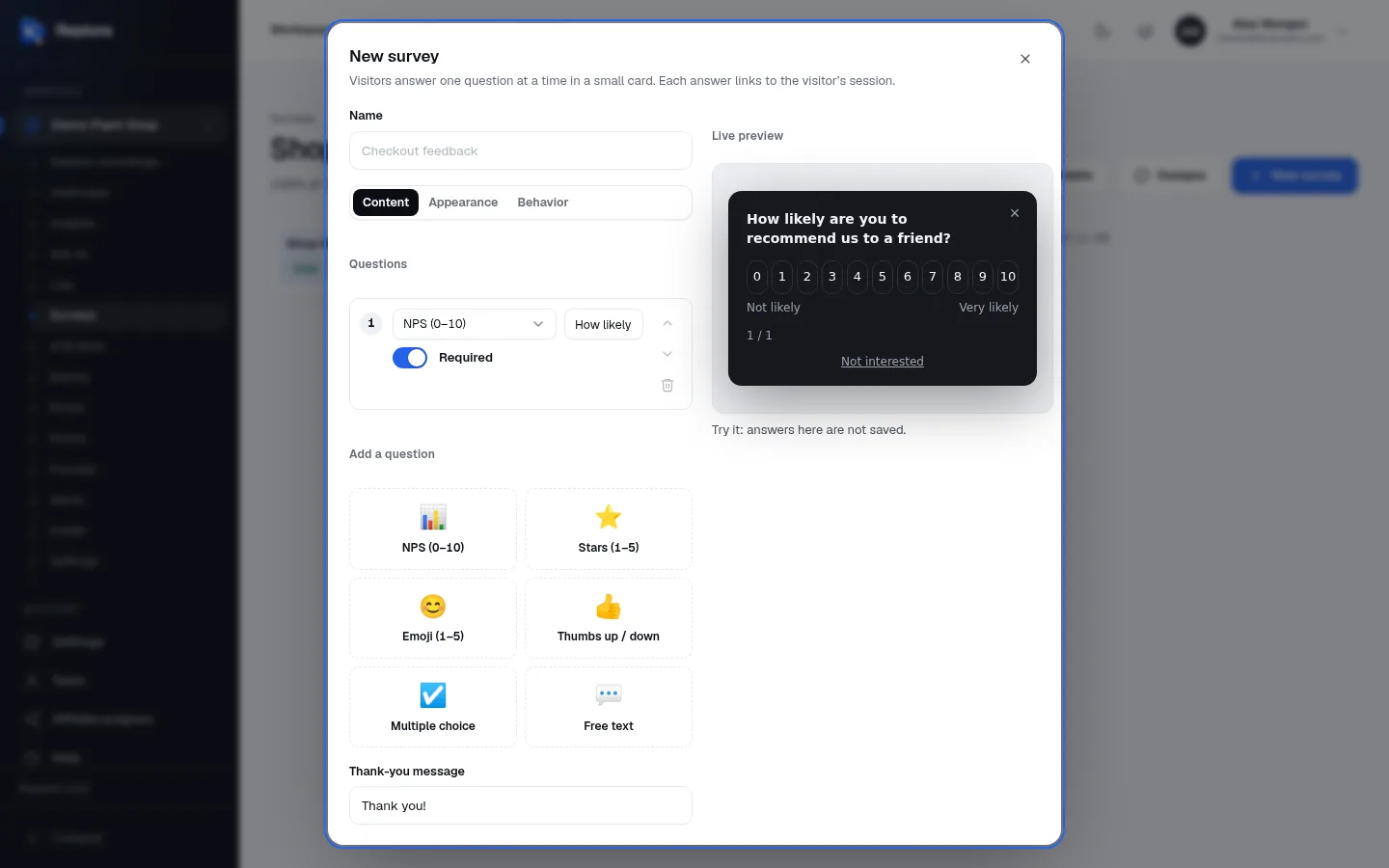
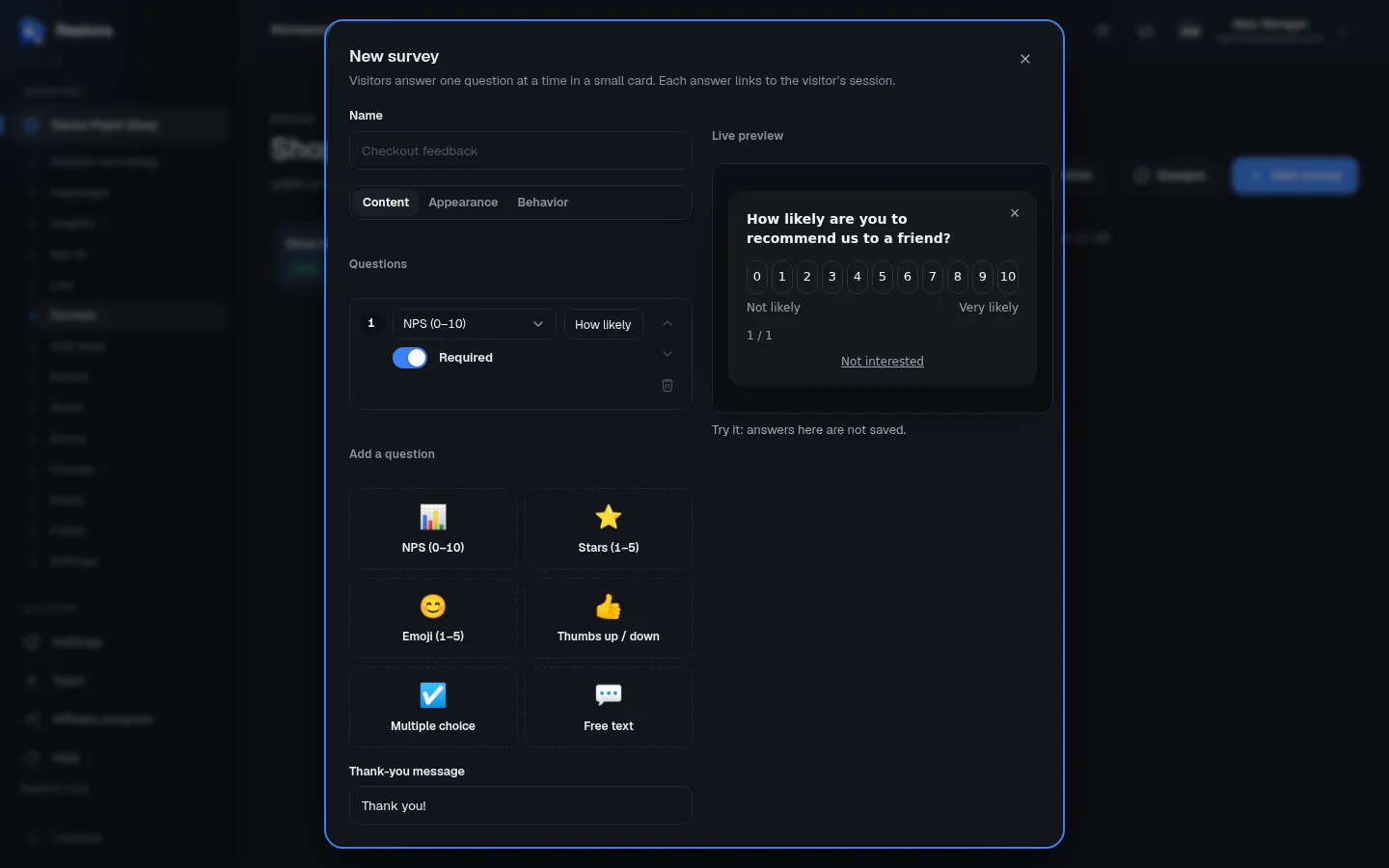
1. NameFor you and your team only: visitors never see it.
Content: questions
A survey has 1 to 10 questions. Visitors see them one at a time, with 1 / 3 style progress, a Next button (or Send on the last one) and Skip on questions that aren’t required.
Question types
| Type | Visitors answer with | Results show |
|---|---|---|
| NPS (0–10) | A score from 0 (Not likely) to 10 (Very likely). | The Net Promoter Score, the shares of promoters (9–10), passives (7–8) and detractors (0–6), and a bar per score. |
| Stars (1–5) | One to five stars. | The average of 5 and a bar per number of stars. |
| Emoji (1–5) | Five faces from unhappy to happy (counted 1 to 5). | The average of 5 and a bar per face. |
| Thumbs up / down | 👍 or 👎. | The share who said yes and both counts. |
| Multiple choice | One of your options. | A bar per option. |
| Free text | Their own words. | Every answer, searchable, each with a link to its session. |
Question settings
| Setting | What it does | Limits |
|---|---|---|
| Question type | Changes the type. The text and Required are kept. | |
| Your question | The question visitors read. | Up to 300 characters, required. |
| Options, one per line (2–8) | Multiple choice only: one option per line. | 2 to 8 different options, up to 80 characters each. |
| Required | On: the visitor must answer to go on. Off: a Skip button is shown. | |
| Always show / Only if answer n | From the second question on: show the question always, or only when an earlier answer meets a condition. | See below. |
| Move up / Move down | Changes the order. | |
| Remove question | Deletes the question. | A survey keeps at least one. |
| Thank-you message | Shown after the last answer. | Up to 200 characters. Empty: Thank you!. |
Show a question only after a certain answer
From the second question on, a condition row lets you ask follow-ups only to some visitors. For example, ask What could we do better? only when the NPS score is at most 6.
- In Always show, choose Only if answer n (an earlier question; free-text questions can’t be used).
- Choose the comparison: is, is not, and for scores (NPS, Stars, Emoji) also is at least and is at most.
- Choose the answer: a score, Thumbs up / Thumbs down, or one of the options.
If you move, remove or change the type of the question a condition looks at, conditions that no longer make sense are removed.
Appearance
| Setting | What it does | Default |
|---|---|---|
| Design | The look of the card: Site default (name) or one of your survey designs. Without any design: Classic. Picking a design also sets its colour. | Site default |
| Position | Where the card appears: Left, Centre or Right of the bottom of the screen. | Right |
| Colour | The accent colour of buttons and highlights, as a colour picker or a hex code such as #e5484d. | The design’s suggested colour (red #e5484d without designs) |
| Show a tab that opens the survey, instead of opening it by itself | The launcher: a small tab with an icon and a label that visitors click to open the survey, instead of the survey opening on its own. | Off |
| Icon | The launcher’s icon: 💬 ⭐ ❤️ 🙂 📣. | 💬 |
| Label | The launcher’s text. | Feedback (up to 40 characters) |
Behavior: who sees it and when
Who sees it
| Setting | Choices | Default |
|---|---|---|
| Pages | Every page, Address contains, Address is, Address begins with, Address matches (* = anything) | Every page |
| Address | The address or part of it, such as /checkout (shown unless Every page; up to 500 characters). | |
| Devices | All devices, Desktop, Tablet, Mobile | All devices |
| Share of visitors | The percentage of visitors who may see it, 1 to 100. Use a lower share to ask fewer people on a busy site. | 100% |
When it shows
| Setting | What it does | Limits / default |
|---|---|---|
| Shows: After some time on the page | Opens after the visitor has been on a matching page for Show after seconds. | 0 to 600 seconds; default 5 |
| Shows: When your site fires an event | Opens when your site sends this custom event, for example right after a purchase. Enter the Event name; the hint shows the line your developer adds, such as __sr.push(['event', 'completed_purchase']);. | Up to 64 characters |
| From the visitor’s session number | 1 = from the first visit; 2 = only returning visitors from their second visit on. | 1 to 100; default 1 |
| Answered at most … times per visitor | Above 1, it can show again in a later visit after being answered. | 1 to 100; default 1 |
A visitor who answers or closes a survey isn’t asked again in the same browser (unless Answered at most is above 1). Not interested under the card closes it for good for that visitor. Visitors left out by the share of visitors stay left out.
One survey at a time
If several live surveys could show on the same page, the visitor sees only the first one that fits. Keep their pages or devices apart.
Status
| Status | Meaning |
|---|---|
| Draft | Visitors don’t see it. New surveys start as drafts; a notice offers Set live. |
| Live | Shown to the visitors and pages you chose. |
| Paused | Not shown any more; its answers stay. Set it Live again whenever you like. |
Results
Each question has a card with its text and “n answers”:
- NPS: the score in large (from −100 to 100), the shares of promoters, passives and detractors, and a bar per score (green 9–10, amber 7–8, red 0–6). The Chart only / Promoters / Passives / Detractors switch lists the responses of one group, each with the visitor’s longer text answers to other questions and Watch the session.
- Stars and Emoji: the average of 5 and a bar per value.
- Thumbs up / down: the share who said yes and both bars.
- Multiple choice: a bar per option.
- Free text: every answer with Watch the session and the date, and Search the answers to find words.
Watch the session opens the visitor’s replay at the moment they answered.
Export the responses
Export CSV downloads every response of the chosen period: one row per response with Time, Page, Session and a column per question. Open it in Excel, Numbers or Google Sheets.
Limits and who can do what
- 1 to 10 questions per survey; names up to 120 characters; questions up to 300; options 2 to 8 of up to 80 characters.
- In the SaaS edition your plan sets how many surveys your account may have (all websites together): “Your plan allows n surveys. Upgrade the plan or delete a survey first.”
- Managers and members create, edit, delete and set surveys live. Viewers see results, export them and open the designs, but can’t change anything.
Tips
- Ask one thing first. Short surveys get far more answers; add a follow-up only for low scores.
- Ask at the right moment. Use When your site fires an event to ask about checkout right after a purchase, not on the home page.
- Read the detractors, then watch them. The replay usually shows what the score doesn’t explain.