
Appearance
Team & roles
Your account can have several people. Each person has their own sign-in and a role that decides what they may do: managers run everything, members do the daily work, viewers only look. Members and viewers can also be limited to some of the account’s websites, which is handy for agencies and freelancers.
Where to find it: in the sidebar, Account › Team.
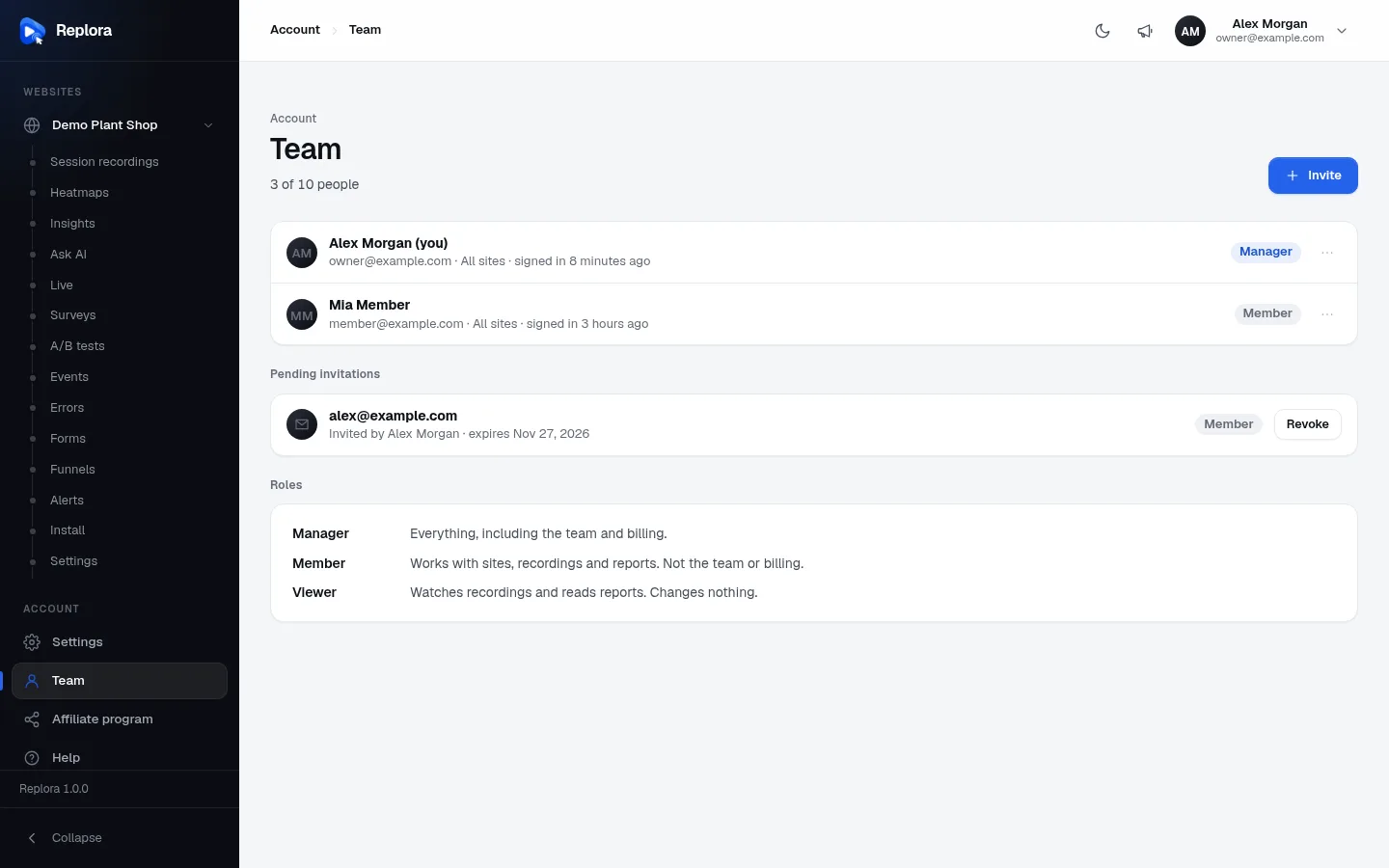
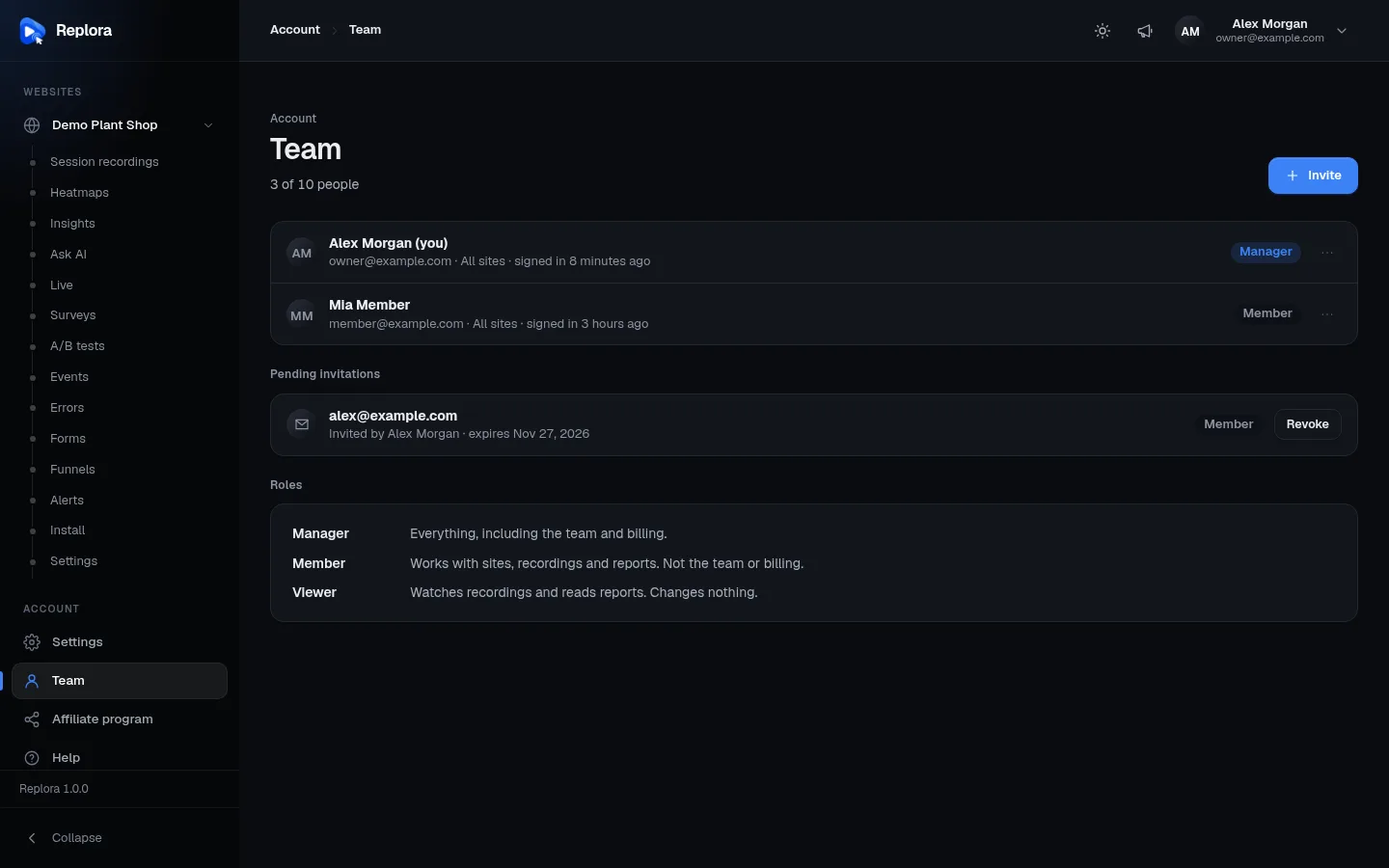
The team page
| Part | What it shows / does |
|---|---|
| Subtitle | How many people the account has, and in the SaaS edition how many your plan allows (3 of 10 people). Pending invitations count. |
| Invite | Invites someone (managers only). |
| People | Each person’s name ((you) for yourself), email, the websites they see (All sites or the names), when they last signed in, a Suspended badge when an administrator suspended them, and their role. |
| ⋯ menu | Change access and Remove from the account (managers only; you can’t remove yourself). |
| Pending invitations | Invitations not accepted yet: the address, who invited them, when the link expires, the role, and Revoke. Shown to managers. |
| Roles | A reminder of what each role may do. |
Everyone in the account can see the team; only managers can change it.
Roles
| Role | In short | May | May not |
|---|---|---|---|
| Manager | Everything, including the team and billing. | Everything members may do, plus: invite, change and remove people; the plan and payments; account-wide settings (visitor privacy, HubSpot, the Data Processing Agreement); switching the Ask AI site summary on and off; saving custom code in A/B tests (when allowed). Always sees every website. | — |
| Member | Works with sites, recordings and reports. Not the team or billing. | Add and set up websites; watch, star, tag, note, share and delete recordings; create and change funnels, alerts, surveys, designs and A/B tests; resolve errors; delete form data; ask AI. | Change the team, the plan or account-wide settings. |
| Viewer | Watches recordings and reads reports. Changes nothing. | Watch recordings and open every report; export lists; use Ask AI and the AI search (their own conversations); manage their own profile, password, two-factor sign-in and API tokens; their own support tickets and affiliate page. | Change anything in the account: buttons such as New, Edit and Delete are hidden, and a notice says You have view-only access. |
Members and viewers see either all websites of the account (including ones added later) or only the websites you pick. Managers always see all of them.
Every account keeps a manager
An account always has at least one manager: the last manager can’t become a member or viewer, and can’t delete their own account while others are in it.
Invite someone
- Click Invite.
- Enter their Email. It can’t already have a Replora account or a pending invitation.
- Choose the Role: Manager, Member (the default) or Viewer.
- For members and viewers, choose the Sites: leave All sites (Including sites added later.) ticked, or untick it and tick the websites they may see (at least one).
- Click Send invitation.
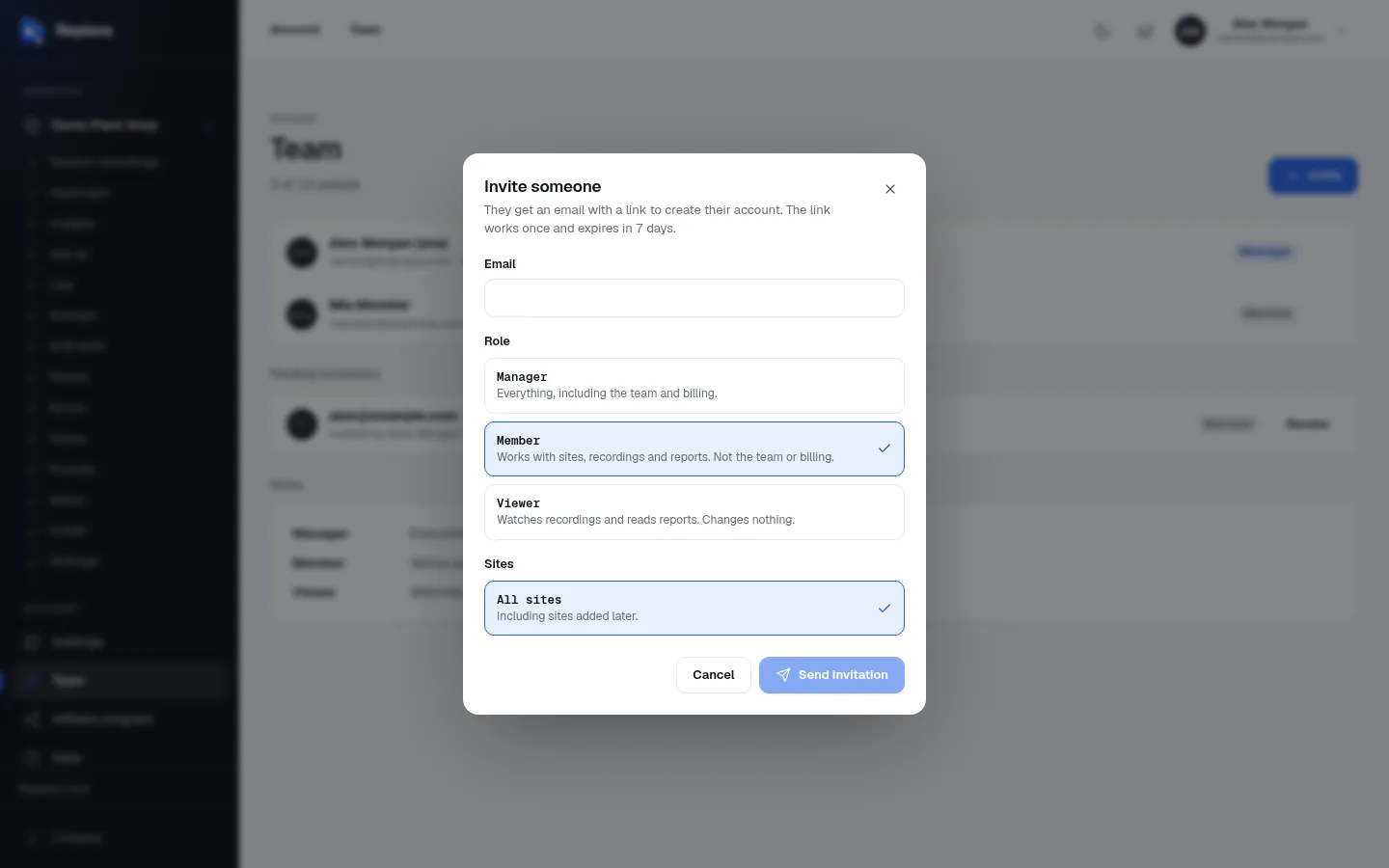
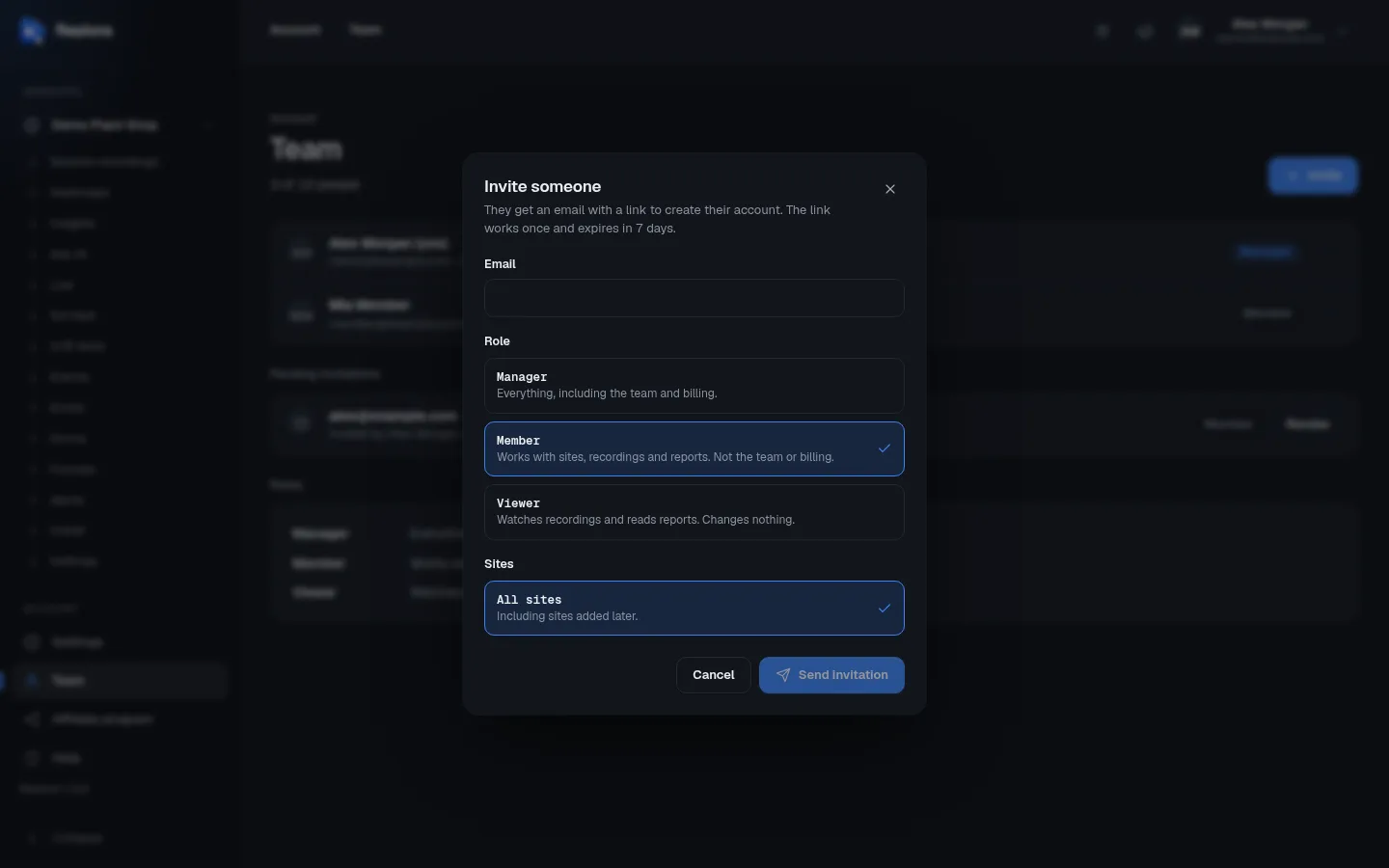
They get an email with a link to create their account. The link works once and expires in 7 days. Until they accept, the invitation is listed under Pending invitations. To withdraw it, click Revoke: the link stops working.
In the SaaS edition your plan sets how many people your account may have, pending invitations included: Your plan allows n people in the account. Remove someone or change your plan.
Change someone’s access
- Open the ⋯ menu next to the person and choose Change access.
- Pick another Role and, for members and viewers, other Sites.
- Click Save.
The change applies at once.
Remove someone
- Open the ⋯ menu and choose Remove from the account.
- Confirm with Remove.
They can’t sign in any more; their API tokens stop working. The account’s sites and recordings stay.
Tips
- Give the least access that works. Support agents usually need Viewer; people who build funnels and surveys need Member.
- Agencies: invite each client as a viewer limited to their own website.
- Two managers avoid being locked out when one leaves the company.