
Appearance
Watching a replay
A replay shows a visit exactly as the visitor saw it: the pages, the mouse, every click and scroll, what changed on the screen. It isn’t a video: Replora rebuilds the real page in the player, so it stays sharp at any size. Beside the player, tabs list everything that happened, and clicking any line jumps the replay to that moment.
Where: on a website’s Session recordings page, click Play on a row, or the visitor’s name or time.
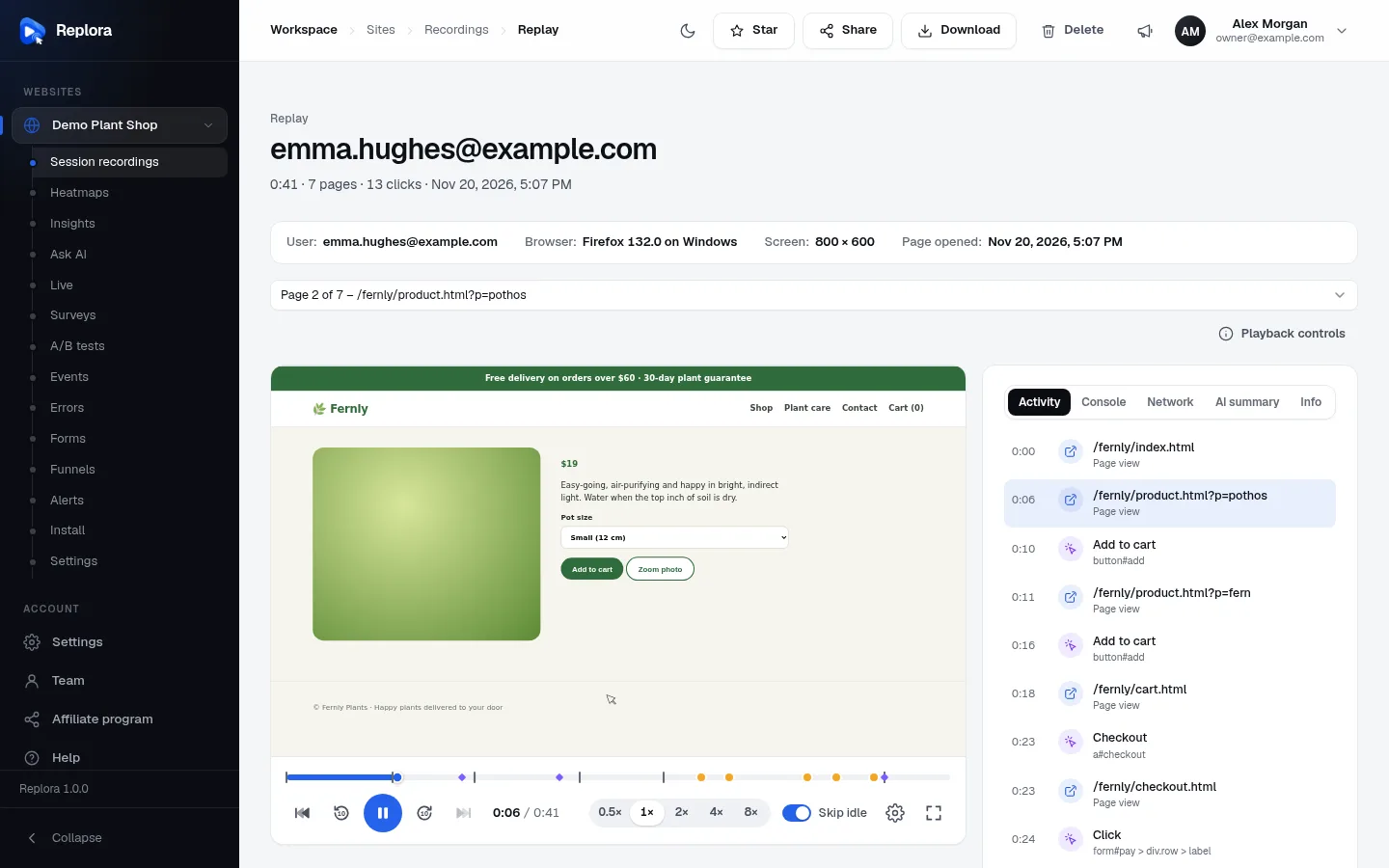
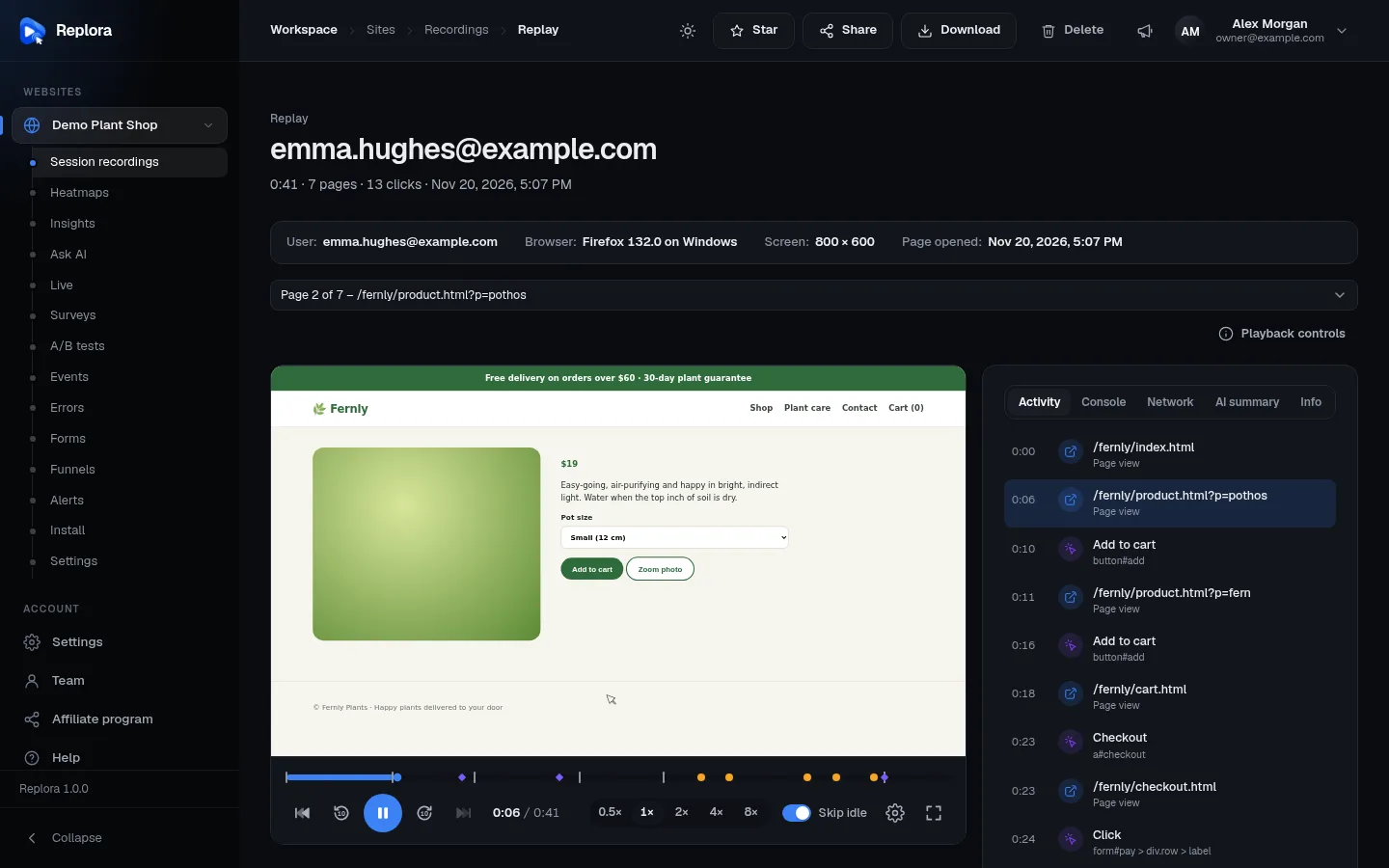
1. Star, Share, Download, DeleteStar the session, create a share link, download it as one HTML file that replays offline, or delete it.
The page header
The title is the visitor’s identity if your site identifies visitors, otherwise Session from and the date. Under it: the duration, the number of pages and clicks (and the date, when the title is an identity).
The buttons at the top right:
| Button | What it does | Who |
|---|---|---|
| Star / Starred | Stars or unstars the session. Starred sessions are easy to find again with Starred only. | Managers and members |
| Share | Creates a link anyone can open without an account. See Share, export & notes. | Managers and members |
| Download | Downloads the session as one HTML file that replays offline, without the visitor’s IP address and identity. Only for sessions that can be replayed, and if your plan includes downloads. | Everyone |
| Delete | Deletes the recording after you confirm (Delete this recording?). It is deleted for good. | Managers and members |
The facts strip
| Fact | What it shows |
|---|---|
| User | The visitor’s identity, or their IP address, or Anonymous visitor. |
| Browser | Browser, version and system, e.g. Firefox 132.0 on Windows. Hover for the full browser description. |
| Screen | The visitor’s screen size in pixels. |
| Page opened | When the page you are watching now was opened. It changes as the replay moves to another page. |
The page picker
When the visit has more than one page, a menu shows Page 2 of 7 – /product.html?p=pothos: the page playing now. Open it and choose another page to jump to its start.
Playback controls (on the right, under the picker) opens the playback help.
If you started from Play all in the session list, the bar also shows Session 3 of 25 and a Next session button (or Last one). At the end of a session the next one starts by itself.
The player
The middle of the page is the visitor’s page, rebuilt at the visitor’s window size and scaled to fit. You see the mouse pointer, clicks, scrolling, menus opening, content loading and what changed on the page. Everything typed is masked unless your website settings allow a field.
Live sessions. If the visitor is still on the site, a Live badge shows on the player and the replay keeps following them: when it catches up, it waits and plays on as new activity arrives.
When a replay can’t play, the player says why:
| Message | Meaning |
|---|---|
| This visit was counted (in heatmaps, funnels and reports) without a replay: this month’s session replays were used up when it started. | Your plan’s monthly replays were used up. |
| This recording has no page snapshot yet. It may still be processing: try again in a few seconds. | The session has just started; reload in a moment. |
| This visit can’t be replayed: its start (the snapshot of the page) never reached the server… | The beginning of the visit was lost, for example because the server was unreachable. |
| This page draws on a canvas (a chart, map or game) that wasn’t recorded in this visit, so it shows empty. | Turn on Record canvas drawings in the website settings; later visits include it. |
Images or styles missing?
If replays look unstyled or images are missing, the files may sit behind a login or on a local address the player can’t reach. Use Load images and styles from another address in replays in the website settings.
The timeline
The bar under the player is the whole session from left to right. The blue part has been played.
| On the timeline | Meaning |
|---|---|
| Grey tick | A new page (the label says Page: /cart.html). |
| Red dot | A problem: a rage click or a JavaScript error. |
| Orange dot | A dead click. |
| Purple diamond | A custom event your site reported. |
| Striped stretch | Idle time: 10 seconds or more without activity. |
Hover the timeline to see the time under the pointer; hover a marker to see what it is. Click or drag to jump; click a marker to jump to just before it (one second earlier, so you see what led up to it).
Playback controls and shortcuts
The control bar under the timeline, from left to right:
| Control | What it does |
|---|---|
| Previous activity | Jumps back to the previous stretch of activity, over idle time. |
| Back 10 seconds | Jumps 10 seconds back. |
| Play / Pause | Plays or pauses. At the end, it plays again from the start. |
| Forward 10 seconds | Jumps 10 seconds forward. |
| Next activity | Skips to the next stretch of activity. |
| Time | Where you are and the total length, e.g. 0:06 / 0:41. |
| Speed | 0.5×, 1×, 2×, 4× or 8×. |
| Skip idle | Fast-forwards through periods without activity. On by default; remembered in this browser. |
| ⚙ Playback settings | Opens the playback help (below). |
| Fullscreen | The player and its controls fill the screen. Press Esc to leave. |
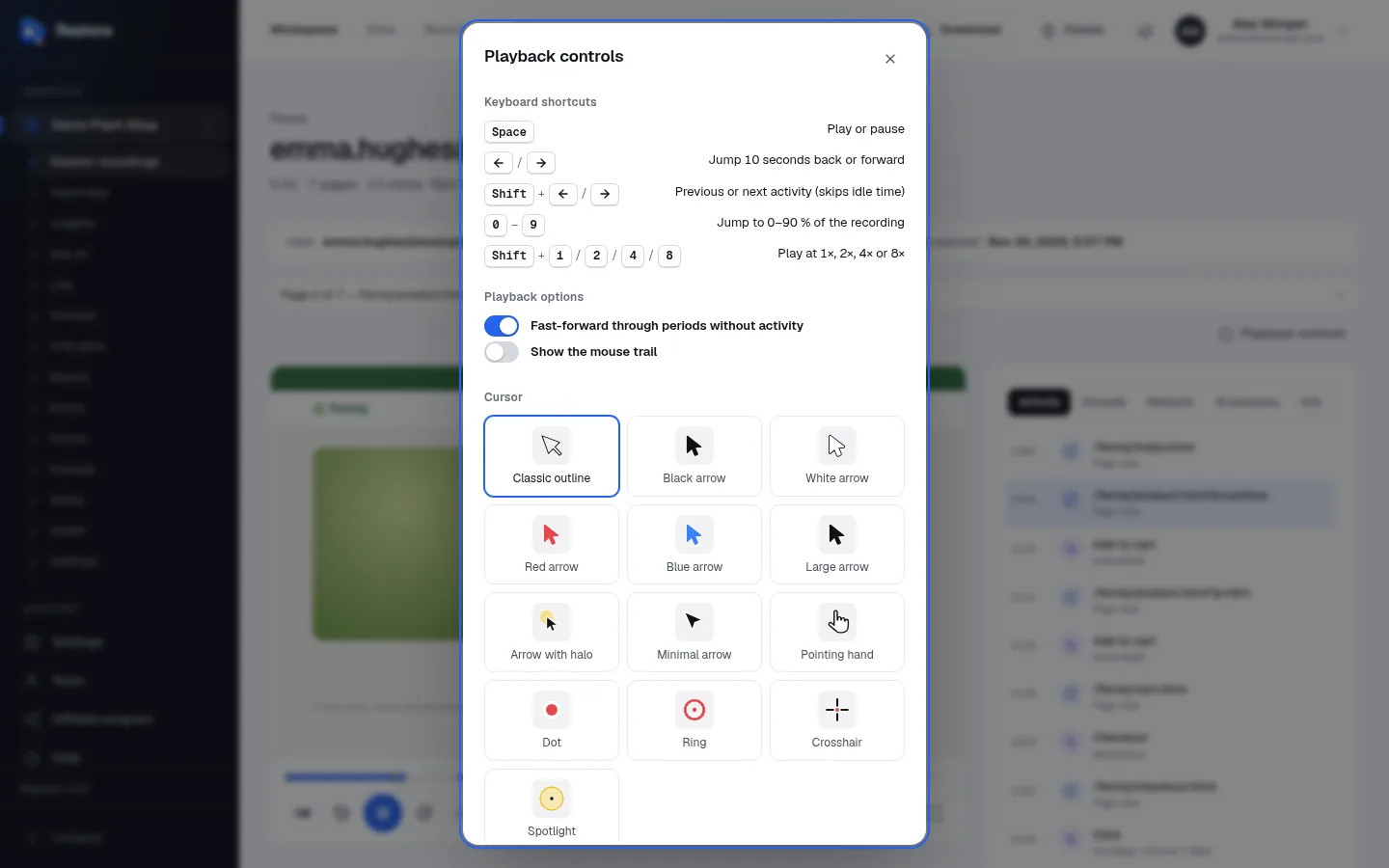
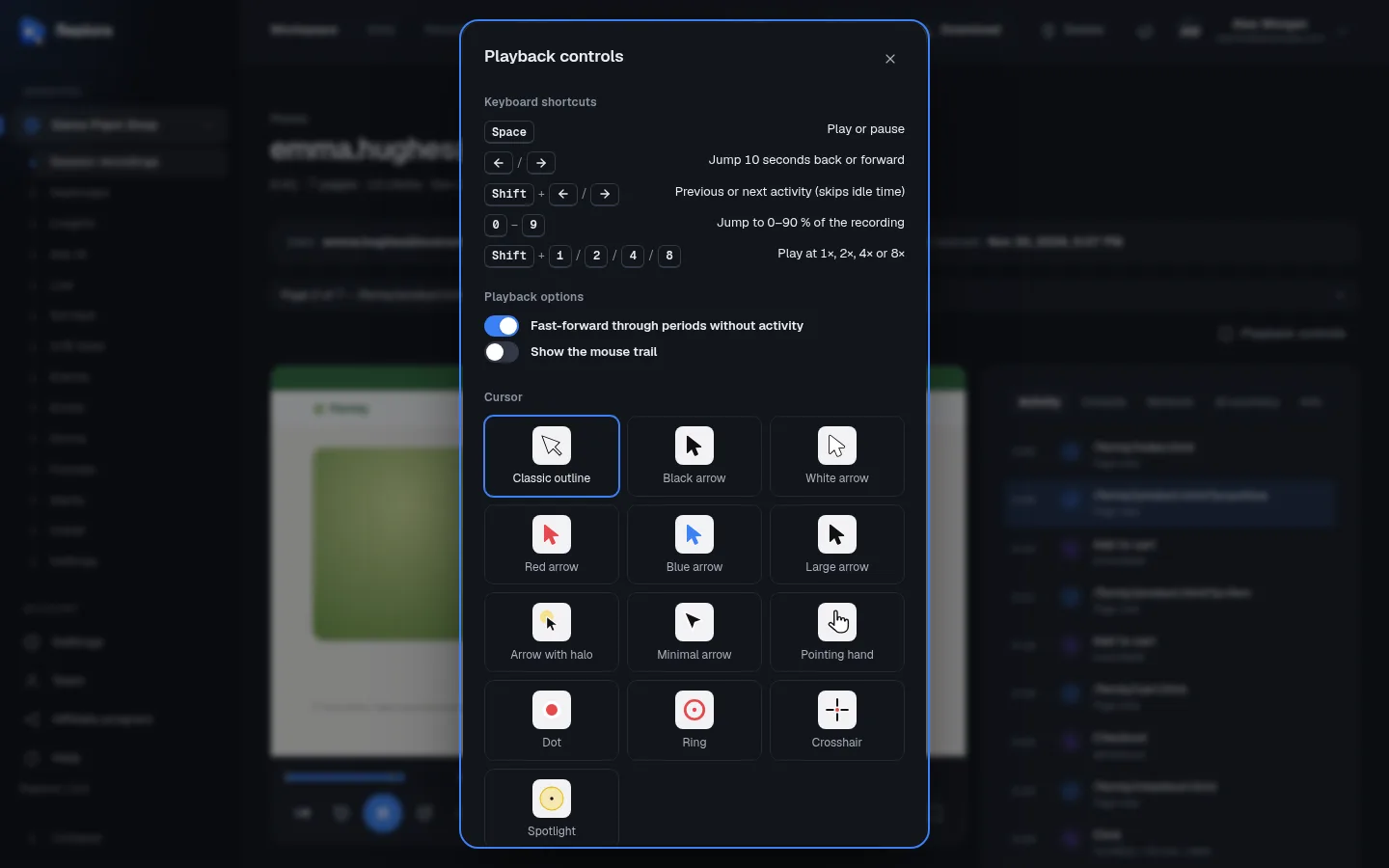
The Playback controls dialog (from the link above the player or the gear) has three parts.
Keyboard shortcuts
| Key | What it does |
|---|---|
| Space | Play or pause |
| ← / → | Jump 10 seconds back or forward |
| Shift + ← / → | Previous or next activity (skips idle time) |
| 0 – 9 | Jump to 0–90 % of the recording (5 = the middle) |
| Shift + 1 / 2 / 4 / 8 | Play at 1×, 2×, 4× or 8× |
Shortcuts don’t work while you are typing in a box (a note, a tag, a search).
Playback options
| Option | What it does |
|---|---|
| Fast-forward through periods without activity | The same as Skip idle. |
| Show the mouse trail | Draws a fading line behind the pointer, so you can follow quick movements. |
Cursor
How the visitor’s mouse pointer is drawn: Classic outline, Black arrow, White arrow, Red arrow, Blue arrow, Large arrow, Arrow with halo, Minimal arrow, Pointing hand, Dot, Ring, Crosshair or Spotlight. Pick one that stands out on your website’s colours. Your choices are remembered in this browser.
The tabs
The panel beside the player has up to five tabs. Lines in Activity, Console and Network show the time since the start of the session; click a line to jump the replay there. The line being played is highlighted.
Activity
Everything the visitor did, in order:
| Line | Meaning |
|---|---|
| Page address · Page view | The visitor opened this page. |
| Button or link text · element | A click, with what was clicked (e.g. Add to cart, button#add). |
| Rage click: … · N clicks in a second | Repeated fast clicks on the same spot. |
| Dead click: … · Nothing happened after the click | A click with no effect. |
| Error message · source | A JavaScript error. |
| METHOD failed (status) · address | A failed request, e.g. POST failed (500) or (no answer). |
With rage clicks in the session, a hint under the player reminds you: Rage clicks are marked in the Activity tab: click one to jump there.
Console
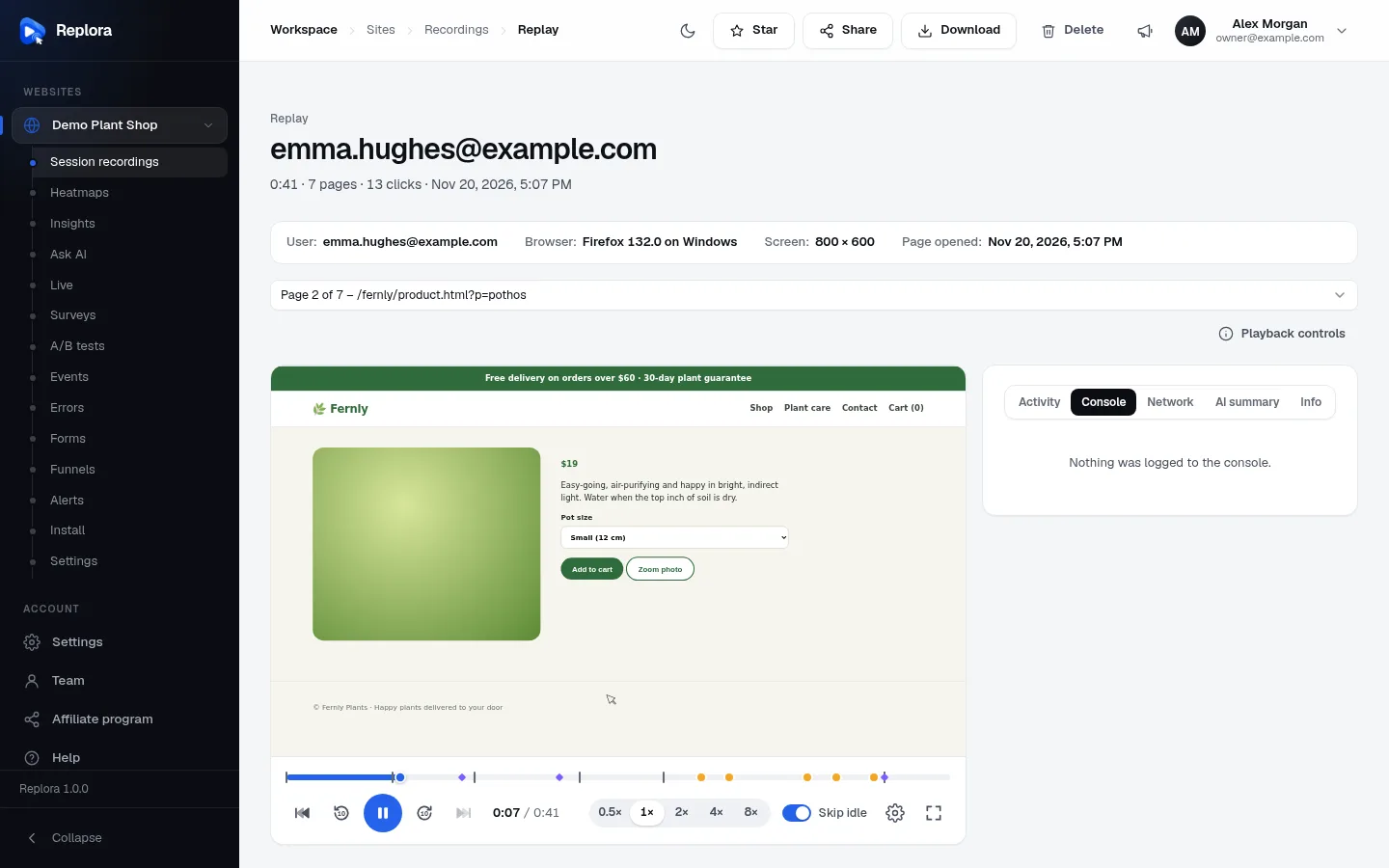
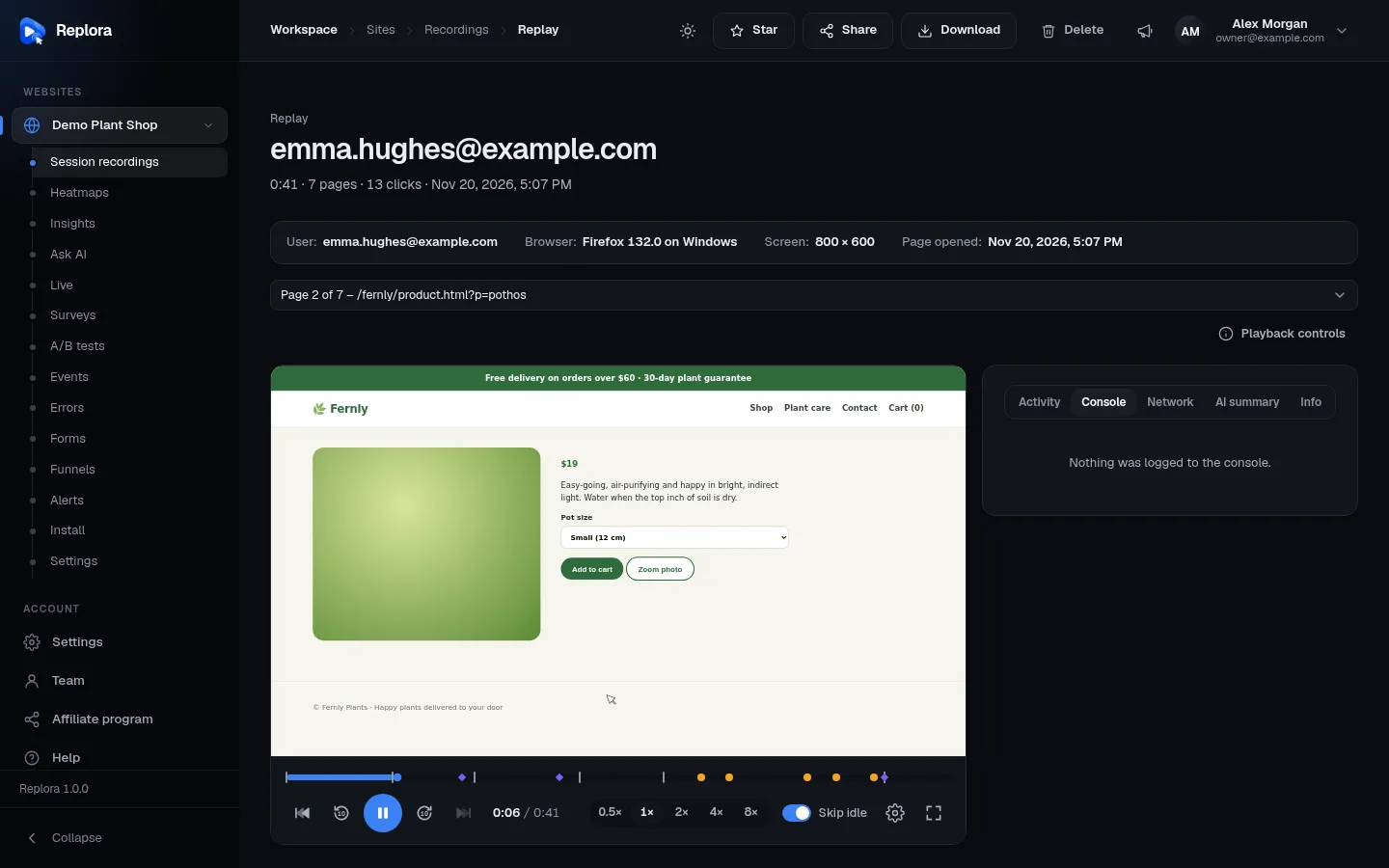
What the page’s code wrote to the browser console, as developers see it: logs, warnings (yellow) and errors (red), plus uncaught errors with their file and line. The tab’s label counts the errors, e.g. Console (2). Send a developer the session link and the time: they will find the cause faster.
Network
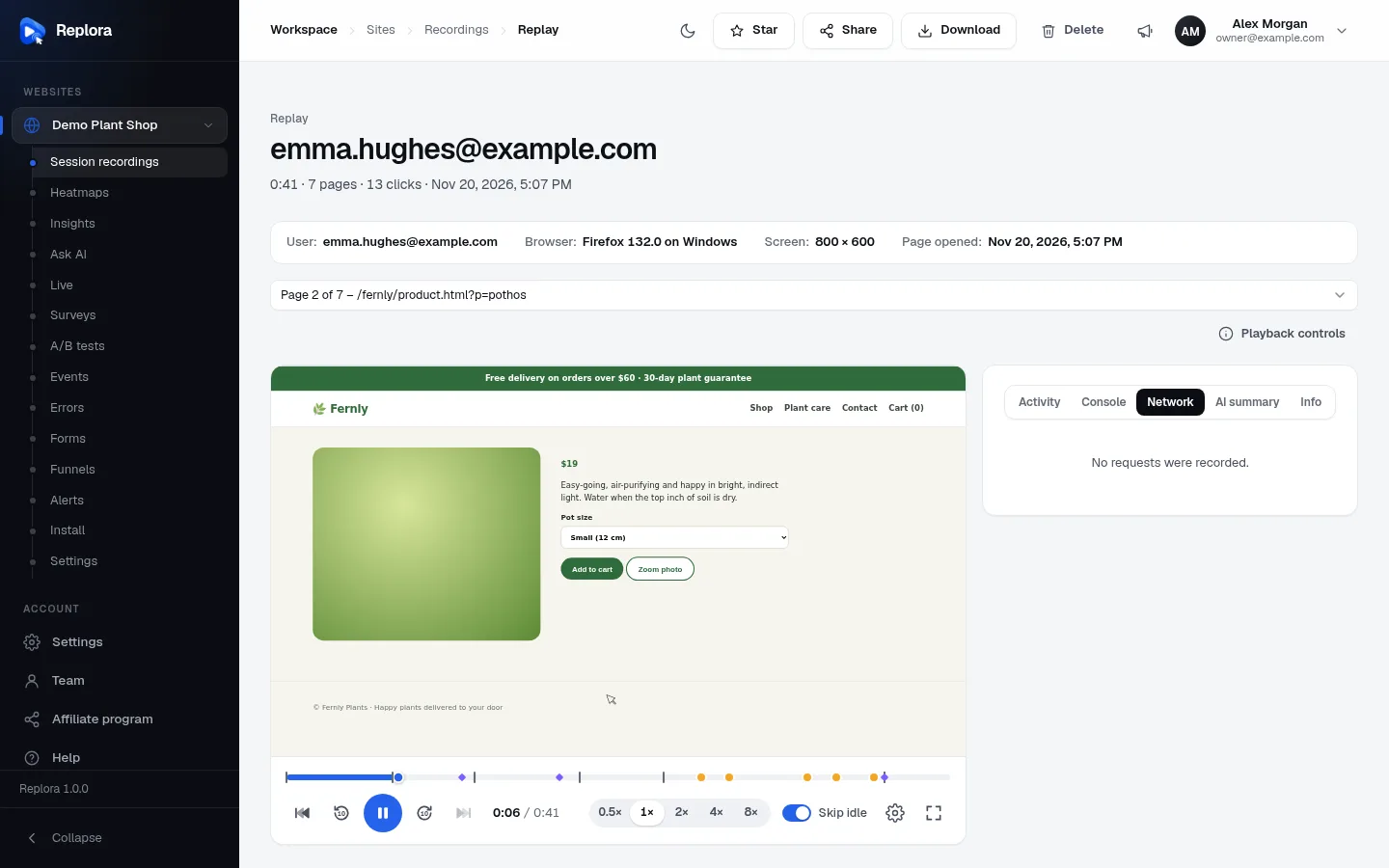
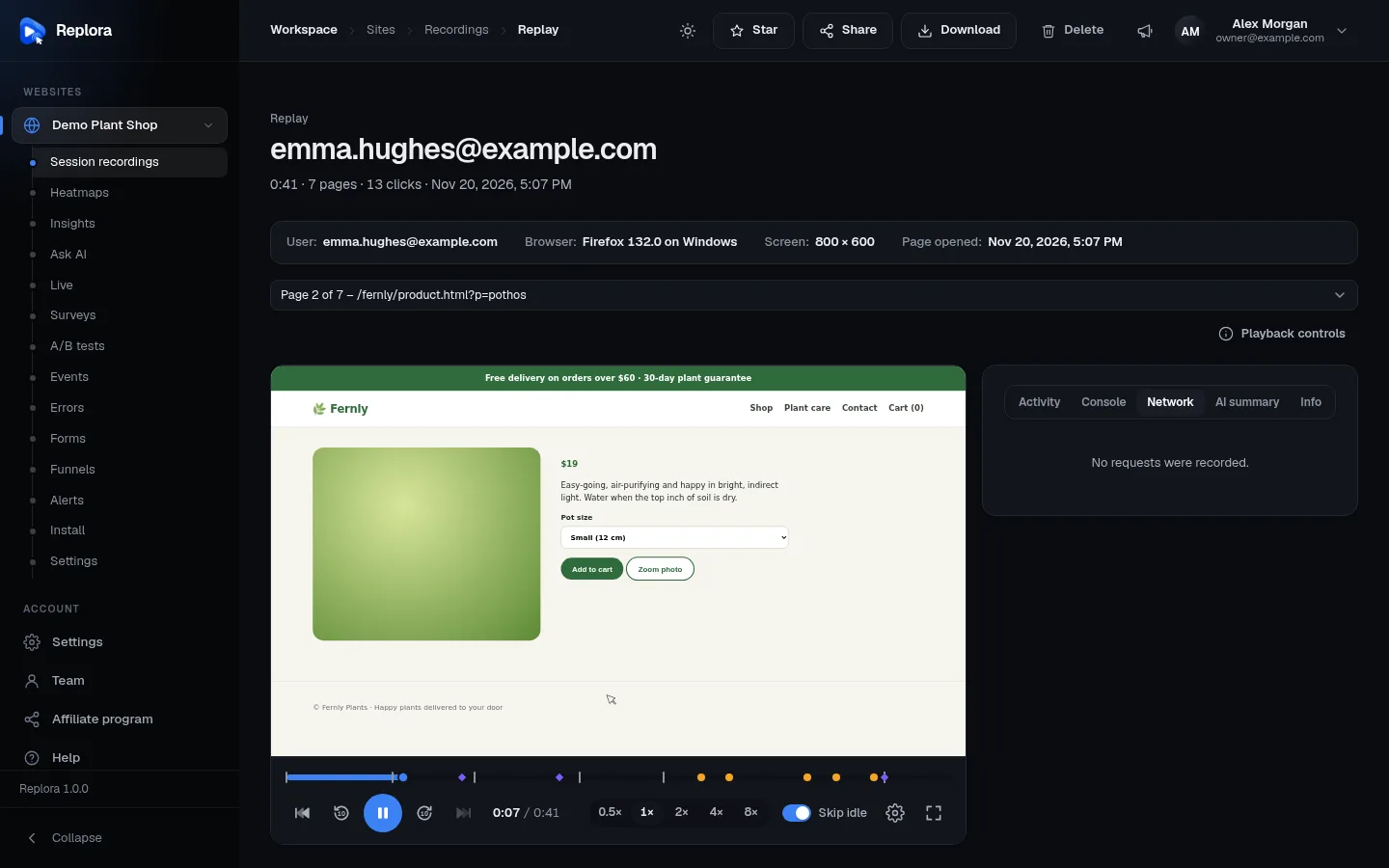
The requests the page made: method and address, then the status, the time it took and the size. Failed requests are red, Slow ones (3 seconds or more) are yellow; the tab’s label counts both, e.g. Network (3). When Record network request details is on in the website settings, Request details opens the Request body and the Response (secrets replaced by ***).
AI summary
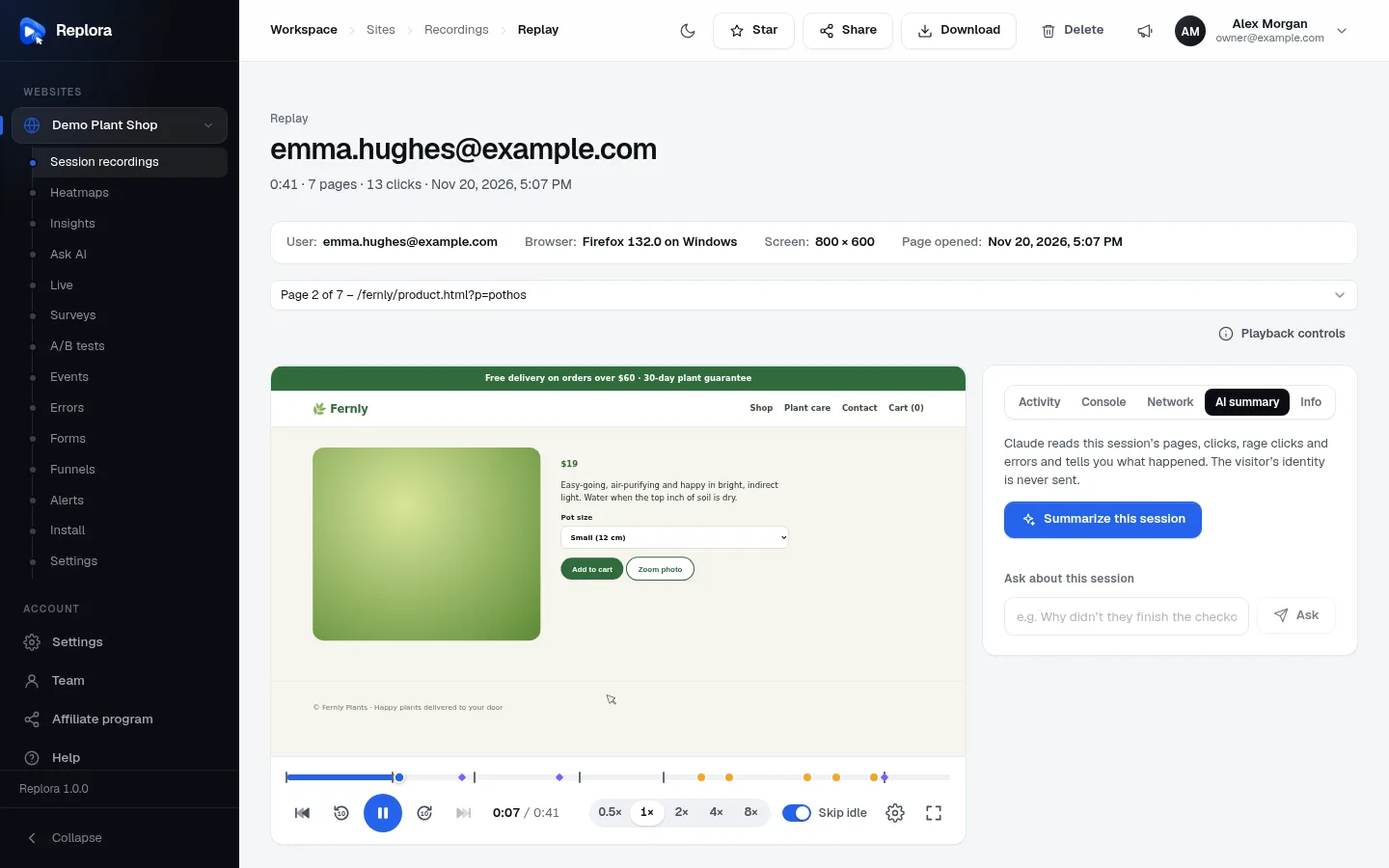
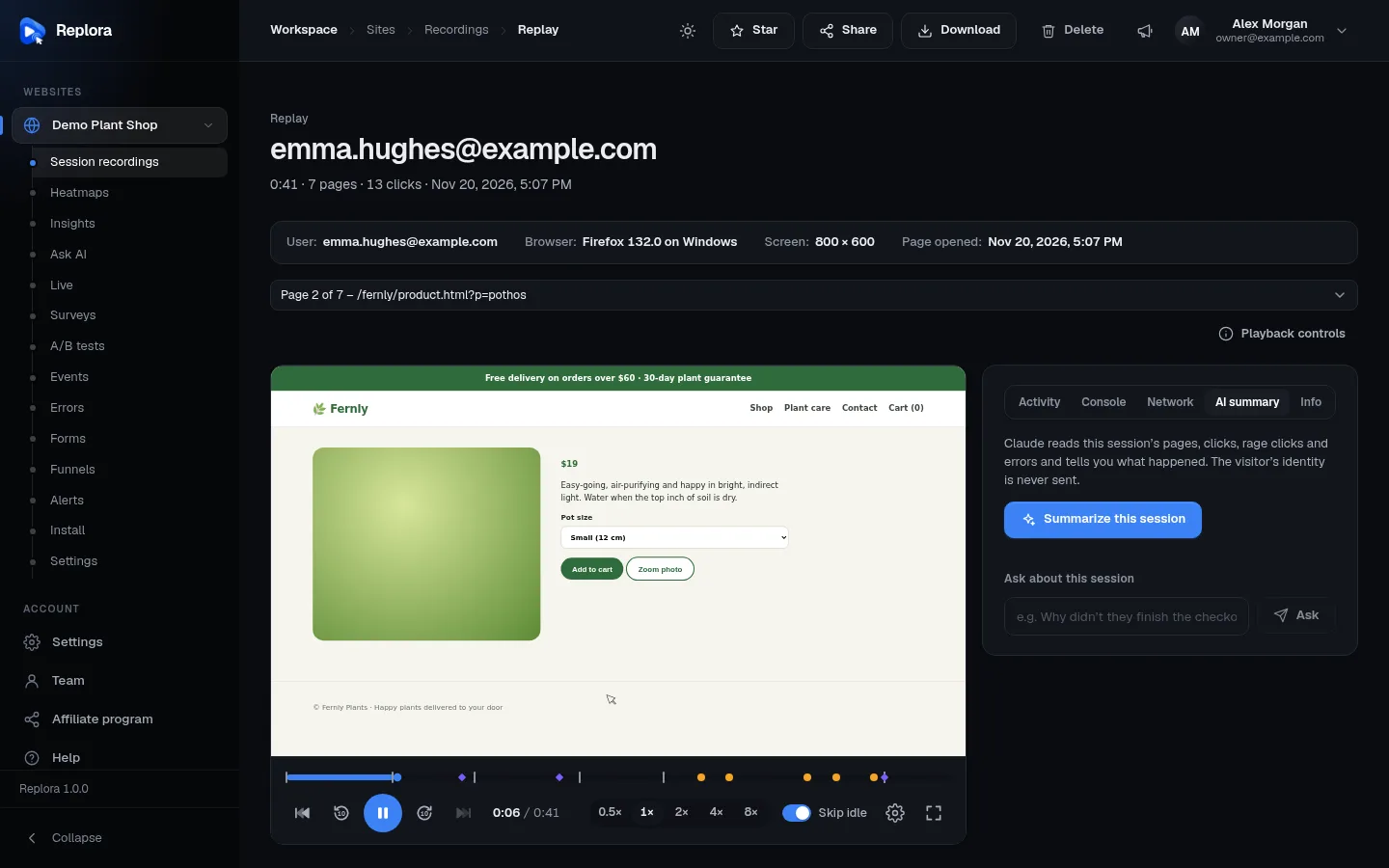
Claude (Anthropic’s AI) reads the session’s pages, clicks, rage clicks and errors and tells you what happened. The visitor’s identity is never sent.
- Click Summarize this session. Claude is reading the session… shows while it writes (a few seconds).
- You get an outcome (Completed, Abandoned, Struggled, Bounced or Browsed), a few sentences, and a timeline of key moments. Click a moment to jump there; the one playing now is marked.
- The summary is kept: next time it is there at once, with Written by … on …. Write again writes a new one.
Under it, Ask about this session takes a question (e.g. Why didn’t they finish the checkout?, up to 500 characters): click Ask and Claude answers from this session’s data.
The tab appears only if your plan includes AI summaries. Viewers can read existing summaries but not write new ones or ask questions. If the installation has no AI set up, the tab says so.
Info
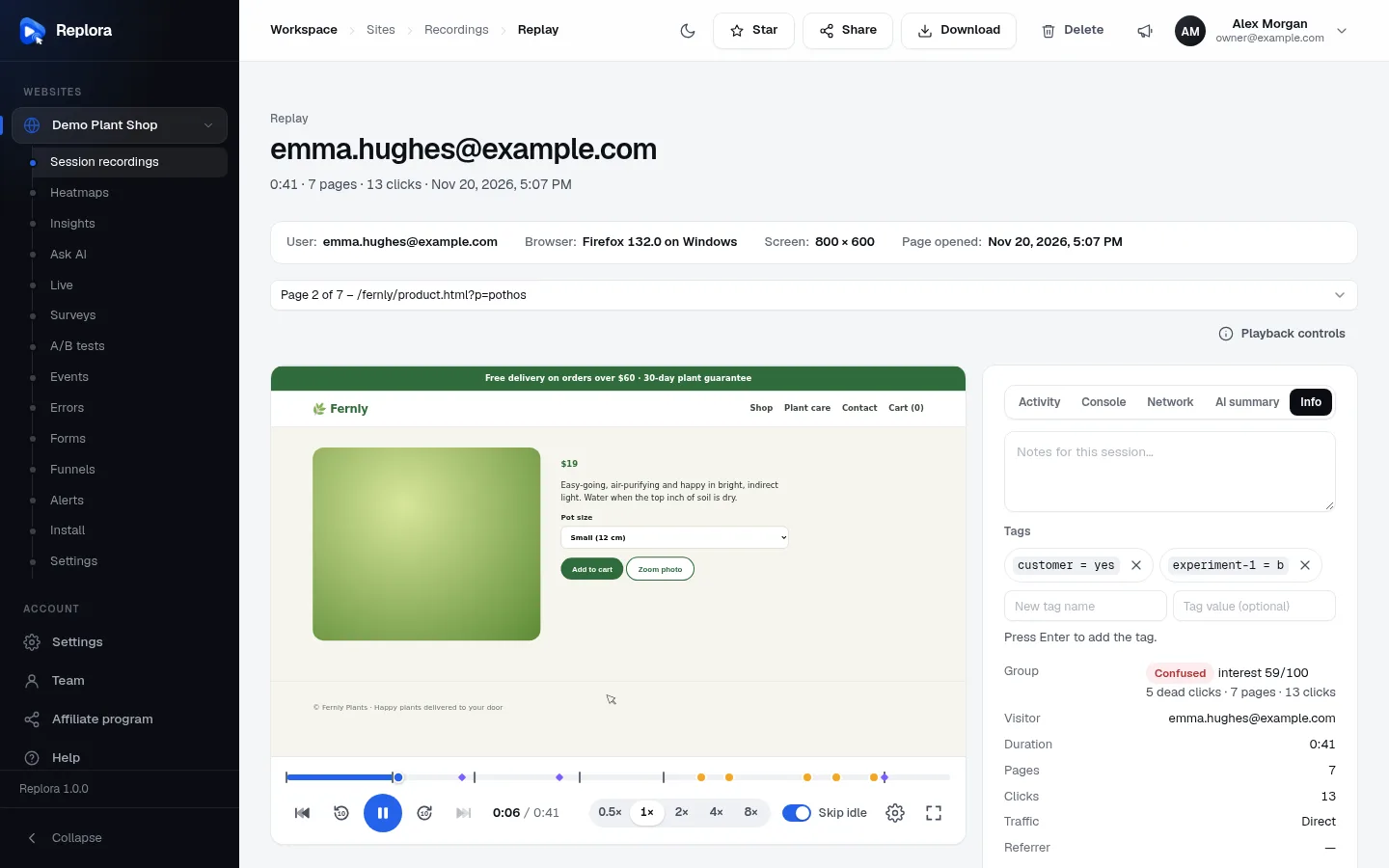
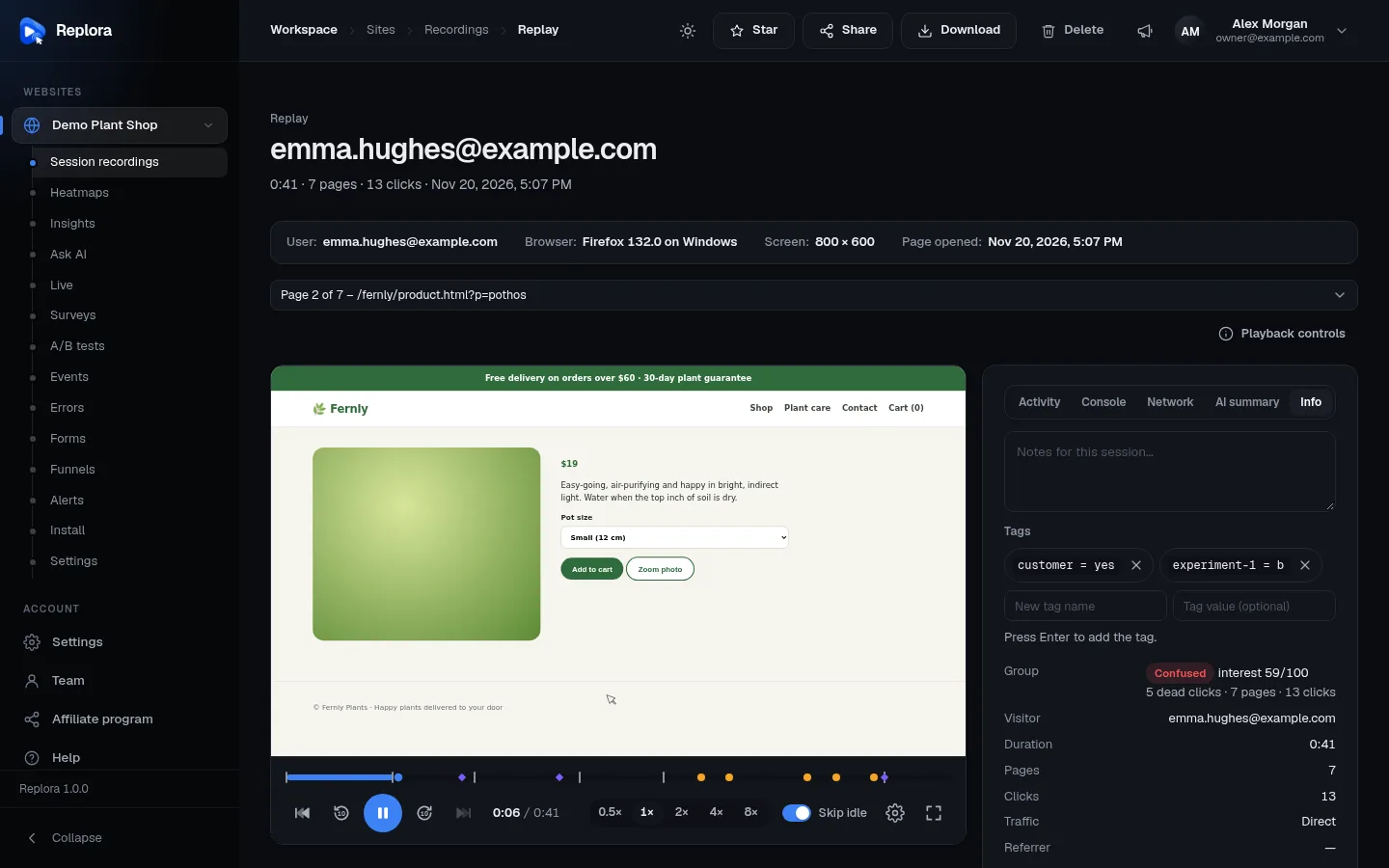
From top to bottom:
- Notes for this session…: a note for your team. It saves by itself a moment after you stop typing. See notes.
- Tags: the session’s tags, each with × to remove it, and two boxes (New tag name, Tag value (optional)) to add one: press Enter. See tags.
- The facts about the visit:
| Fact | What it shows |
|---|---|
| Group | Confused, Engaged or Routine, the interest score out of 100, and why (e.g. 5 dead clicks · 7 pages · 13 clicks). |
| Visitor | The identity, or New visitor / Returning visitor. |
| Duration, Pages, Clicks | The visit’s length, pages and clicks. |
| Traffic | Direct, Search, Social, Email, Paid or Referral. |
| Referrer | The page that linked to your site. |
| Campaign | The utm_campaign of the link, when there was one. |
| Device, Browser, System | Desktop/mobile/tablet, browser and version, operating system. |
| Screen, Window | The screen size and the browser window size. |
| Language | The browser’s language. |
| Color scheme | Whether the visitor’s device was in light or dark mode (e.g. Light, then dark if it changed). |
| Location | City, region and country. |
| Address | The IP address. |
| User agent | The browser’s full self-description, for developers. |
- Other sessions from this visitor (n): the same visitor’s other visits (same browser, or the same identity), newest first, with date, duration, pages and entry page. Click one to open its replay.
Watch efficiently
- Keep Skip idle on and use 2× for long sessions.
- Use Shift + → to hop from one burst of activity to the next.
- Look for red dots on the timeline first: they are the problems.
- In a long visit, use the page picker to go straight to the page you care about.
- From the session list, Play all watches a filtered list back to back.