
Appearance
Live visitors
The Live page shows who is on your website right now: which page each visitor is on, how long they have been there, and whether they are running into trouble. It updates by itself, and you can open any visit and watch it as it happens.
Where: in the sidebar, under your website, click Live; or the Live button above the session list.
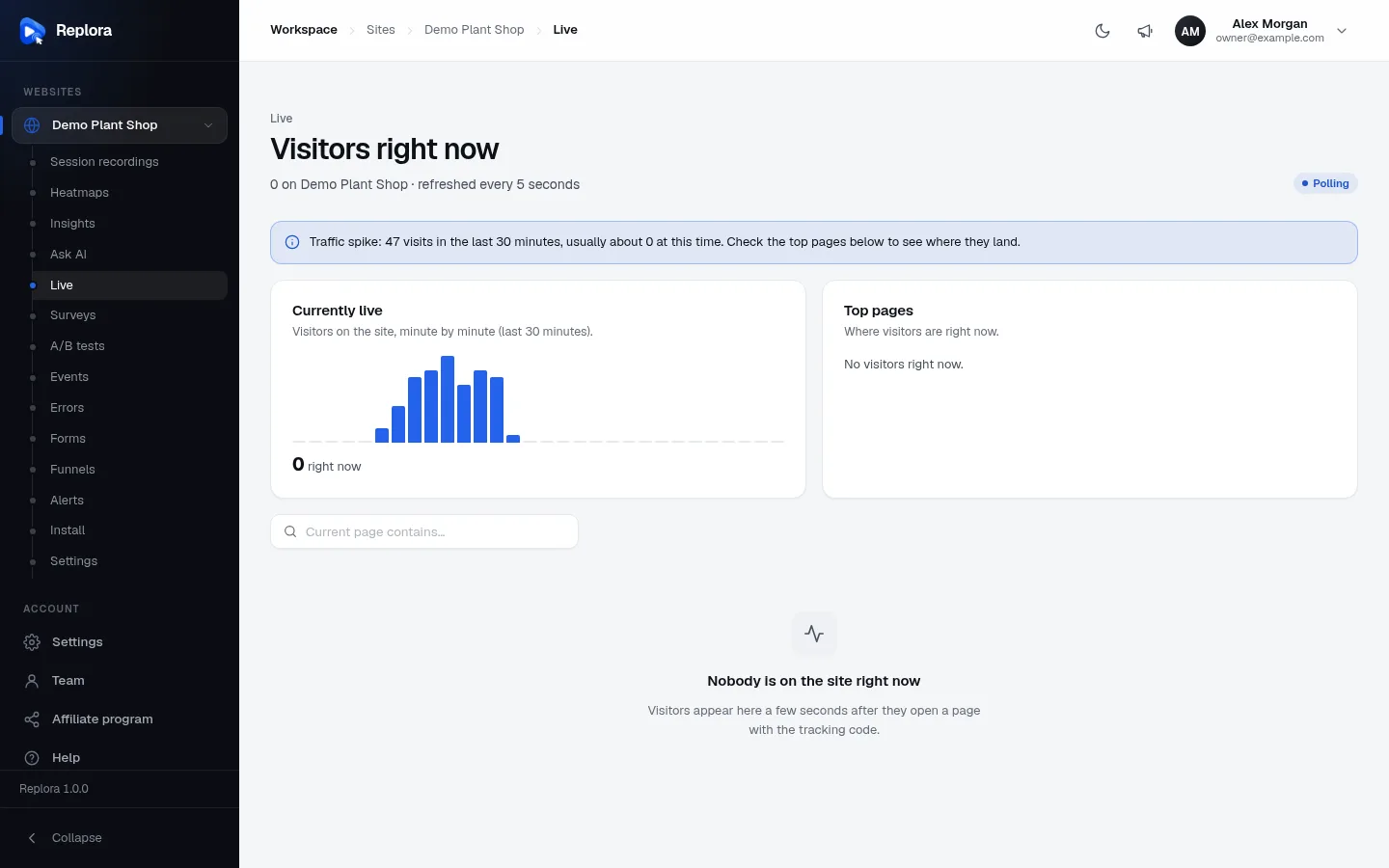
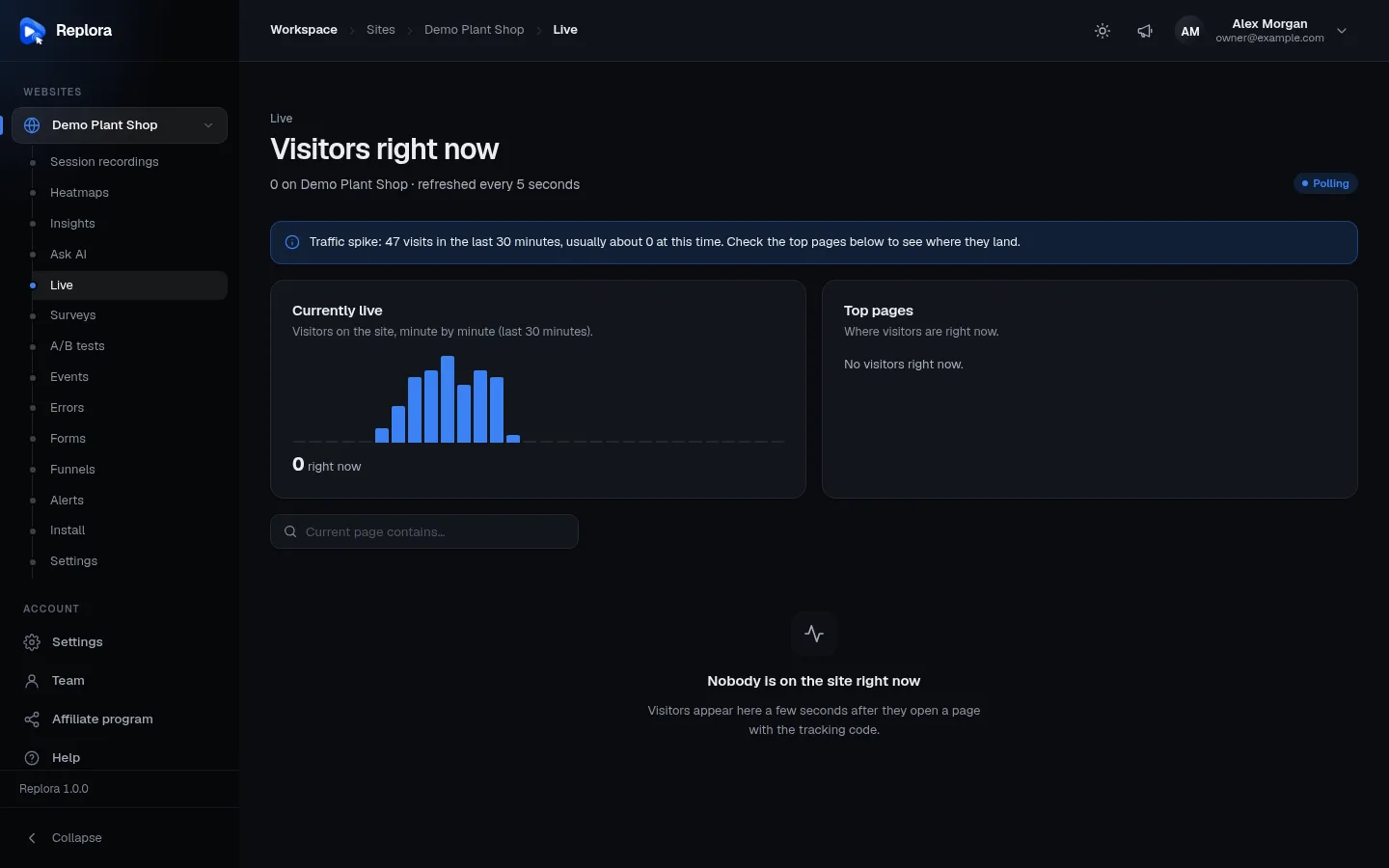
1. Visitors right nowHow many visitors are on the site, and how the page updates: pushed instantly or refreshed every few seconds.
The page header
The title reads Visitors right now, with N on Demo Plant Shop under it, followed by how the page updates:
| Label | Meaning |
|---|---|
| WebSocket (green) · updates are pushed instantly | Changes arrive the moment they happen. |
| Polling · refreshed every N seconds | The page asks for changes every few seconds. Used when the installation has no WebSocket service, or when the connection fails. |
Either way the data is the same and you don’t need to reload the page.
Traffic spike
When the last 30 minutes brought at least twice the usual number of visits for this time of day (the average of the same half hour over the previous seven days), and at least 10 visits, a notice says so, for example Traffic spike: 47 visits in the last 30 minutes, usually about 12 at this time. Look at Top pages to see where they land: a newsletter just went out, a post went viral, or a bot is visiting.
Currently live
A bar chart of the visitors on the site minute by minute over the last 30 minutes (hover a bar for its time and count), with the number right now under it. It refreshes once a minute.
Top pages
The five pages with the most visitors right now, with their counts. Click a page to fill the search box with it and list only the visitors there. When nobody is on the site it says No visitors right now.
The visitor list
Use Current page contains… to show only visitors on matching pages. The list:
| Column | What it shows |
|---|---|
| Visitor | A pulsing dot and the visitor’s identity, or Anonymous visitor. |
| Current page | The page they are on now. Hover for the full address. |
| On site | How long they have been on the site; it ticks up every second. |
| Pages | Pages viewed so far. |
| Frustration | 1 signal, 3 signals… when they had rage clicks, dead clicks, errors or failed requests; a dash otherwise. |
| Device | Country flag, device and browser icons (hover each for its name). |
| Location | City, with region and country under it. |
| Watch | Opens the replay, which follows the visit live. Greyed out when the visit can’t be replayed (for example when this month’s replays are used up). |
The newest activity is at the top. A visitor drops off the list two minutes after their last activity. With many visitors, the pager under the list moves between pages.
When nobody is on the site, the page says Nobody is on the site right now, and visitors appear a few seconds after they open a page with the tracking code.
Watch a visit live
- Open Live.
- Find the visitor (use Top pages or the search box).
- Click Watch.
- The replay opens with a Live badge. It plays what happened so far and keeps following: when it catches up, it waits and continues as the visitor does more. You can jump back on the timeline at any time.
Use it for
- Watching a launch, a campaign or a sale as it happens.
- Seeing a customer’s screen while they are on the phone with support (search their identity or the page they are on).
- Spotting someone in trouble (a frustration badge) on your checkout right now.
Running sessions also show a red LIVE badge in the session list, which follows new sessions by itself too.
Related
- Session recordings
- Watching a replay
- Alerts: be told when something goes wrong, without watching