
Appearance
Website settings
Each website has one settings page that decides what is recorded, what is never recorded, and for how long recordings are kept. It also holds the tracking code, the list of commands your developers can use, a way to share the website with someone outside your team, and the button that deletes it.
Where: in the sidebar, under your website, click Settings; or click Site settings above the session list or on the Install page.
The page is a column of cards: Tracking code, JavaScript commands, Recording, Privacy and sampling, Recording options, Share this site and Delete site. The Recording, Privacy and sampling, and Recording options cards each have their own save button, and a button saves only its own card.
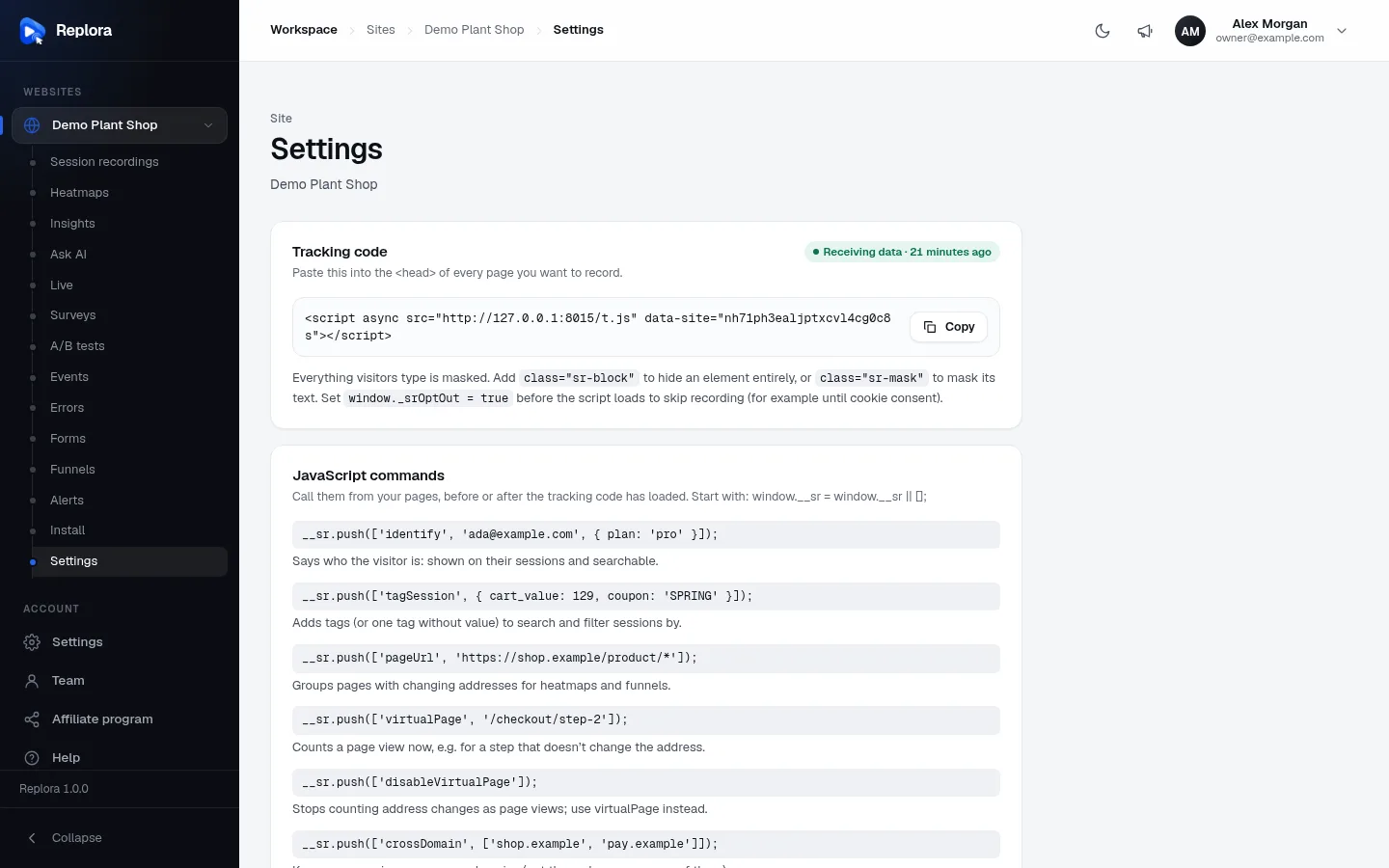
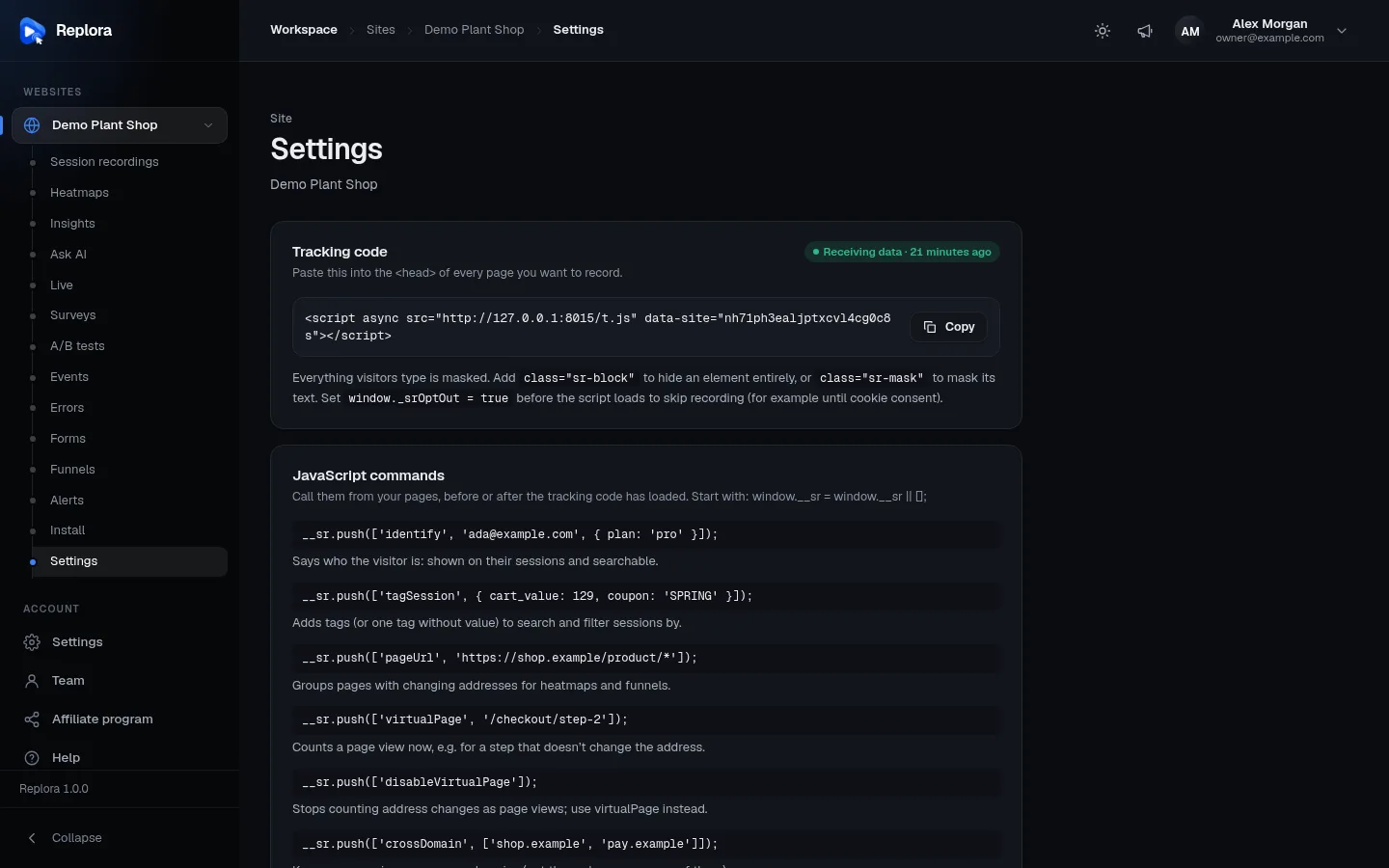
1. The websiteThe page title, with the website’s name under it. The breadcrumbs lead back to its recordings.
Tracking code
| Part | What it does |
|---|---|
| Code | Your website’s tracking code: one <script async …> line with your website’s key. Paste it into the <head> of every page you want to record. |
| Copy | Copies the code. |
| Status | Receiving data · when or Waiting for the first visit. |
| Help text | class="sr-block" hides an element entirely, class="sr-mask" masks its text, and window._srOptOut = true before the script loads skips recording (for example until cookie consent). Everything visitors type is masked already. |
For Google Tag Manager, npm and the installation check, see Install the tracking code.
JavaScript commands
A reference card for your developers: commands they can call from your pages, before or after the tracking code has loaded (they start with window.__sr = window.__sr || [];). You don’t need them to record, but they make your data richer.
| Command | What it does, in plain words |
|---|---|
identify | Says who the visitor is (e.g. their email, plus facts like their plan): shown on their sessions and searchable. |
tagSession | Adds tags (or one tag without a value) that you can filter sessions by and show as columns. |
pageUrl | Groups pages with changing addresses (e.g. every product page) for heatmaps and funnels. |
virtualPage | Counts a page view now, e.g. for a checkout step that doesn’t change the address. |
disableVirtualPage | Stops counting address changes as page views; the site then reports pages with virtualPage. |
crossDomain | Keeps one session across your domains (the code must be on every one of them). |
formSubmitted | Tells form analytics that a form was sent by script. |
resetSession | Starts a new session, e.g. after the visitor signs out. |
optOut | Stops recording in this browser; optIn allows it again. |
disableGACapture | Stops tagging sessions with Google Analytics events (such as ga:add_to_cart). |
Recording
What is recorded and for how long.
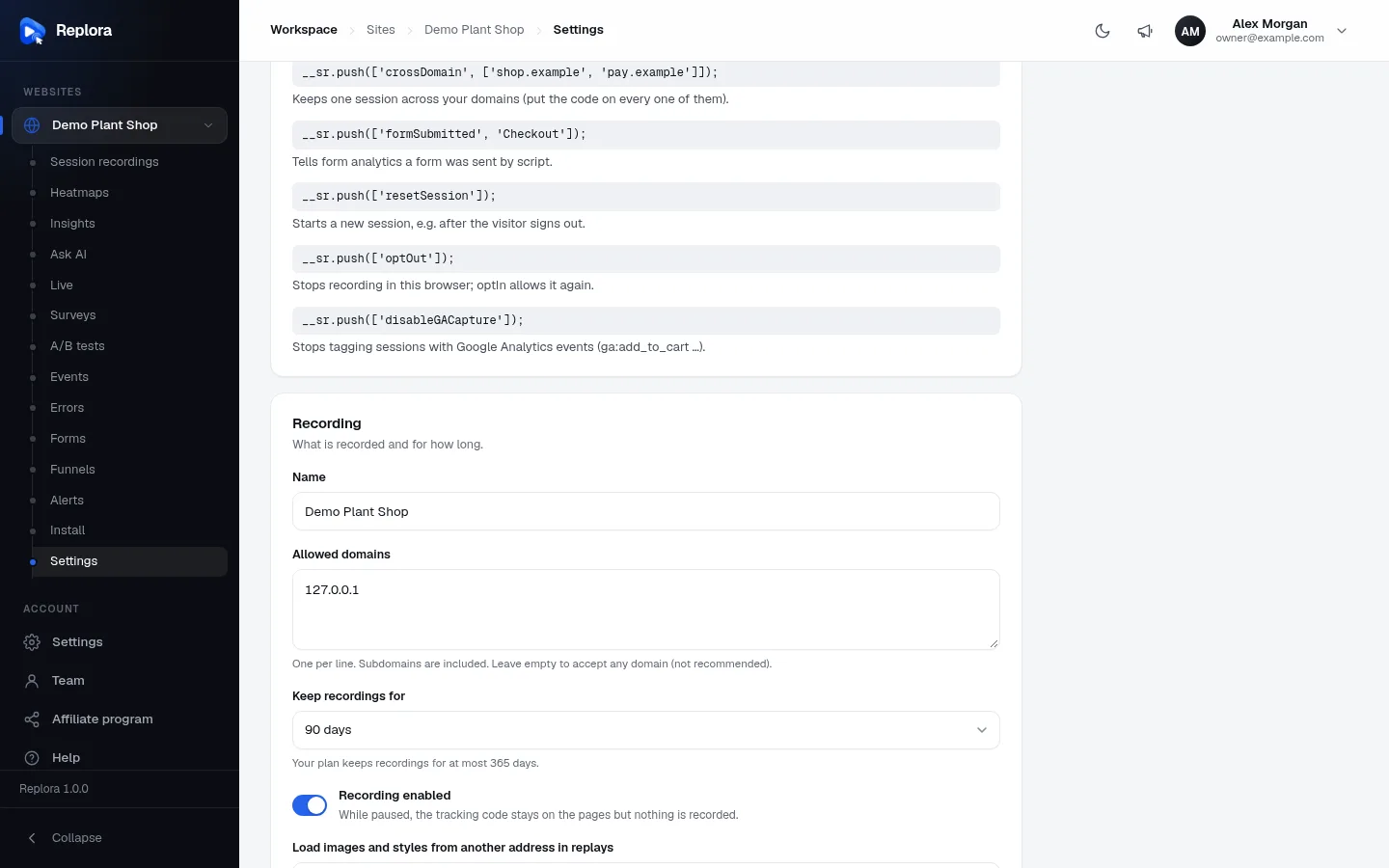
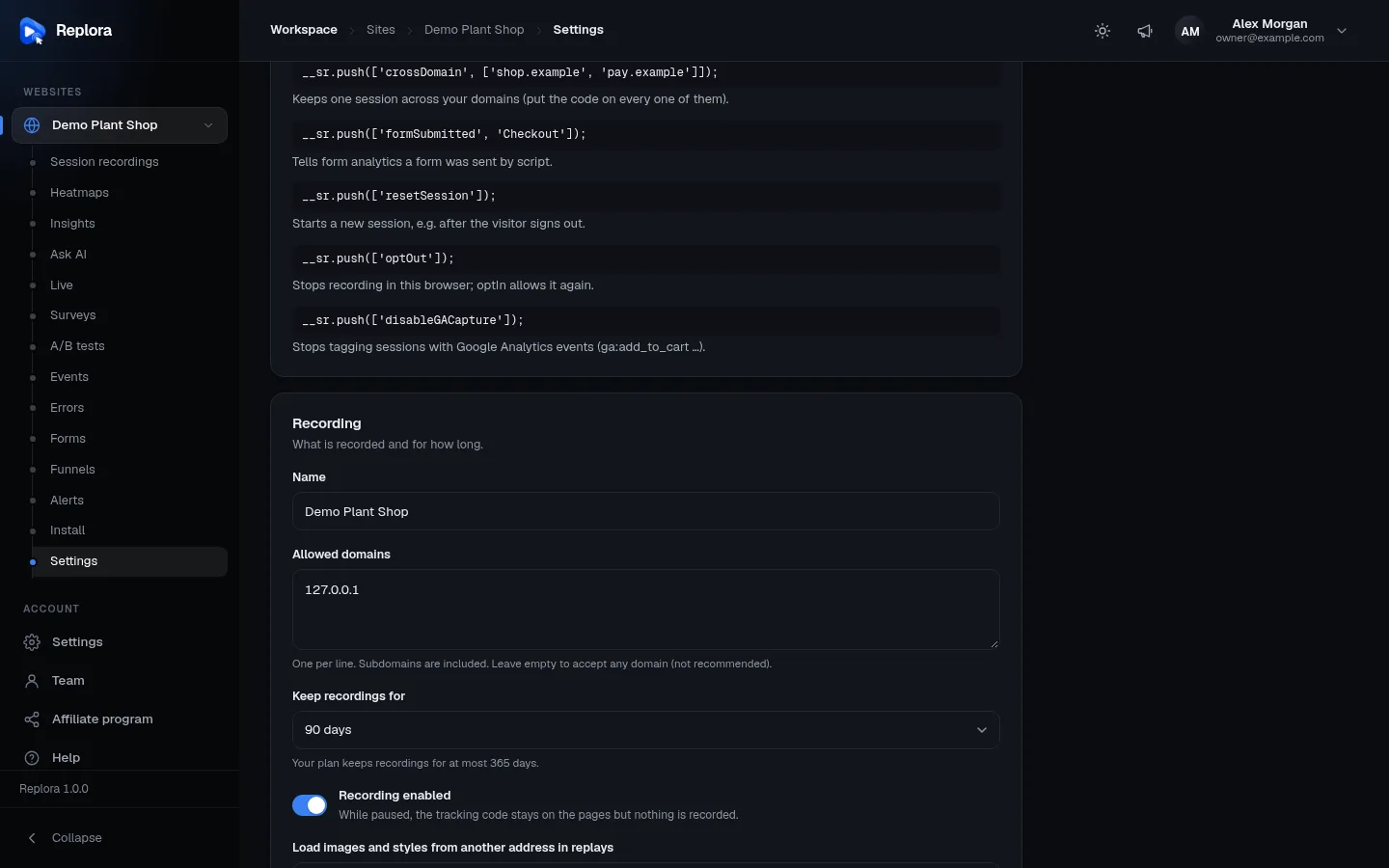
| Setting | What it does | Values and default |
|---|---|---|
| Name | The website’s name in the sidebar, lists, reports and emails. | Required, up to 120 characters. |
| Allowed domains | The domains allowed to send recordings to this website, one per line. Subdomains are included (example.com covers www.example.com and shop.example.com). Pages on other domains are ignored. | Up to 50 domains. Full addresses are reduced to their host name. Empty means any domain (not recommended). |
| Keep recordings for | How long sessions are kept. Older ones are deleted automatically every day, starred ones too. | 7, 30, 90, 180 or 365 days. Choices above your plan’s maximum are greyed out, and the hint says Your plan keeps recordings for at most N days. New websites start at the installation’s default (30 days unless changed). |
| Recording enabled | Turn off to pause the website: the tracking code stays on the pages but nothing is recorded. Turn it back on to continue. | On by default. While off, the Sites page shows the website as Paused. |
| Load images and styles from another address in replays | For pages whose images and stylesheets can’t be loaded by the replay player: behind a login, on localhost or on an intranet. Each line says from => to, e.g. http://localhost:3000 => https://cdn.example.com; replays then fetch those files from the second address. | Up to 10 lines; both sides must start with http:// or https://. Developers can also put data-sr-src or data-sr-href on an element. |
| Spread the monthly quota over the month | With a monthly session limit, new sessions are recorded only while the account has used no more than the month’s share so far, so a busy start doesn’t leave the rest of the month unrecorded. | Off by default. Only useful when your plan has a monthly session limit. |
Click Save settings to save this card.
Pause instead of delete
If you want to stop recording for a while (a site redesign, a campaign you don’t want in your data), turn off Recording enabled instead of removing the code or deleting the website: your recordings, heatmaps and funnels stay.
Privacy and sampling
What is never recorded. Dropped data is never stored, and the tracker stops sending it.
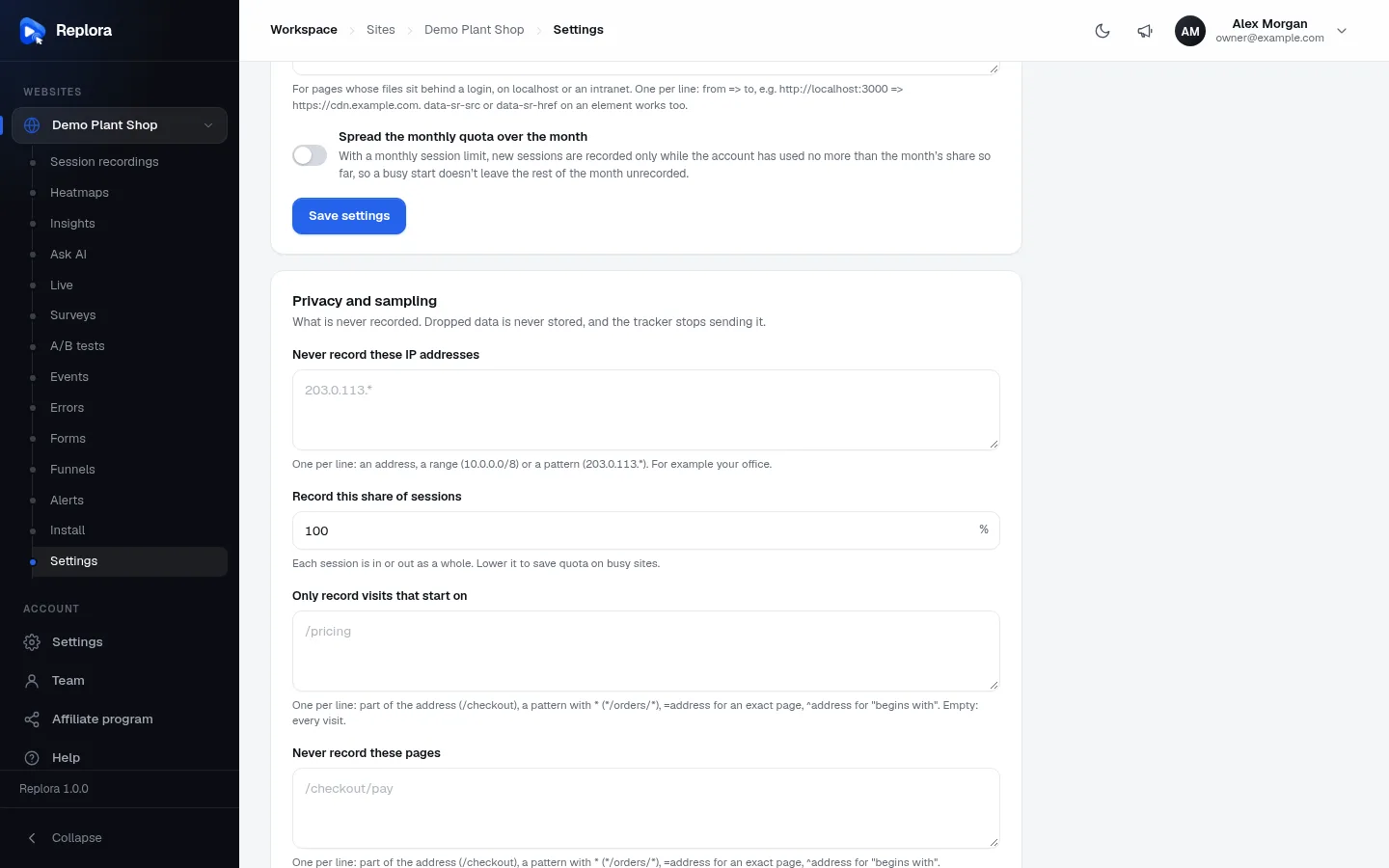
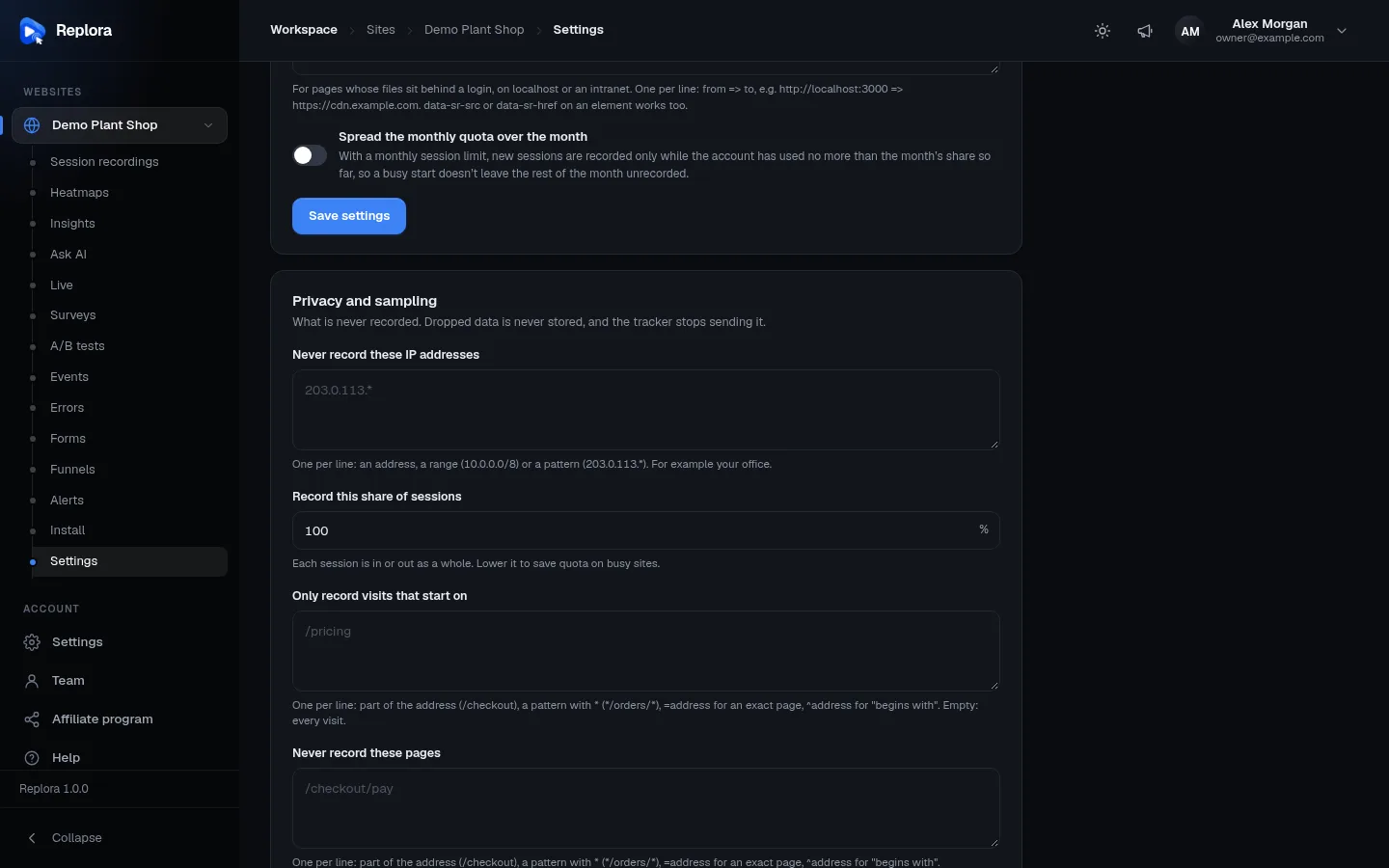
| Setting | What it does | Values |
|---|---|---|
| Never record these IP addresses | Visits from these addresses are not recorded, for example your office. | One per line: an address (203.0.113.7), a range (10.0.0.0/8) or a pattern (203.0.113.*). Up to 100. |
| Record this share of sessions | Records only this percentage of visits, chosen at random. Each session is in or out as a whole. Lower it to save quota on busy websites. | 1 to 100 %. Default 100. |
| Only record visits that start on | Records a visit only if its first page matches one of these lines. Empty: every visit. | See Page rules below. Up to 20 lines. |
| Never record these pages | These pages are never recorded; the recording pauses while the visitor is on them and continues on other pages. | See Page rules below. Up to 20 lines. |
| Mask the text of these elements | The text of matching elements is recorded as ***, e.g. a customer’s name or an account number shown on the page. Typed values are always masked anyway. | One CSS selector per line, e.g. .price or #account. Up to 30. |
| Leave these elements out | Matching elements are not recorded at all; they appear as an empty box of the same size in replays. | One CSS selector per line, e.g. iframe.chat. Up to 30. |
| Record what is typed in these fields | The opposite of masking: what visitors type in these fields is recorded, e.g. a search box. Everything else typed stays masked; passwords and card numbers always do. | One CSS selector per line, e.g. input[name=q]. Up to 30. Developers can also put data-sr-unmask on a field. |
| Record frames from other domains | Embedded pages from another domain (a checkout, a widget) are recorded into the page around them instead of showing an empty box. The tracking code must be on those embedded pages too. | Off by default. |
| One visitor across subdomains of | Makes a visitor of www.shop.com and blog.shop.com one returning visitor with one identity. Stored in a small first-party cookie of that domain. | One of the website’s domains or the domain they belong to, e.g. shop.com. Empty: each subdomain on its own. |
| Remove these query parameters from addresses | Removes these parameters from the page addresses Replora stores, e.g. tokens or emails in links. | Names separated by commas, e.g. token, email. * removes the whole query string. Up to 50. Applies to new recordings only. |
| Exclude your own visits | A link to your website with ?sr_optout=1. Open it once in each browser your team uses: those browsers are never recorded. ?sr_optout=0 undoes it. | Read only: click the box to select the link. |
Click Save rules to save this card.
Page rules
Only record visits that start on and Never record these pages take one rule per line:
| You type | It matches | Example |
|---|---|---|
| a part of the address | every address that contains it | /checkout |
a pattern with * | addresses that fit the pattern; * stands for anything | */orders/* |
= and an address | exactly that address | =https://shop.com/cart |
^ and an address | addresses that begin with it | ^https://shop.com/account |
CSS selectors
Masking, leaving out and recording fields work with CSS selectors, the same names your developers use to style the page. If you don’t know them, ask your developers, or use your browser’s Inspect tool. Selectors can’t contain {, }, <, > or ;.
Recording options
Which visits are recorded and how much of them.
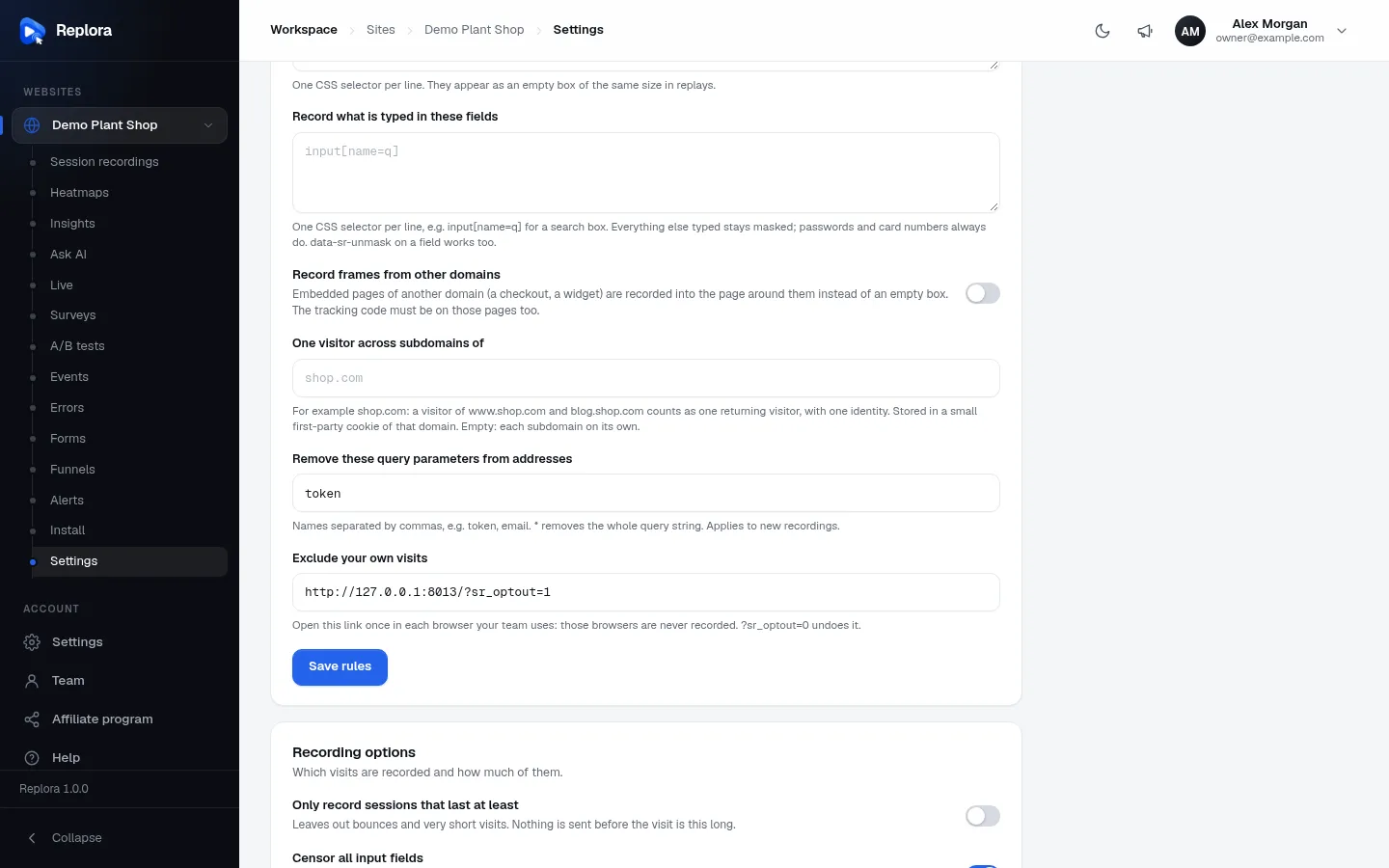
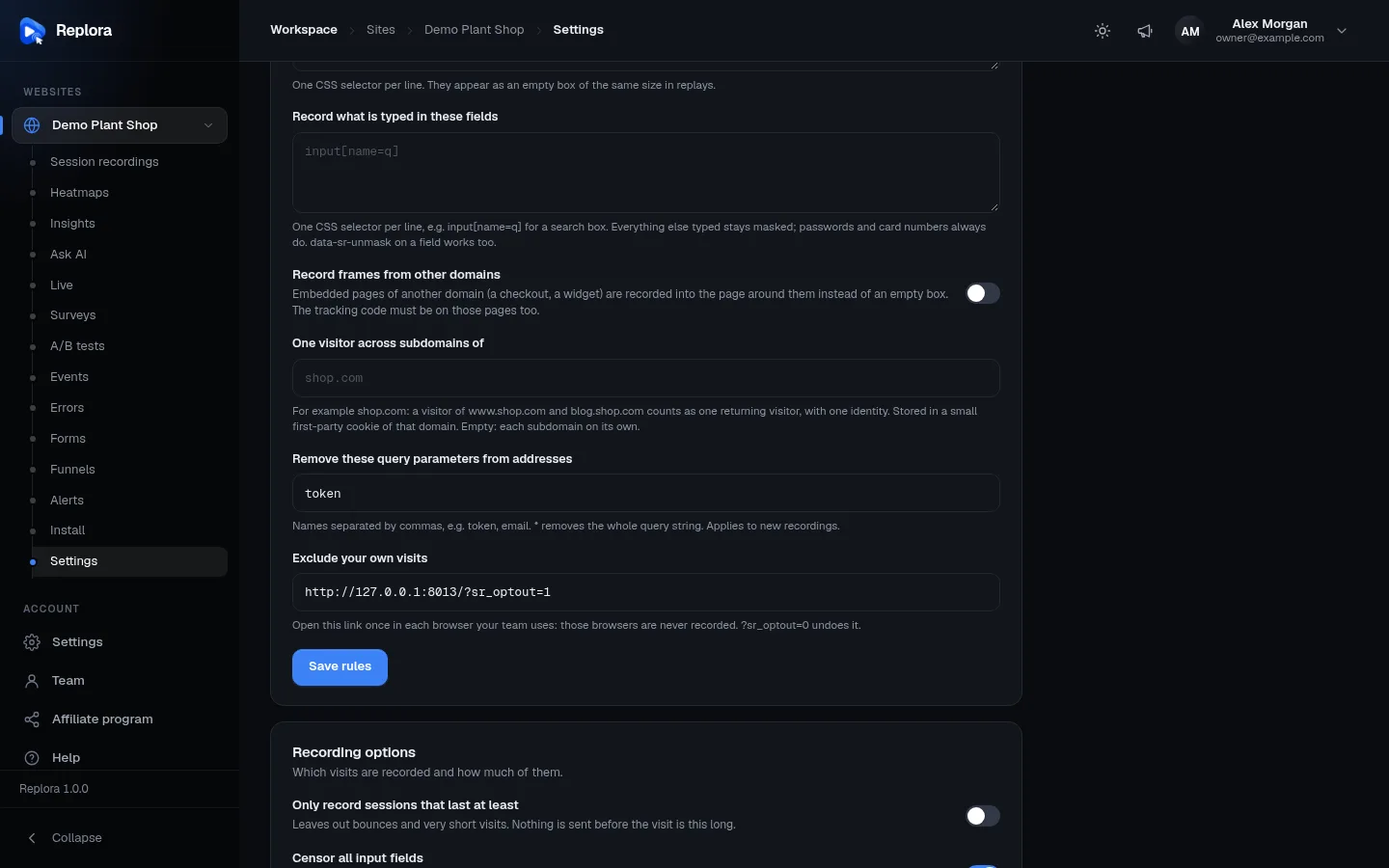
| Setting | What it does | Default |
|---|---|---|
| Only record sessions that last at least | Leaves out bounces and very short visits: nothing is sent before the visit is this long. Turn it on and enter the Minimum length in seconds. | Off. When on, 10 seconds; 0 to 600. |
| Censor all input fields | On: everything typed is recorded as ***, except the fields you allow under Record what is typed in these fields. Off: typed text is recorded, except passwords, card numbers and other secret fields. | On. |
| Record network request details | Also records the request and response bodies of the page’s own calls (text only, up to 2000 characters; values of password, token and similar keys replaced by ***). They appear under Request details in the replay’s Network tab. | Off. |
| Record canvas drawings | Records charts, maps and games drawn on a canvas (also inside frames of the same domain): an image about once a second while they change. Recordings get larger. | Off. |
| Keep copies of stylesheets | Replays keep their look after your website changes or removes its CSS files. Turn off only if styles fail to load in replays. | On. |
Targeting
Record only visits that match. Nothing chosen in a group means every visit.
| Group | Choices |
|---|---|
| Traffic sources | Direct, Search, Social, Email, Paid, Referral |
| Devices | Desktop, Mobile, Tablet |
| Browsers | Chrome, Safari, Firefox, Edge, Opera, Samsung Internet, Other browsers |
Example: switch on Mobile only under Devices to record just phone visitors. Switch on Paid and Social under Traffic sources to record only visits from your ads and social posts.
How addresses are shown
Only changes what the dashboard shows; the whole address is kept. Choose which parts of page addresses appear in lists, filters and replays: Domain, Path, Query and Hash fragment. The example under the heading updates as you switch them, so you can see the result before saving. By default the domain is hidden and the rest is shown (/category/shoes?sessionid=…#pagenum=20).
Click Save options to save this card.
Share this site
Invite someone to see this site’s recordings and reports, read-only. They can’t see your other sites or change anything.
Type their Email address and click Send invite. They get an email with a link to join your account as a Viewer limited to this website, and they appear on the Team page. Use it for an agency, a freelancer or a colleague in another department.
Only managers see this card, and only if your plan includes team members.
Delete site
Removes the site and every recording. The tracking code stops working at once.
Click Delete site, then confirm in the Delete this site? dialog. The website and all of its recordings are deleted for good, and you go back to the Sites page. This can’t be undone.
Think twice
Deleting a website is final. To stop recording without losing data, turn off Recording enabled instead. To keep a few important sessions, download them first.
Change a setting step by step
- Open the website’s Settings.
- Scroll to the card with the setting.
- Change it.
- Click that card’s save button: Save settings, Save rules or Save options. A short message confirms it (Settings saved, Recording rules saved, Recording options saved).
Most changes apply to visits that start after you save. The tracking code picks up new rules on its own; you don’t need to change it.
Related
- Install the tracking code
- Session recordings
- Team & roles
- Plan & billing: retention and session limits