
Appearance
Session recordings
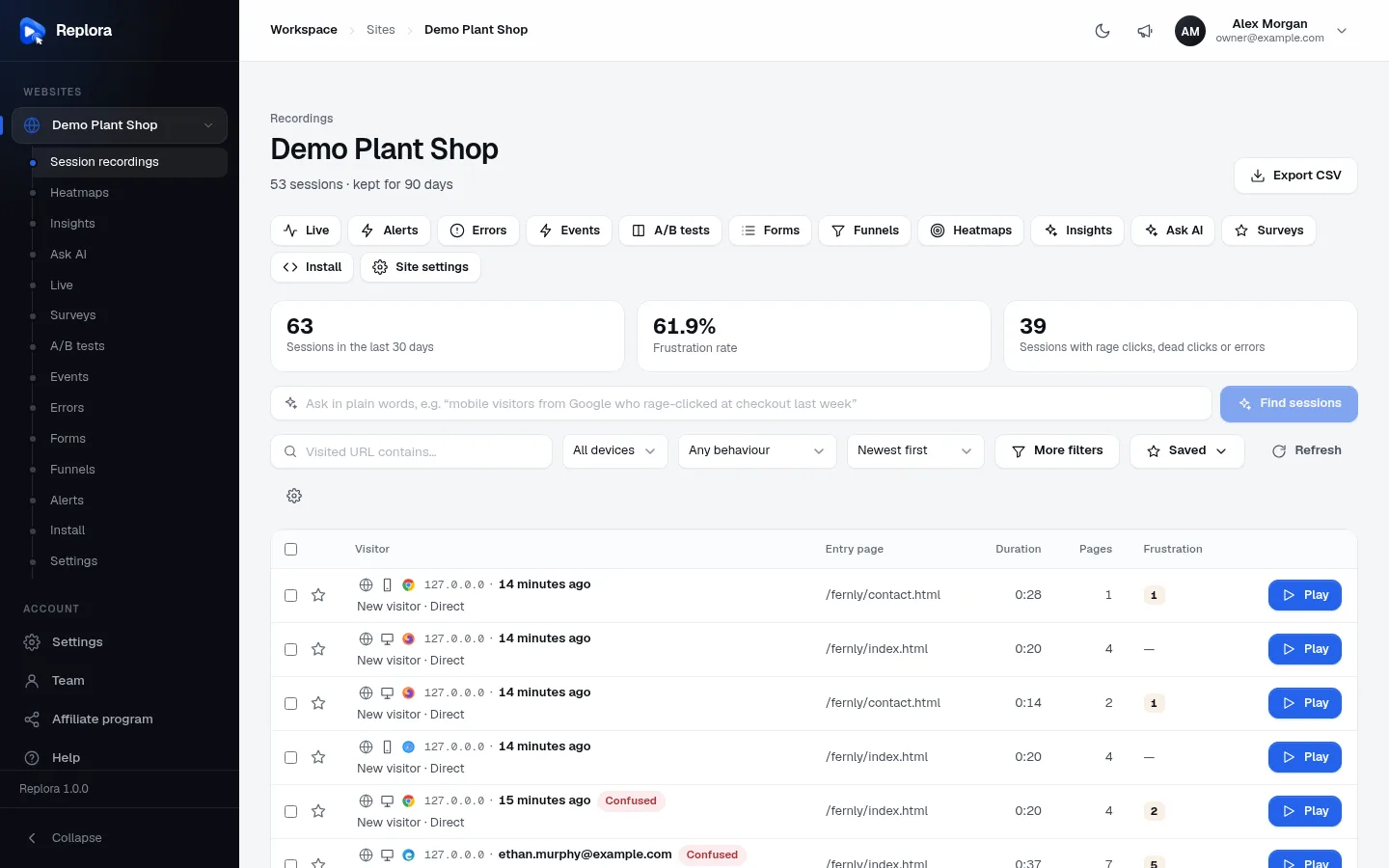
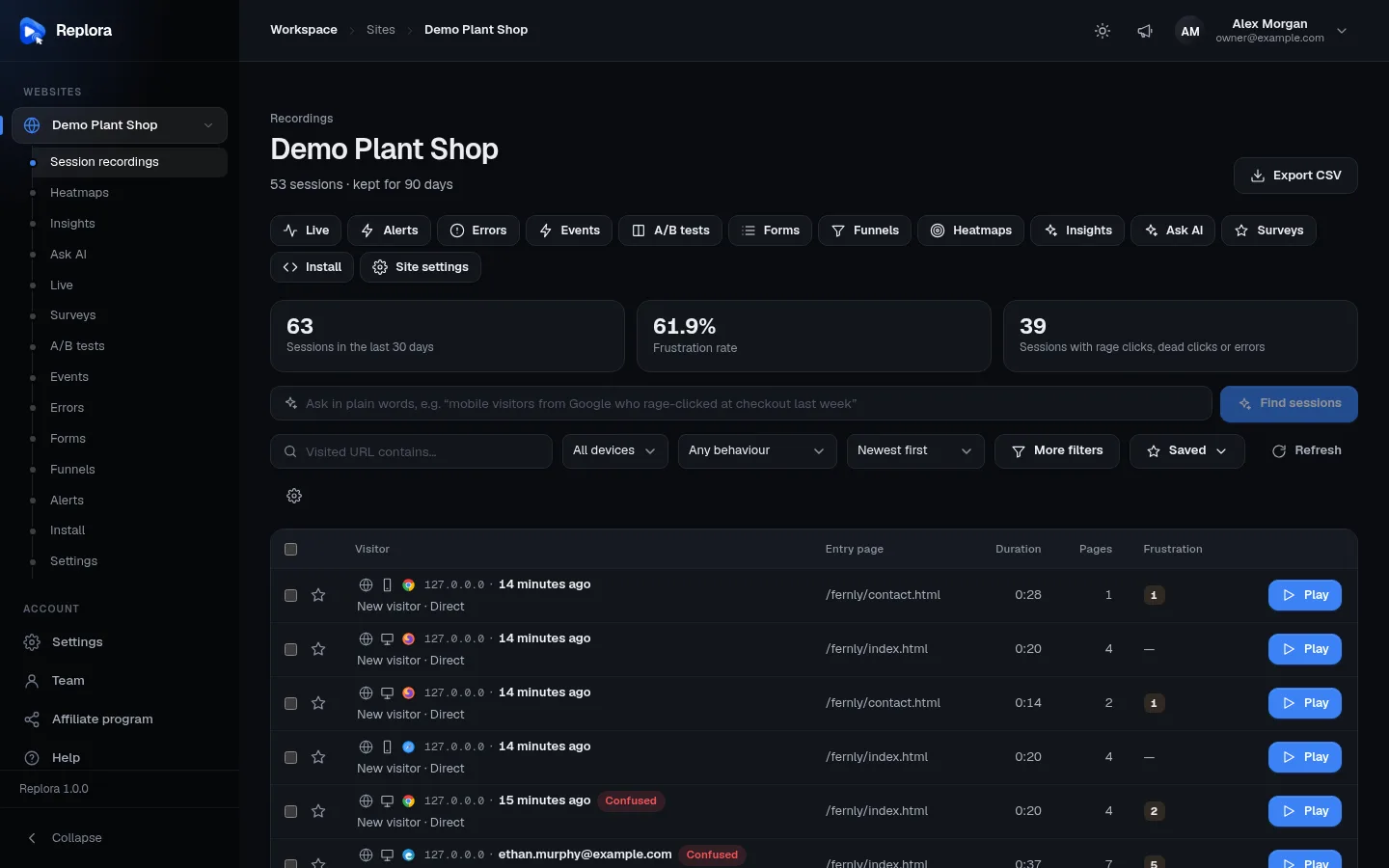
Every visit to your website becomes a session you can replay. The session list is where you find the ones worth watching: it shows who the visitor was, where they started, how long they stayed and whether something went wrong, and lets you star, tag, export or delete sessions.
Where: in the sidebar, click your website’s name or Session recordings under it.
1. Export CSVDownloads the sessions that match your filters as a spreadsheet file (up to 10,000).
The page header
Under the website’s name you read how many sessions there are (or how many match your filters) and how long they are kept, for example 53 sessions · kept for 90 days. Under it, buttons lead to the website’s other pages (Live, Heatmaps, Funnels… Install and Site settings).
On the right, Export CSV downloads the sessions you see (with your filters and sort) as a CSV file, the kind any spreadsheet opens. See Export to CSV.
Summary cards
Once the website has data, three cards sit above the list. They always cover the last 30 days of the whole website, whatever your filters.
| Card | What it shows |
|---|---|
| Sessions in the last 30 days | How many visits were recorded. |
| Frustration rate | The share of sessions with a rage click, a dead click or a JavaScript error, with its trend and a small line of the daily rate. Click it to sort the list by Most frustrated. |
| Sessions with rage clicks, dead clicks or errors | The same, as a number of sessions. |
Search and filters
Between the cards and the list:
- Ask in plain words (with the sparkle icon): type what you are looking for and click Find sessions. Only shown if your plan includes AI search.
- The filter row: Visited URL contains…, All devices, Any behaviour, the sort order, More filters, Saved (saved searches) and Refresh.
- The gear (table settings): see below.
Active filters appear as removable chips above the list. Everything about searching is on Filters & search.
The columns
| Column | What it shows |
|---|---|
| ☐ (checkbox) | Selects the session for bulk actions. Only for people who can make changes. |
| ☆ (star) | Click to star or unstar the session. A filled star means starred. |
| Visitor | Two lines, described below. Click the bold text to open the replay. |
| Entry page | The first page of the visit. Hover to see the whole address. |
| Duration | How long the visit lasted (e.g. 0:37, 12:05). A red LIVE badge instead means the visitor is still on the site (active in the last two minutes). |
| Pages | How many pages they viewed. |
| Frustration | Coloured counters for rage clicks, dead clicks, errors and failed requests (hover a counter to see which it is), or a dash when there were none. |
| Tag columns | The tags you chose in Tag columns, one column each, with the session’s value or a dash. |
| Play | Opens the replay. Greyed out when the session can’t be replayed (hover it to see why). |
The Visitor cell
Line 1, from left to right:
| Part | Meaning |
|---|---|
| Flag | The visitor’s country (hover for its name). A globe when the location is unknown, for example visits from a local network. |
| Device icon | Desktop, mobile or tablet (hover for the name). |
| Browser icon | Chrome, Safari, Firefox, Edge, Opera, Samsung Internet, or a globe for other browsers. |
| IP address | The visitor’s IP address. |
| Identity or time | The visitor’s identity if your site identifies visitors (e.g. [email protected]), otherwise when the visit started (2 minutes ago). Hover for the exact date. With Session preview thumbnails on, hovering shows a small picture of the page. |
| Confused / Engaged | The session’s group: Confused (red) when the visitor struggled (rage clicks, dead clicks, errors or going back and forth), Engaged (green) for a long visit with many pages or clicks. Routine sessions have no badge. See Welcome. |
| No replay | The visit was counted (in heatmaps, funnels and reports) but not recorded as a replay, because this month’s session replays were used up when it started. |
| Incomplete | The start of the visit never reached the server, so it can’t be replayed. |
Line 2: New visitor or Returning visitor (or the time, when line 1 shows an identity), then the traffic source: Direct, Search, Social, Email, Paid or Referral.
The list updates by itself
On the first page, new and running sessions appear without reloading (at most once every five seconds on busy sites), and the LIVE badges are checked every 15 seconds. Refresh reloads the list at once. On later pages the list stays still so rows don’t move while you read.
A website that has never sent data shows its tracking code instead of the list, and the message Waiting for the first visit — this list updates by itself. See Install the tracking code.
Star sessions
Click the ☆ at the start of a row to star a session; click again to unstar it. Stars are shared with everyone in your account. Use them to mark visits to show a colleague, to come back to, or to collect examples of a problem. Filter starred sessions with More filters › Starred only.
Starring doesn’t protect a session from deletion when its retention period ends.
Select sessions and act on them
Tick the checkboxes of the sessions you want, or the checkbox in the header to select every session on the page. A bar appears above the list:
| Button | What it does |
|---|---|
| N selected | How many sessions are selected. |
| Star / Unstar | Stars or unstars them all. |
| Add tag | Opens Tag N sessions: enter a Tag name (up to 64 characters) and an optional Value (up to 255), then Add tag. |
| Export selected | Downloads only these sessions as CSV. |
| Delete | Deletes them after you confirm Delete N recordings? They are deleted for good. |
| Clear selection | Unticks everything. |
A message confirms how many sessions changed. You can act on up to 100 sessions at a time. Viewers don’t see the checkboxes.
Table settings
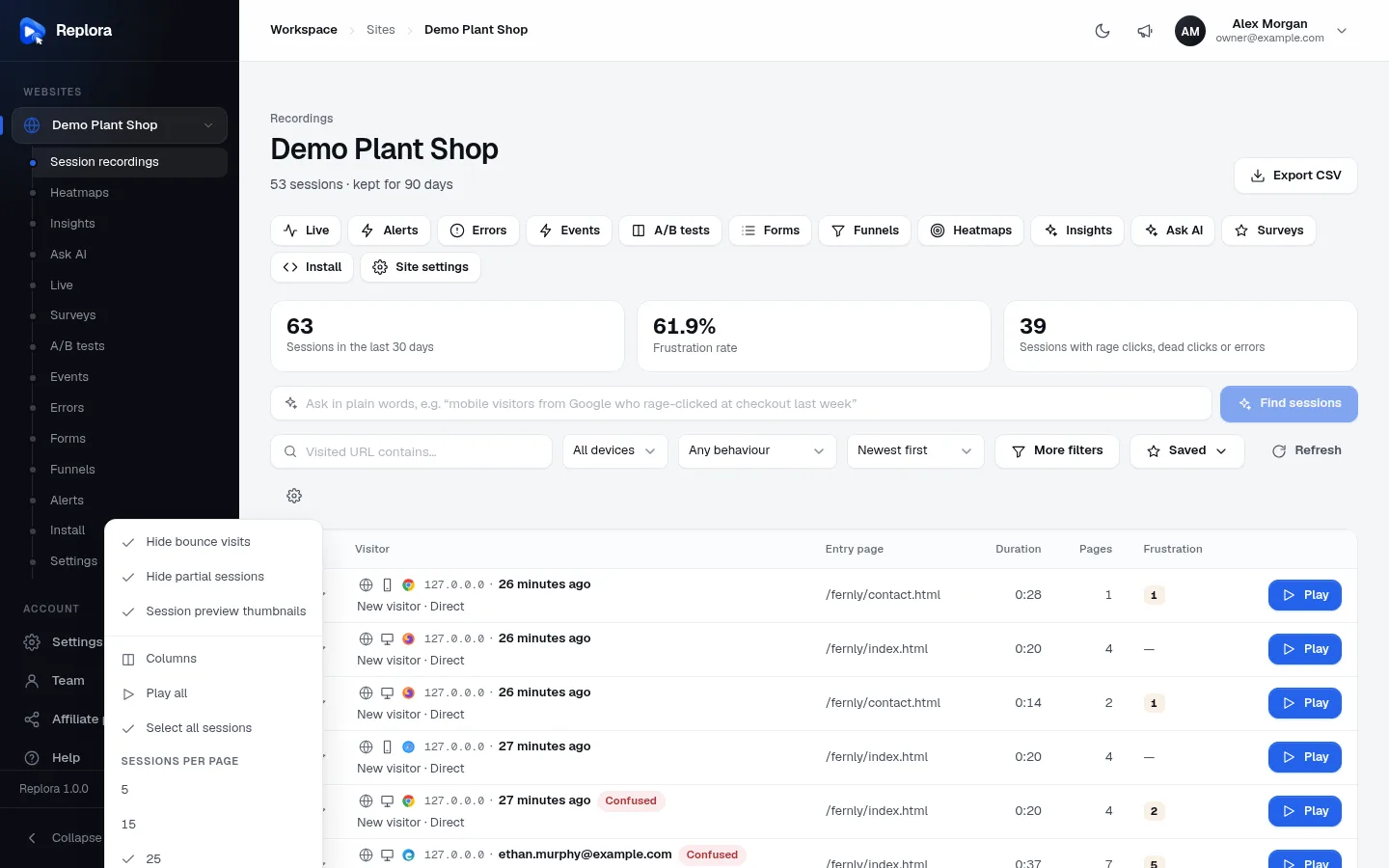
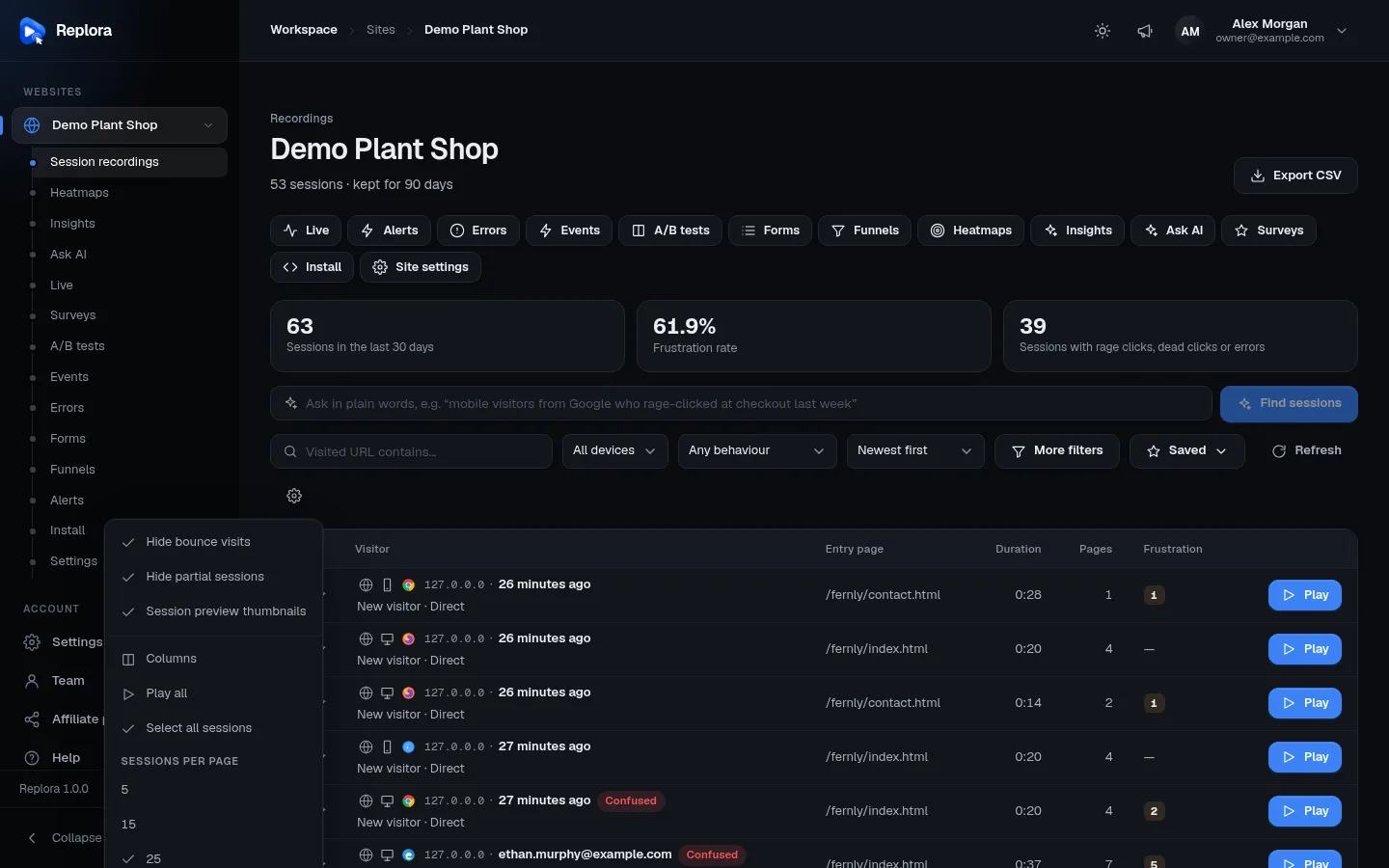
The gear button at the end of the filter row opens the table settings. They are remembered for this website in this browser.
| Item | What it does | Default |
|---|---|---|
| Hide bounce visits | Hides one-page visits without a click that lasted less than 10 seconds. | On |
| Hide partial sessions | Hides sessions that can’t be replayed because their start never reached the server. | On |
| Session preview thumbnails | Shows a small picture of the page when you hover a session’s visitor. | On |
| Columns | Opens Tag columns. | |
| Play all | Plays every replayable session on this page one after the other. The replay shows Session N of M and a Next session button, and moves on by itself at the end. | |
| Select all sessions | Selects every session on the page (people who can make changes only). | |
| Sessions per page | 5, 15, 25, 50 or 100. | 25 |
| Reset table preferences | Back to the defaults, and removes the tag columns. |
Where are my short visits?
Bounces and partial sessions are hidden by default, so the list shows visits worth watching. If a session you expect is missing, untick Hide bounce visits and Hide partial sessions. When the list is empty because of them, it says so.
Tag columns
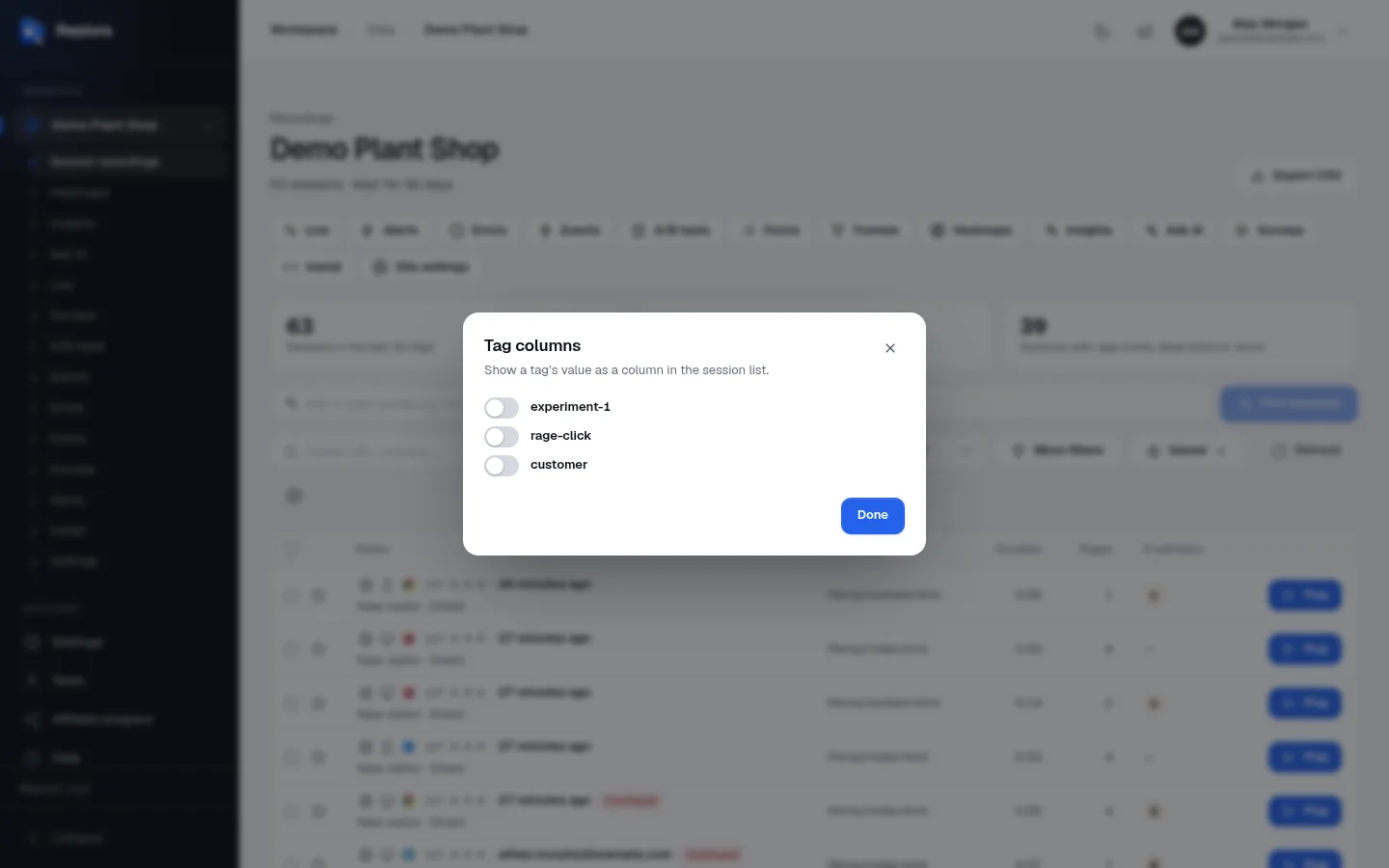
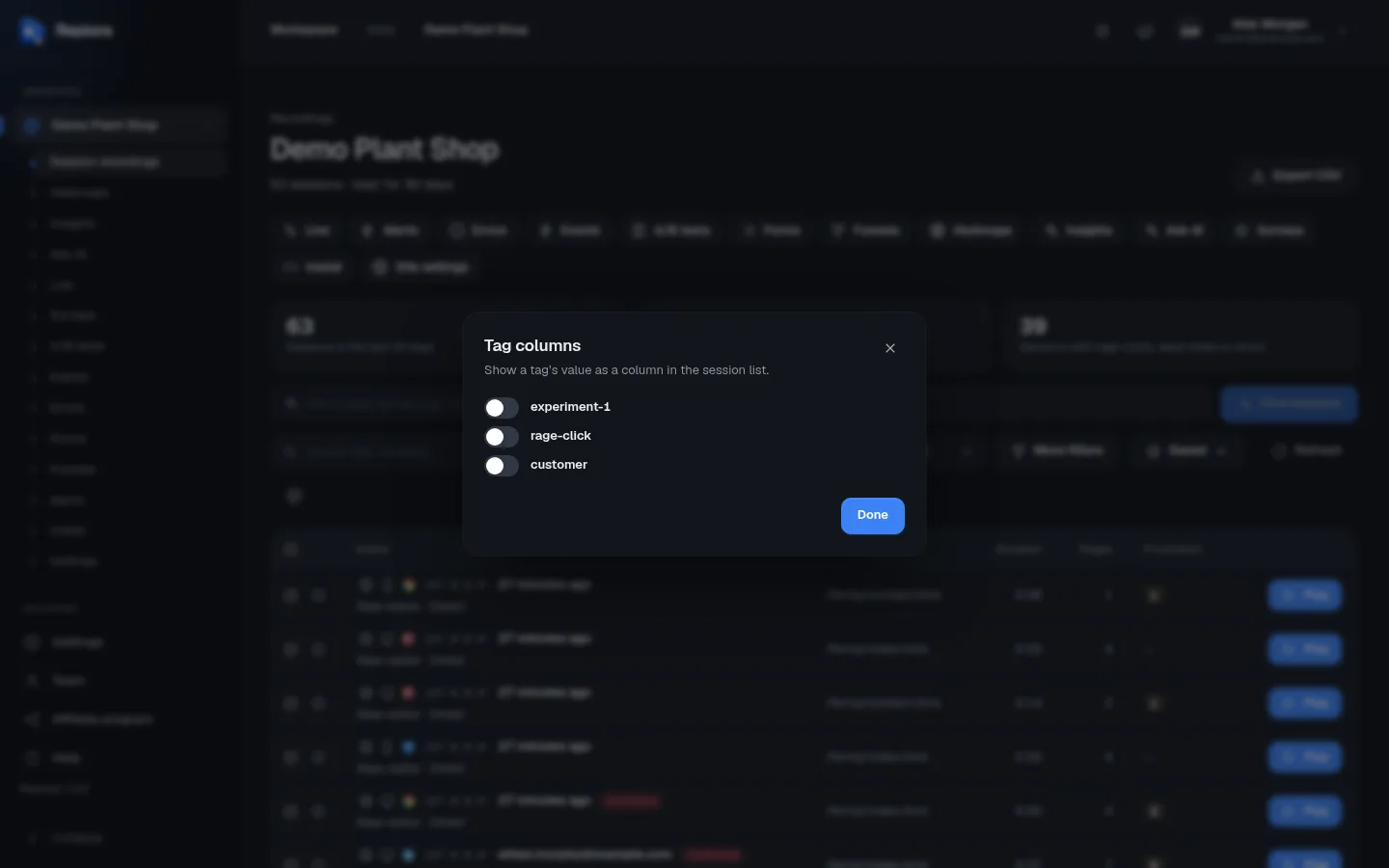
Columns in the table settings opens Tag columns: one switch per tag your website uses. Switch one on to show that tag’s value as a column, for example plan or cart_value. Click Done to close. The columns are remembered for this website in this browser.
When the website has no tags yet, the dialog says Tags appear once your site calls tagSession or identify.
Export to CSV
Export CSV (top right) downloads the sessions that match your filters and sort order, also respecting Hide bounce visits and Hide partial sessions: up to 10,000 sessions in one file, named like sessions-2026-11-20.csv. Export selected in the selection bar downloads only the ticked sessions.
The file has one row per session with these columns: id, started_at (in your time zone), duration_seconds, pages, clicks, rage_clicks, dead_clicks, errors, failed_requests, identity, entry_url, exit_url, referrer, source, utm_campaign, returning (yes/no), country, region, city, device, browser, os.
Pages of results
Under the list, the pager moves between pages of results. The page number and the filters are part of the address, so you can bookmark a filtered page or send it to a colleague.
Common tasks
Find the visits where people struggled
- Click the Frustration rate card, or choose Most frustrated in the sort menu.
- Open the first sessions with Play.
- In the replay, use the red markers on the timeline to jump to the problem.
Collect examples for your team
- Star the sessions that show the problem.
- Open More filters, switch on Starred only and Apply filters.
- Click Save search to keep this view, or share a session with a link.
Who can do what
Everyone can browse, filter, export and watch. Starring, tagging, selecting and deleting need the Manager or Member role; viewers see the list read-only.