
Appearance
Filters & search
A busy website records thousands of sessions. Filters narrow them down to the ones that answer your question: visitors who reached checkout but didn’t buy, mobile users who rage-clicked, a customer who wrote to support. You can combine any filters, save the result for your team, or simply describe what you want in plain words.
Where: on a website’s Session recordings page, between the summary cards and the list.
Ask in plain words
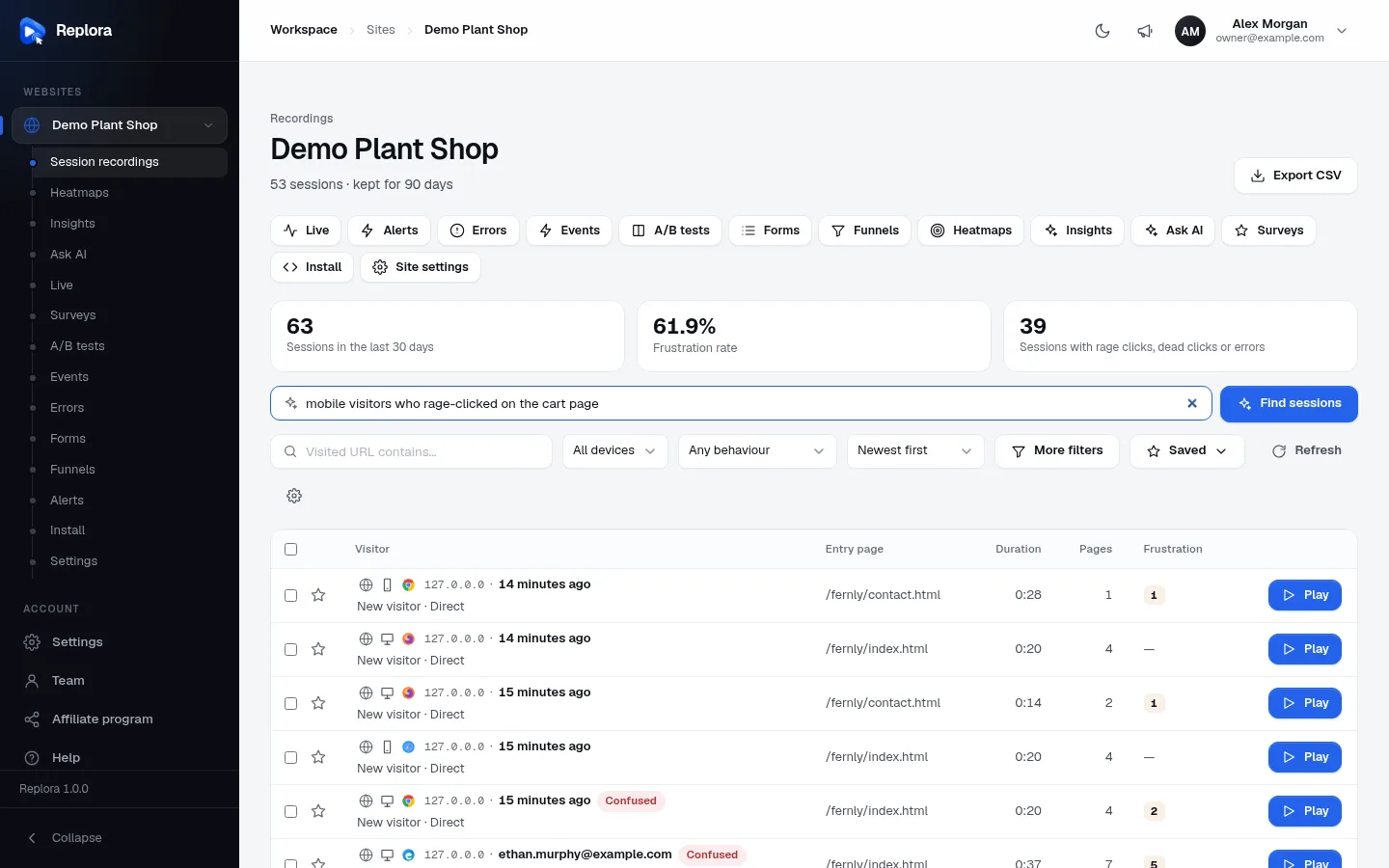
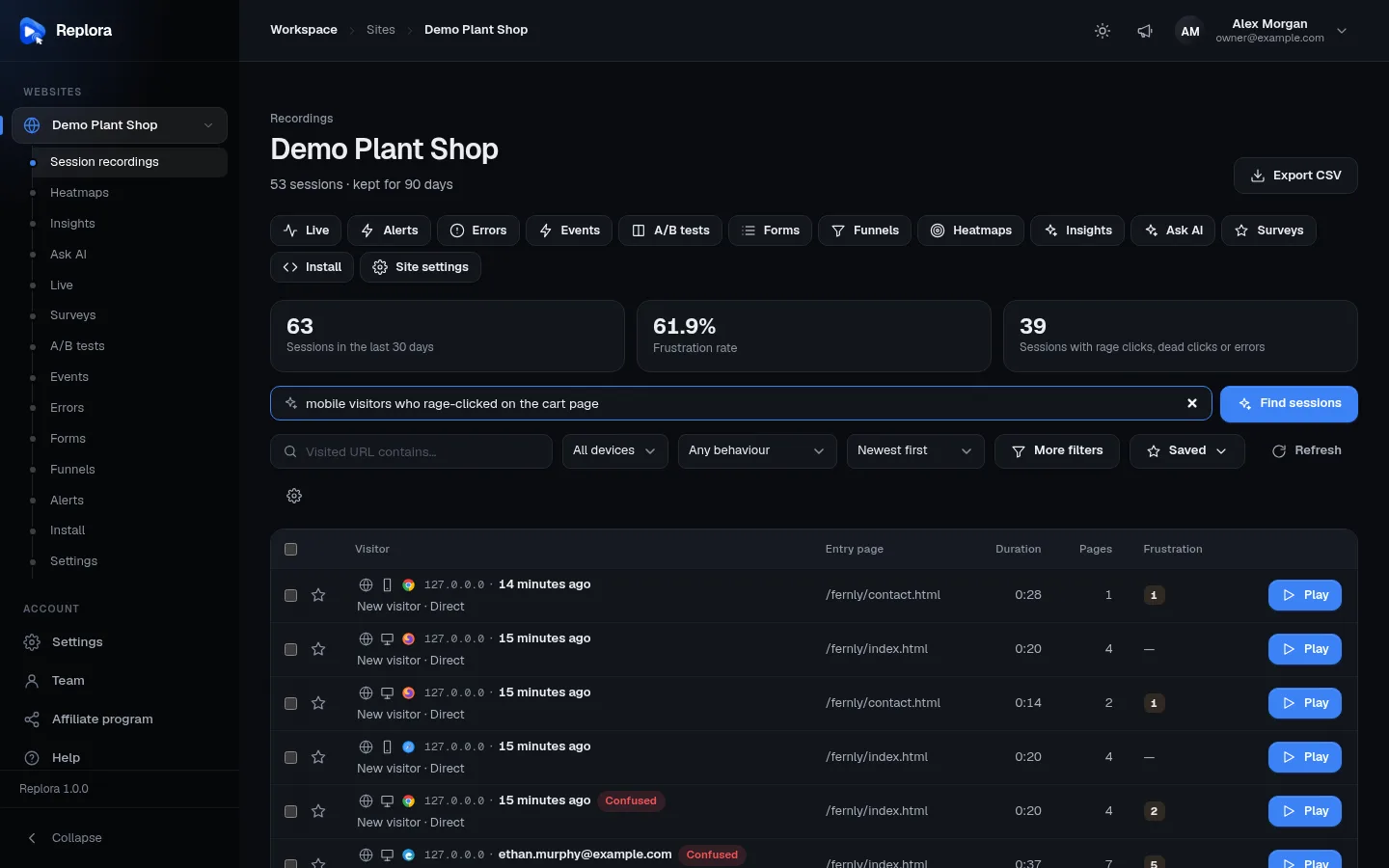
The wide box with a sparkle icon, Ask in plain words, e.g. “mobile visitors from Google who rage-clicked at checkout last week”, turns a sentence into filters.
- Type what you are looking for, in any words (3 to 300 characters).
- Click Find sessions (or press Enter).
- A short note says what was understood, and the list shows the matching sessions (AI can also choose the sort order). The filters it chose appear as chips above the list, so you can check them, remove one, or open More filters to adjust them.
If the question can’t be turned into filters, the note explains why and the list doesn’t change. Try naming concrete things: pages (checkout, pricing page), devices, countries, traffic sources, dates, or problems (rage clicks, errors).
Good questions
- visitors from France on mobile who spent more than 2 minutes
- sessions with JavaScript errors on the cart page yesterday
- returning visitors who came from an email campaign
- starred sessions with notes
The search box is shown only if your plan includes AI search. The question is sent to Claude (Anthropic’s AI) to pick the filters; no session data goes with it. For questions about your visitors (“why do people leave the pricing page?”), use Ask AI.
Quick filters
The filter row covers the most common searches.
| Control | What it does |
|---|---|
| Visited URL contains… | Sessions that viewed a page whose address contains this text, anywhere in the visit (not just the first page). Type e.g. /checkout and press Enter. Upper and lower case don’t matter. |
| All devices | Desktop, Mobile or Tablet only. |
| Any behaviour | With rage clicks, With dead clicks, With errors or With failed requests. For several at once, use More filters › Frustration. |
| Sort | The order of the list (see below). |
| More filters | Opens every other filter. The button shows how many filters are active, e.g. More filters (3). |
| Saved | Your account’s saved searches. |
| Refresh | Reloads the list now. |
Sort orders
| Choice | Sessions first |
|---|---|
| Newest first | The most recent (default). |
| Oldest first | The oldest still kept. |
| Most frustrated | The most rage clicks, dead clicks, errors and failed requests. Rage clicks weigh most, then dead clicks. |
| Most interesting | The highest interest score: many pages, a long visit, many clicks. |
| Longest | The longest visits. |
| Most pages | The most pages viewed. |
| Most clicks | The most clicks. |
More filters
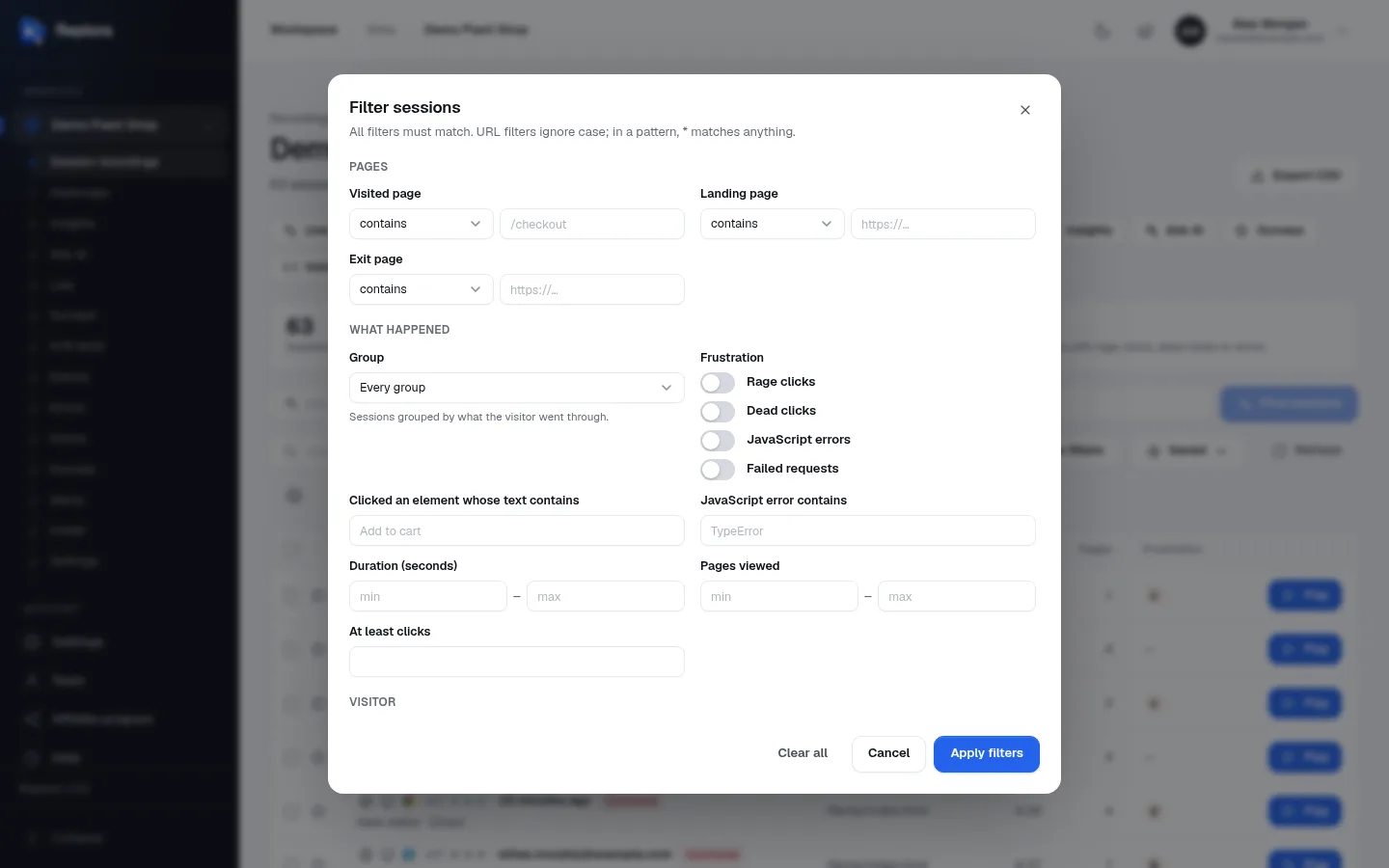
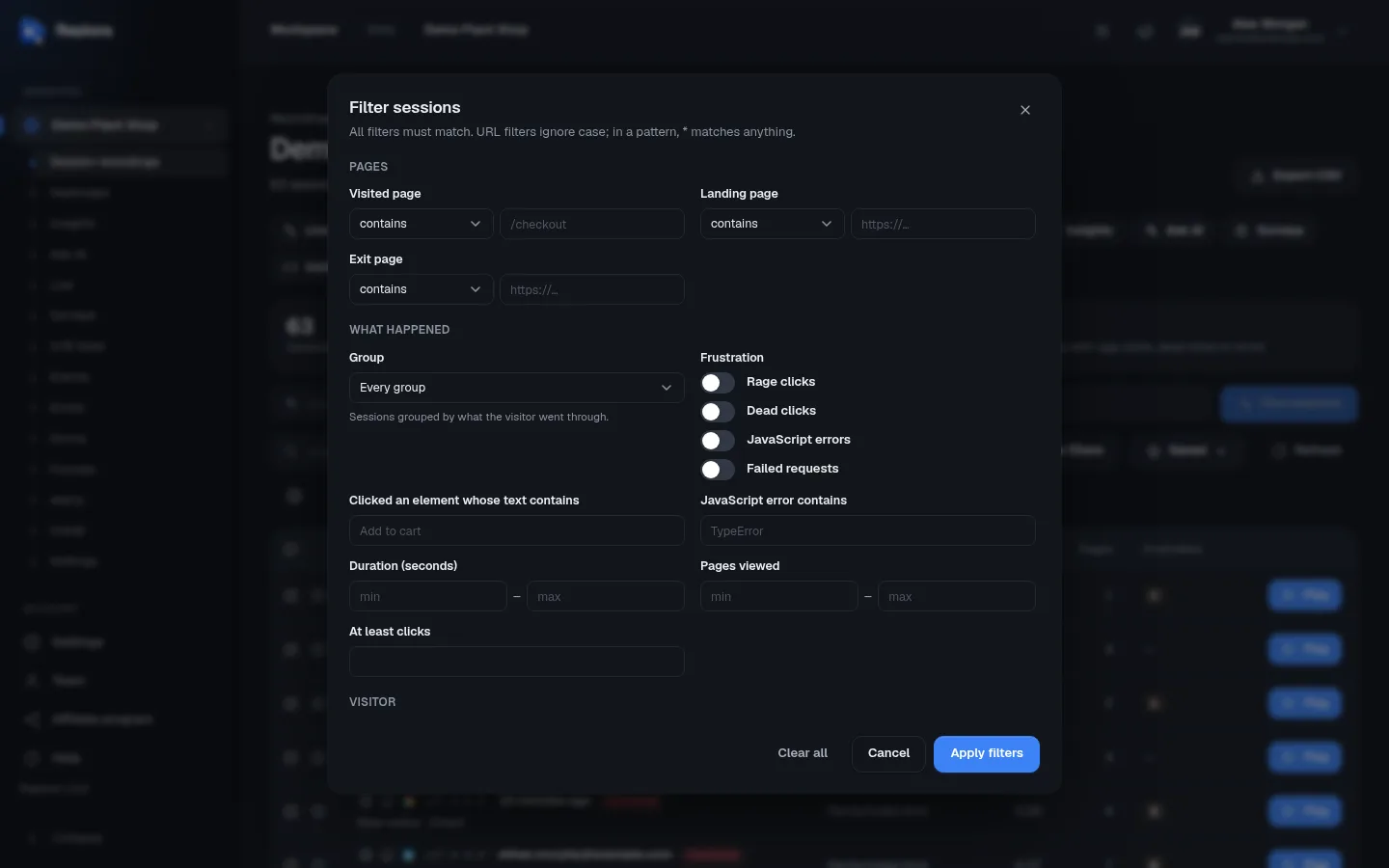
More filters opens Filter sessions. All filters must match: each one you fill in narrows the list further. URL filters ignore upper and lower case. Nothing changes until you click Apply filters; Cancel closes without changes, Clear all empties every field.
Pages
Each page filter has an operator and an address.
| Filter | Matches sessions whose… |
|---|---|
| Visited page | …any page matches (e.g. /checkout). |
| Landing page | …first page matches. |
| Exit page | …last page matches. Useful to see where people leave. |
| Operator | Meaning | Example |
|---|---|---|
| contains (default) | The address contains the text. | /product |
| is | The address is exactly this. | https://shop.com/cart |
| begins with | The address starts with this. | https://shop.com/blog |
| matches pattern (*) | * stands for anything. | */orders/*/edit |
| does not contain | The opposite of contains. | /blog |
| is not | Anything but this exact address. | |
| does not begin with | The opposite of begins with. |
What happened
| Filter | What it does |
|---|---|
| Group | Confused (Rage clicks, dead clicks or errors: the visitor struggled.), Engaged (Many pages, a long visit or many clicks.) or Routine (A short visit that went as expected.). Every group by default. |
| Frustration | Switches for Rage clicks, Dead clicks, JavaScript errors and Failed requests. Each one you switch on must have happened in the session. |
| Clicked an element whose text contains | Sessions where the visitor clicked a button or link with this text, e.g. Add to cart. |
| JavaScript error contains | Sessions with an error whose message contains this text, e.g. TypeError. |
| Duration (seconds) | min and/or max length of the visit, in seconds (up to 86,400). Example: 120 – (empty) for visits of two minutes or more. |
| Pages viewed | min and/or max number of pages. |
| At least clicks | The minimum number of clicks. |
Visitor
| Filter | What it does |
|---|---|
| Identity contains | Part of the identity your site sends with identify, e.g. an email address or a customer name. Set by your site with identify. |
| New or returning | Any, New (first visit) or Returning. |
| Country | One country. Countries seen in your sessions are listed first (In your sessions), then All countries. |
| Region contains | Part of the region or state name. |
| City contains | Part of the city name. |
| IP address starts with | The beginning of an IP address, e.g. 203.0.113. for a whole office network. |
Device
| Filter | Choices |
|---|---|
| Device | Any device, Desktop, Mobile, Tablet |
| Browser | The browsers seen in this website’s sessions (Chrome, Safari, Firefox…). |
| System | The operating systems seen in this website’s sessions (Windows, macOS, iOS, Android…). |
Traffic
| Filter | What it does |
|---|---|
| Source | Where the visit came from: Direct (typed address, bookmark), Search (search engines), Social (social networks), Email, Paid (ads) or Referral (links on other websites). |
| Referrer contains | Part of the address of the page that linked to you, e.g. google or newsletter. |
| Campaign (utm_campaign) | The campaign name from the utm_campaign parameter of your links, e.g. spring-sale. |
Tags
Has tag finds sessions with a tag your site set (with tagSession or identify) or someone added by hand. Type a tag name (plan) or a name and value (plan:pro) and click Add or press Enter; existing tag names are suggested as you type. Add as many as you like (up to 20); each shows as a chip you can remove with ×.
With two or more tags, Match chooses All tags (each tag must be there) or Any tag (one is enough).
Recording
| Filter | What it does |
|---|---|
| From / To | Sessions that started in this date range. |
| Starred only | Only starred sessions. |
| With notes only | Only sessions someone wrote a note on. |
| Replayable only | Only sessions that can be replayed (leaves out No replay and Incomplete ones). |
What isn’t a filter here
There is no filter for the visitor’s language or for UTM source and medium: the list shows the source (Direct, Search…) and the campaign. The visitor’s language is on the replay’s Info tab.
Active filters
Each active filter appears as a chip above the list, written out in words: Visited page contains “/checkout”, Has rage clicks, Country: France, Tag plan = pro, Group: Confused…
| Action | How |
|---|---|
| Remove one filter | Click its chip (the ×). |
| Remove them all | Clear all. |
| Keep this search | Save search (see below). |
When you arrive from another page, for example from a funnel step or a custom event, the list can show a chip like Sessions from another page (or that page’s name): the sessions that page picked. Remove it to see all sessions again.
Filters are part of the page address. Bookmark a filtered list, or copy the address and send it to a colleague: they see the same sessions (if they have access to the website).
Saved searches
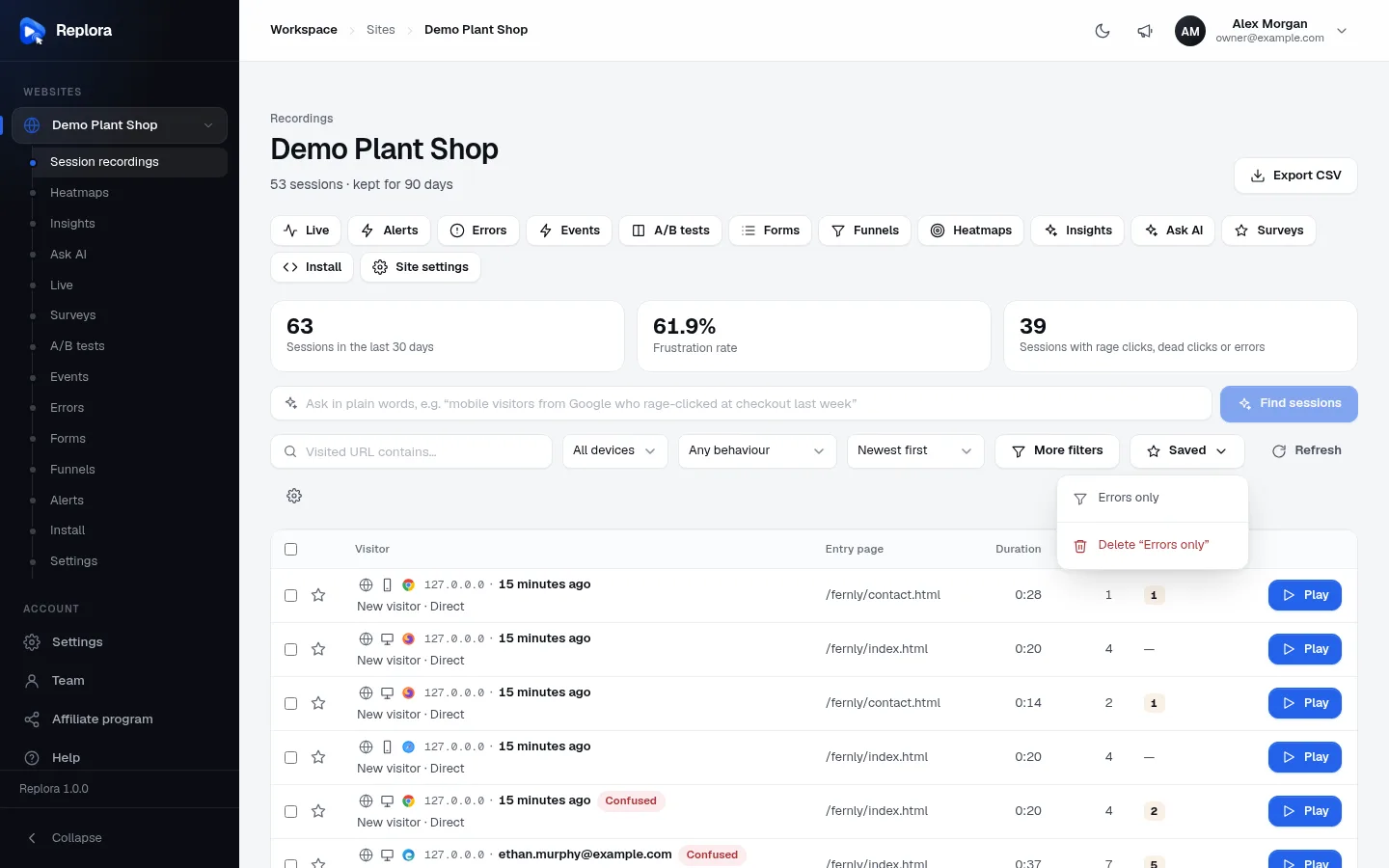
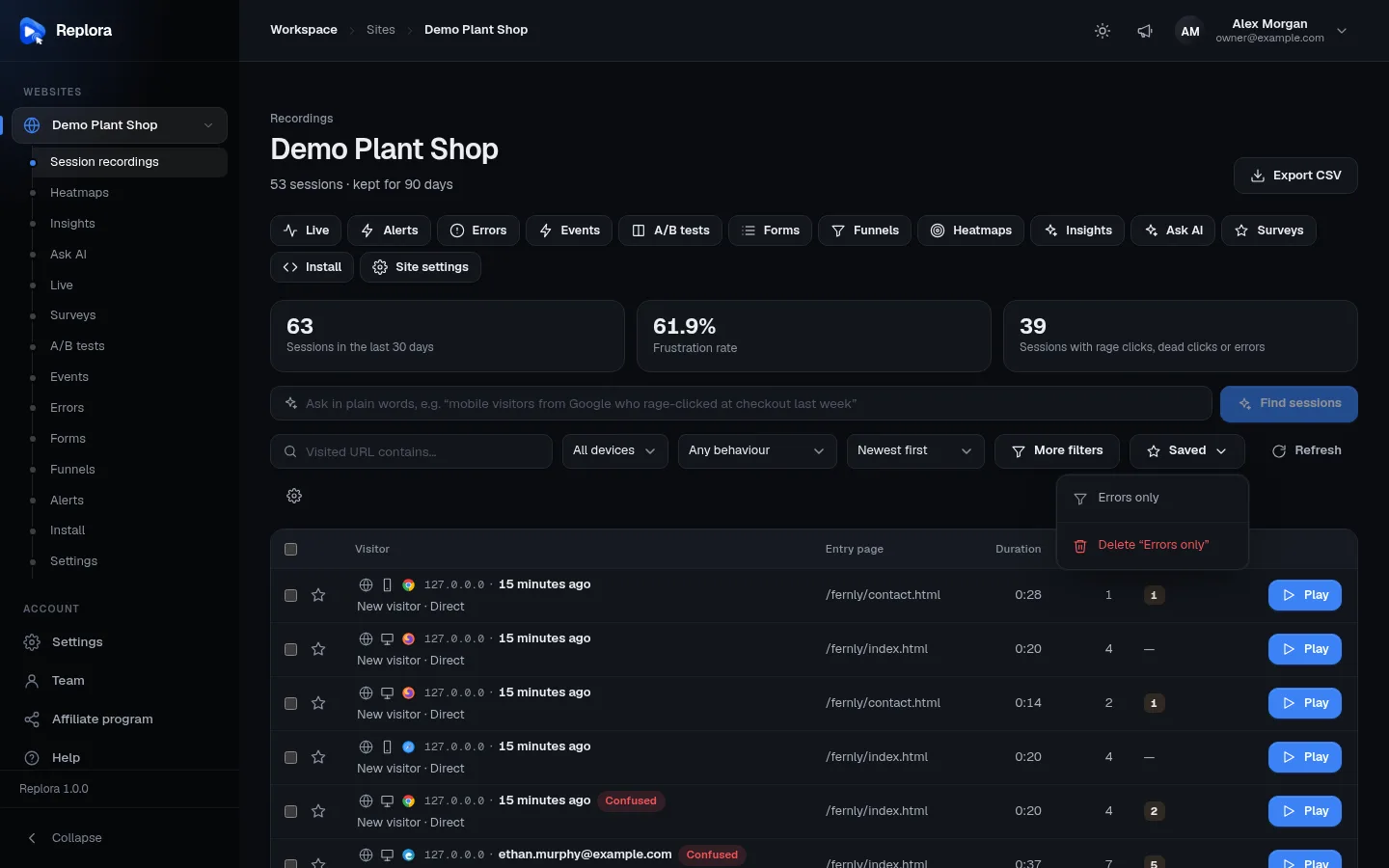
Save a combination of filters under a name to use it again in one click. Saved searches belong to the website and everyone in your account sees them.
Save a search
- Set the filters you want (quick filters, More filters or plain words).
- Click Save search next to the filter chips.
- Type a Name (up to 80 characters), e.g. Frustrated checkout visitors.
- Click Save search. A message says Search saved.
Use or delete a saved search
Click Saved in the filter row. The menu lists your saved searches by name: click one to apply its filters. Below them, Delete “name” removes a saved search (for everyone). With none saved yet, the menu says No saved searches yet.
Saving needs the Manager or Member role. The sort order isn’t part of a saved search.
When nothing matches
The list says No sessions match these filters and Try a wider date range or fewer filters. Click Clear filters to start over. If Hide bounce visits or Hide partial sessions are on in the table settings, the message mentions it: those sessions are hidden even when they match.
Examples
| You want | Set |
|---|---|
| People who added to cart but never reached checkout | Clicked an element whose text contains Add to cart, Visited page does not contain /checkout |
| Visitors who left on the pricing page | Exit page contains /pricing |
| Phone visitors from your newsletter | Device Mobile, Source Email |
| A customer who contacted support | Identity contains their email |
| Errors after last week’s release | Frustration › JavaScript errors, From the release date |
Related
- Session recordings: the list itself, columns and bulk actions
- Watching a replay
- Ask AI
- Funnels