
Appearance
Add a website
Before Replora can record anything, it needs to know your website: a name for it, and the domains it lives on. Adding a website takes a few seconds and gives you its tracking code.
Where: click Websites at the top of the sidebar to open the Sites page, then Add site (top right). On an empty account the page shows Add your first site instead.
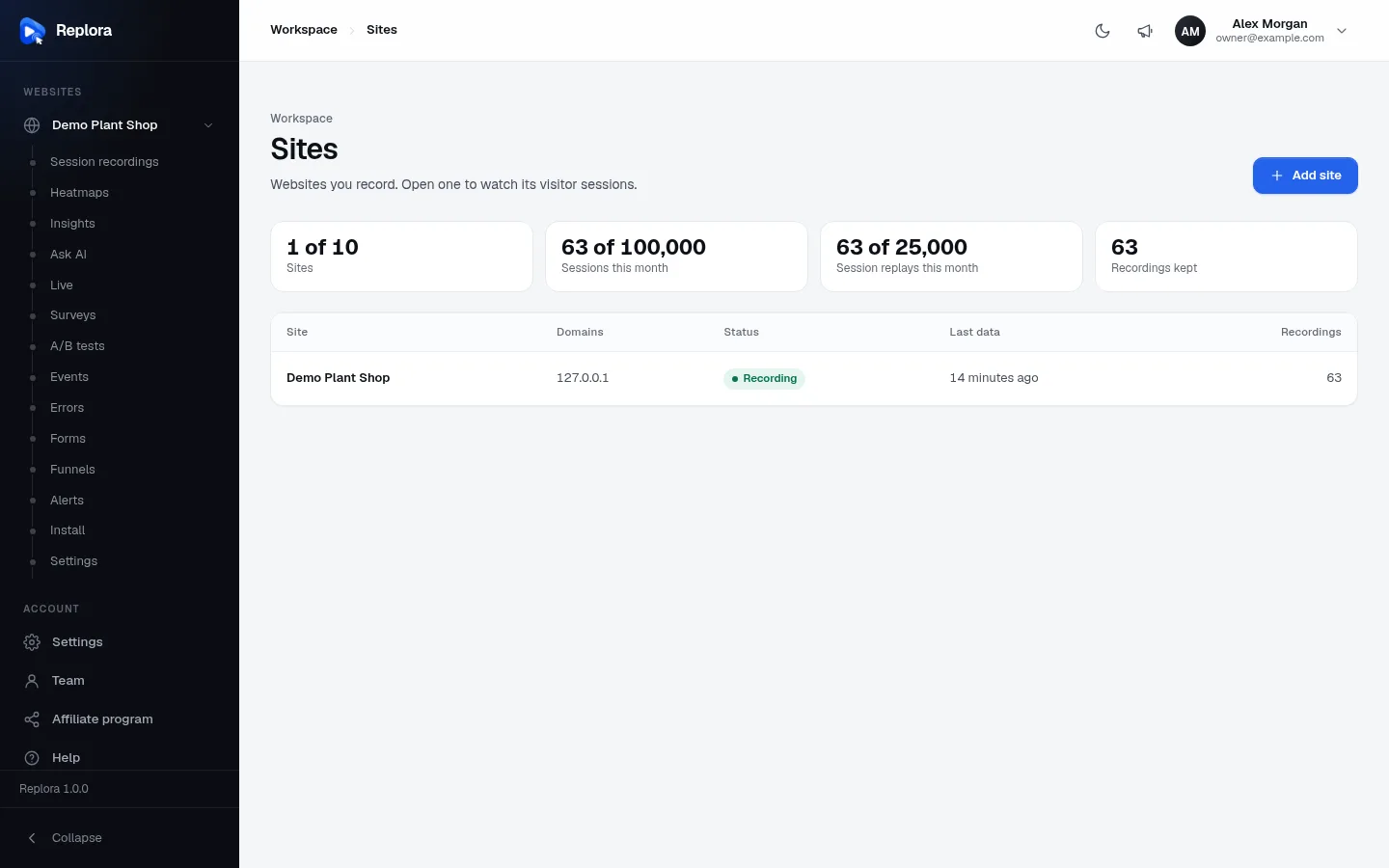
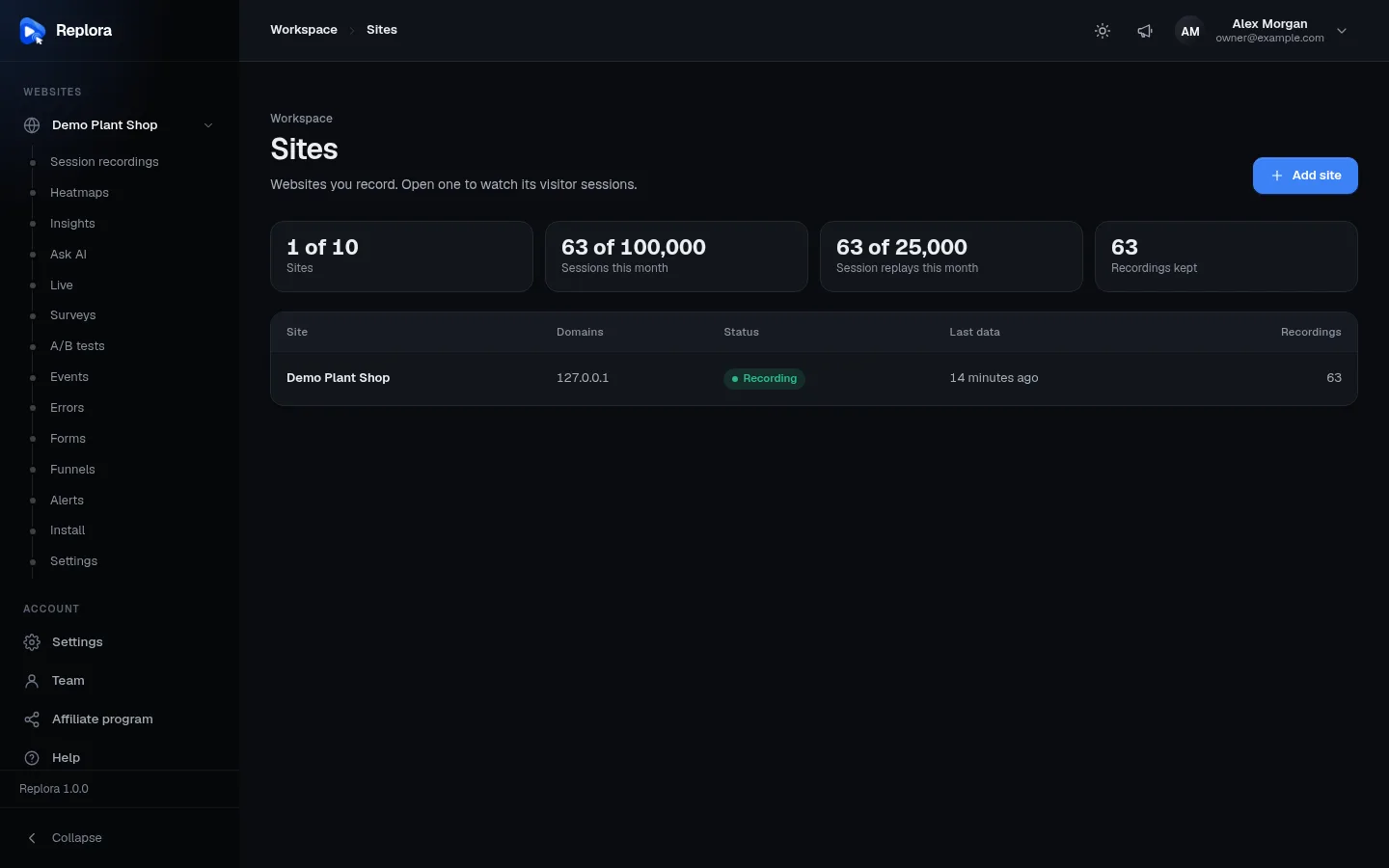
The Sites page
The Sites page lists every website of your account (or only the ones you have access to).
The cards at the top show your usage. When your plan has a limit, they read used of limit, for example 1 of 10:
| Card | What it counts |
|---|---|
| Sites | Websites in your account, against your plan’s limit. |
| Sessions this month | Visits recorded this calendar month on all your websites. |
| Session replays this month | Visits recorded with a replay this month. Only shown when your plan limits replays separately: once the limit is reached, new visits still count in heatmaps, funnels and reports, but have no replay. |
| Recordings kept | Sessions stored right now on all your websites. |
The table has one row per website:
| Column | What it shows |
|---|---|
| Site | The name. Click it to open the website’s session recordings. |
| Domains | The allowed domains, or Any domain when none are set. |
| Status | Recording (green): data is arriving. Waiting for data: the tracking code hasn’t sent anything yet. Paused: recording is turned off in the website’s settings. |
| Last data | When the website last sent data, e.g. 2 minutes ago. |
| Recordings | How many sessions are kept for this website. |
The Add a site dialog
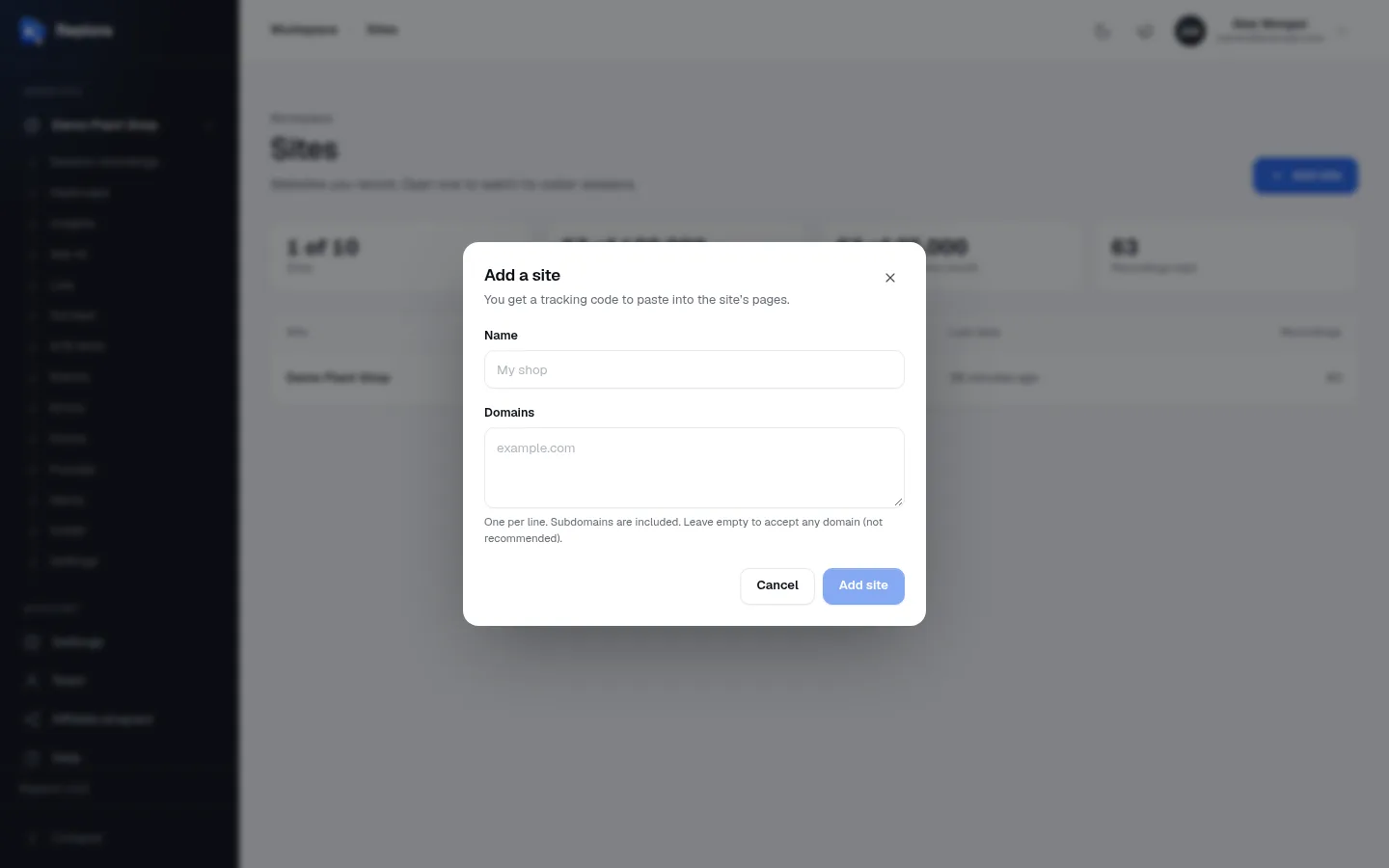
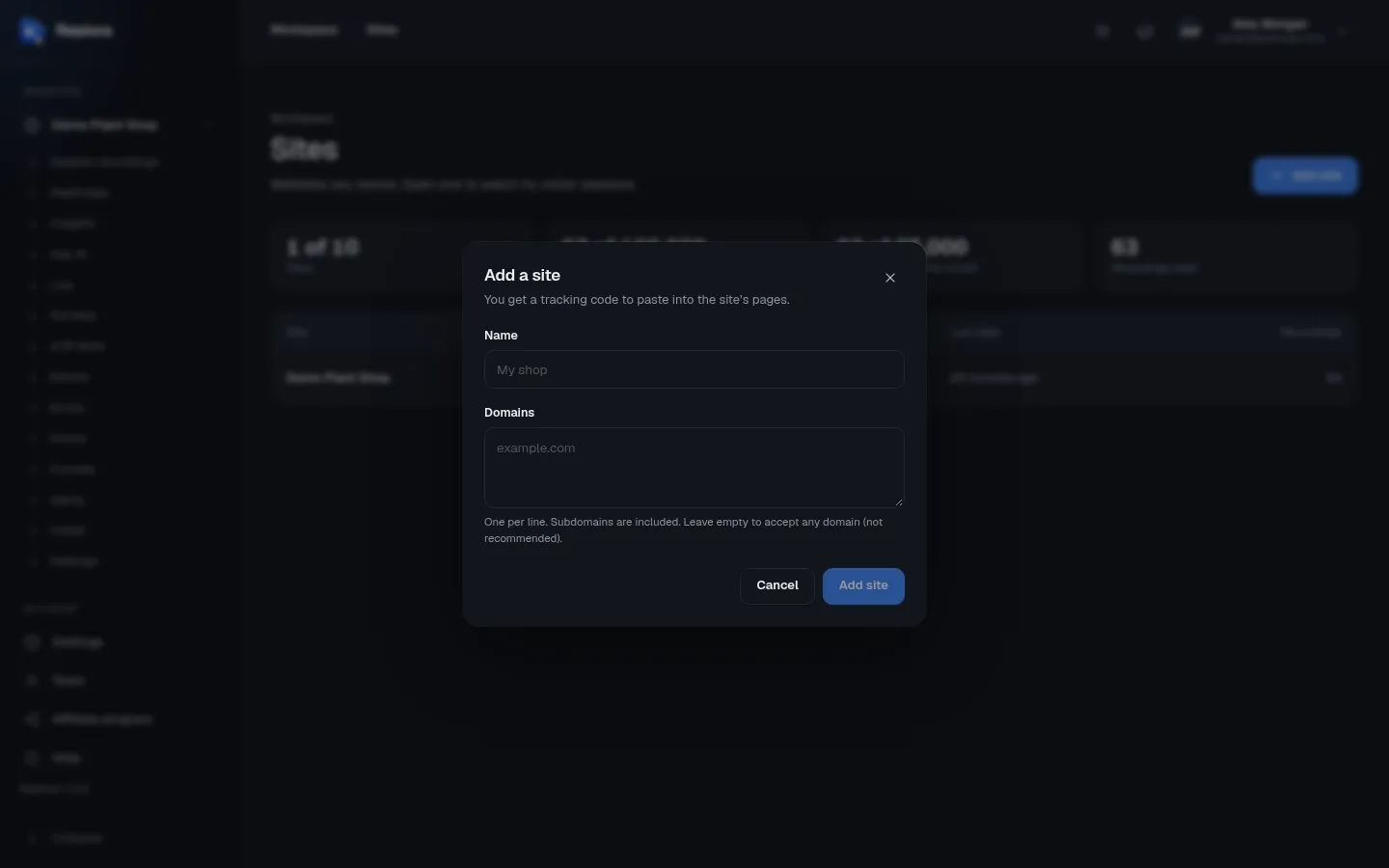
The dialog asks for two things.
| Field | What to enter | Rules |
|---|---|---|
| Name | Any name that tells you which website this is, for example My shop or Docs (staging). It appears in the sidebar, in reports and in emails. | Required, up to 120 characters. You can rename the website later. |
| Domains | The domains your website runs on, one per line (commas and spaces also separate them). Subdomains are included: example.com also covers www.example.com and shop.example.com. | Up to 50 domains. You can paste full addresses (https://www.example.com/page): Replora keeps only the host name. Leave the box empty to accept any domain (not recommended). |
Click Add site to create it, or Cancel to close the dialog. Add site is greyed out until you type a name.
Why domains matter
Only pages on the allowed domains may send recordings to this website. That stops someone else from copying your tracking code onto their own site and filling your quota. Add every domain where the code will run, including staging or a second shop domain if you want those recorded.
What happens next
As soon as the website is created, Replora opens its Settings page, with the Tracking code at the top. From there:
- Copy the tracking code, or open Install in the sidebar for other ways to install it (Google Tag Manager, npm). See Install the tracking code.
- Open a page of your website.
- Within a few seconds the status changes from Waiting for the first visit to Receiving data, and the visit appears in Session recordings.
New websites keep their recordings for the installation’s default period (30 days unless your administrator changed it), never more than your plan allows. Change it with Keep recordings for in the website’s settings.
Add a website step by step
- Click Websites in the sidebar.
- Click Add site.
- Type a Name.
- Type the website’s domain in Domains, for example
example.com. Add more domains on new lines. - Click Add site.
- On the Settings page that opens, click Copy next to the tracking code and give it to whoever edits your website, or follow Install the tracking code.
Limits and permissions
- Plan limit. Your plan sets how many websites the account can have. When you reach it, Add site is greyed out; trying anyway shows Your plan allows N sites. Upgrade the plan or delete a site first. See Plan & billing.
- Confirm your email first. A new account must confirm its email address before adding a website (the error says Confirm your email address first: we sent you a link.).
- Who can add websites. Managers and members with access to all of the account’s websites. Viewers, and people limited to some websites, can’t add one.
Related
- Install the tracking code
- Website settings: rename the website, change its domains, retention and privacy rules
- Dashboard tour