
Appearance
Support & help
Help is never far away in Replora. The help button in the corner of every page searches the help articles and, when switched on, answers questions with AI. The Help center lists every article. In the SaaS edition you can also open a support ticket with the team, follow its answers and rate them. The megaphone at the top tells you what’s new, and the affiliate program pays you for recommending Replora.
The help button
The round chat button in the bottom-right corner of every dashboard page opens the help panel without leaving what you’re doing. It greets you (Hi Alex!) and offers:
| Card | What it does |
|---|---|
| Chat with AI | Get instant answers. Opens the AI chat (when the installation has it switched on; the panel then says AI-powered support). |
| Help articles | Browse guides and docs. Every category with its articles, and Search the help articles. |
| Contact support | Open a ticket with our team. Opens a new support ticket (SaaS edition, when tickets are open). |
| Suggested for you | A few articles worth reading. |
| Contact us | A link to the operator’s contact page, when one is set. |
Opening an article shows it in the panel, with Still stuck? Ask AI, Open in the help center and Open a ticket. Use the arrow to go back, Esc or the cross to close.
The AI chat
Type a question about the dashboard (for example “How do I hide a form field from recordings?”, up to 2,000 characters) and press Enter. The answer is written from the help articles and links the ones it used. If something goes wrong, Retry asks again.
- The chat is kept while the browser tab stays open (the last 40 messages).
- AI answers can be wrong. The articles have the details.
- It answers questions about using Replora. For questions about your website’s visitors, use Ask AI.
Help center
Where to find it: in the sidebar, Account › Help.
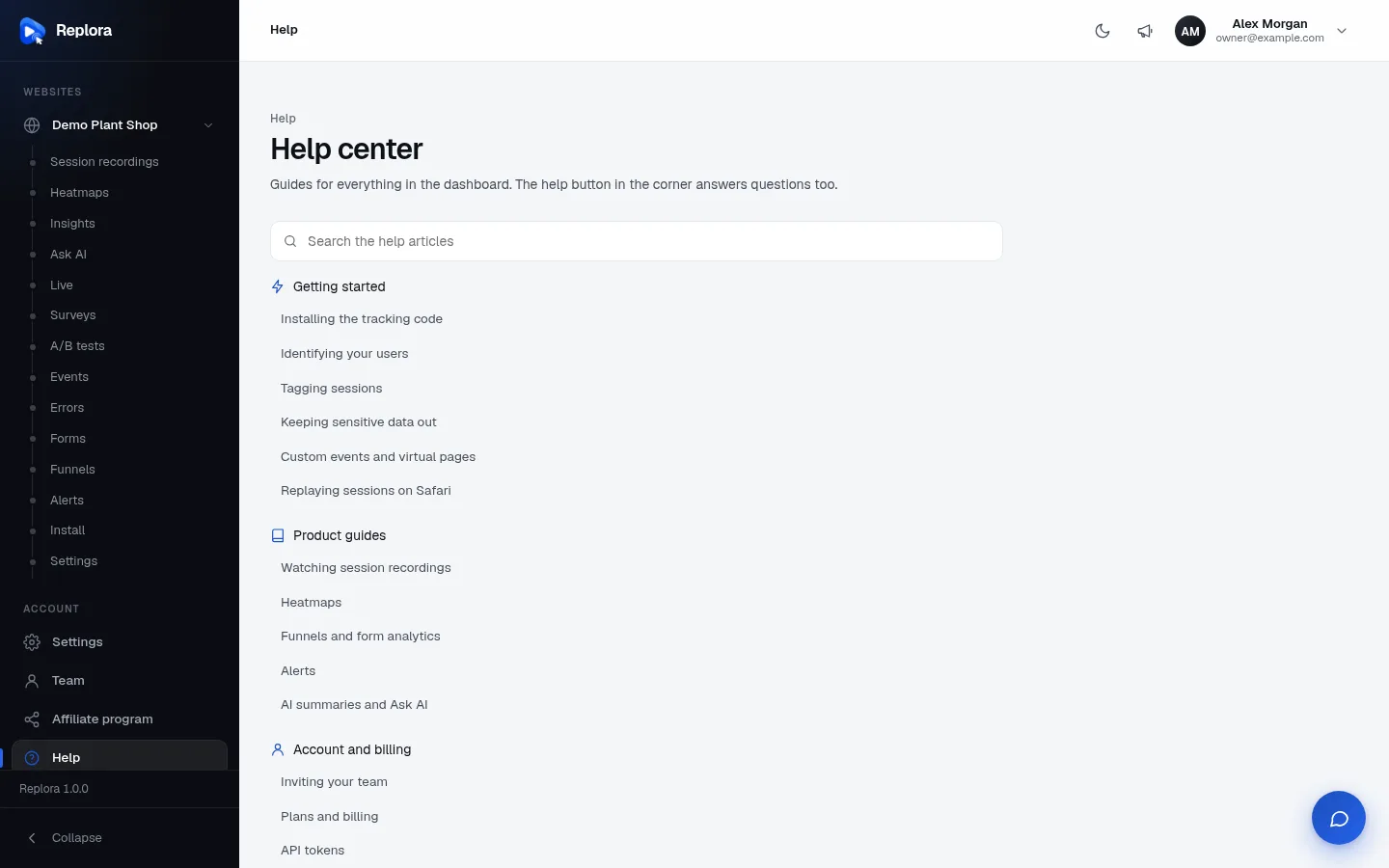
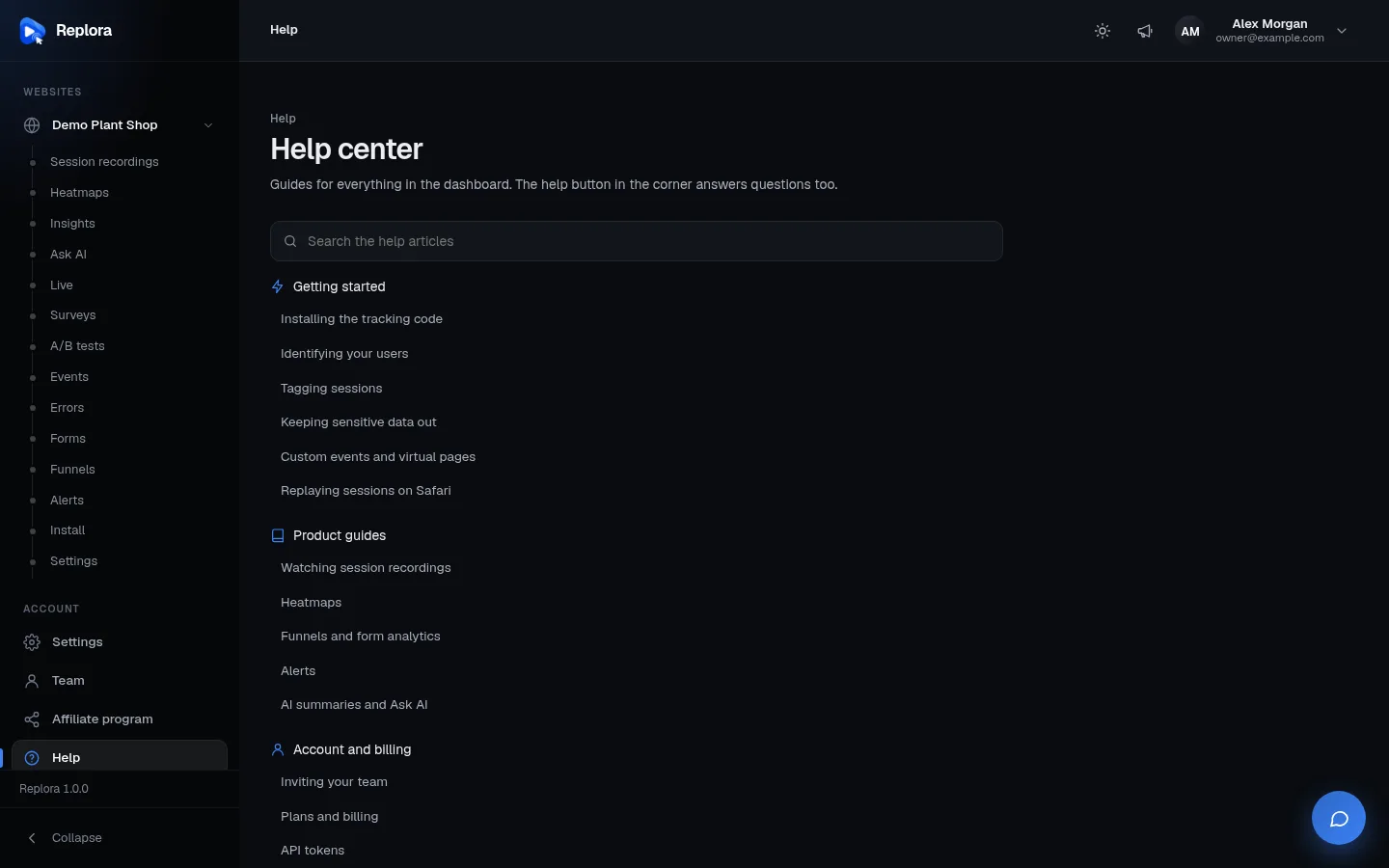
Guides for everything in the dashboard. The help button in the corner answers questions too.
- Search the help articles filters the list as you type.
- Articles are grouped by category (for example Getting started, Product guides, Account and billing). Click a title to read it.
- An article page shows its category, title, Updated date, and the other articles of its category on the side. All articles goes back.
The articles are written by the people who run your Replora installation.
Support tickets
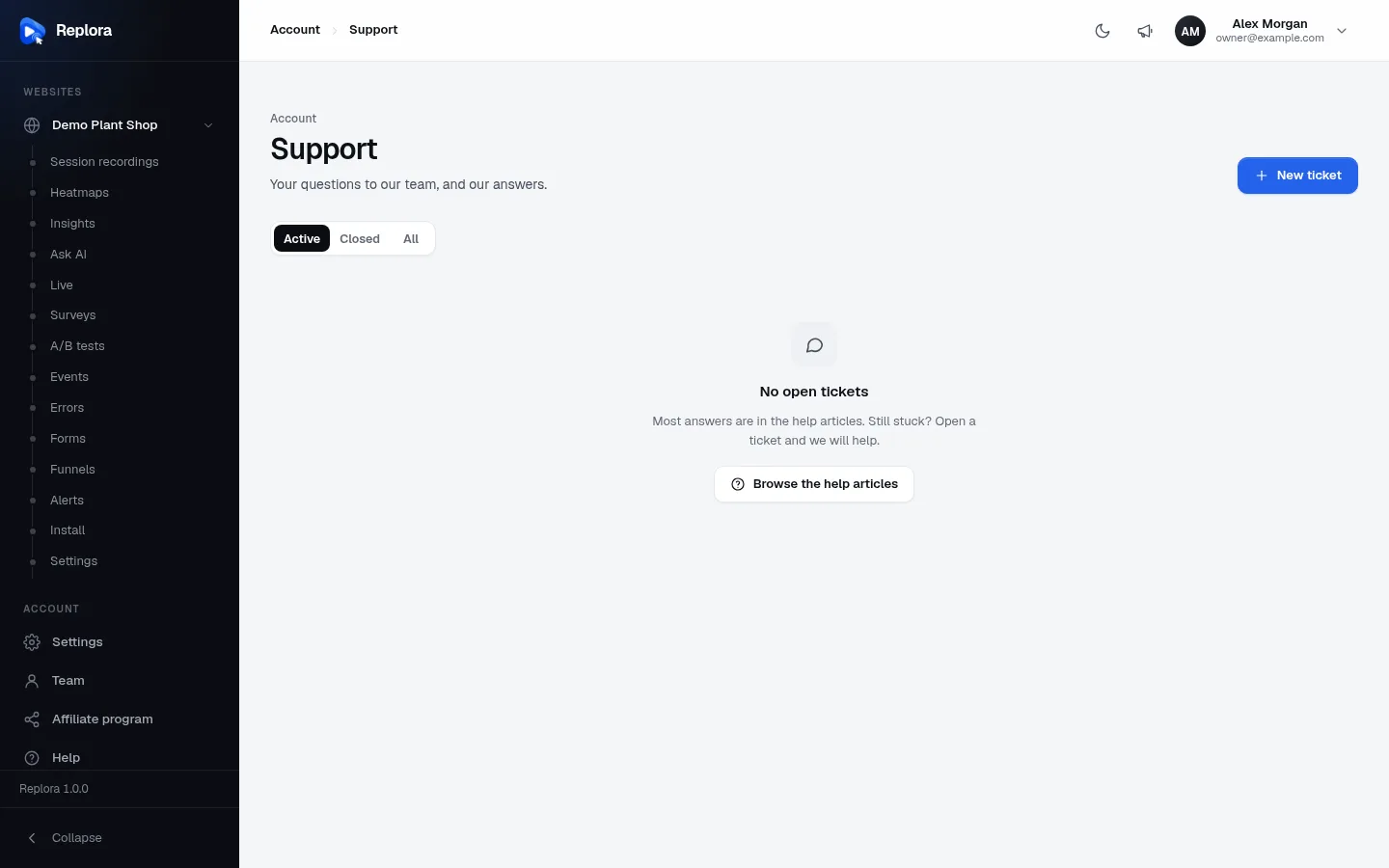
Available inSingle userSaaSSupport tickets are part of the SaaS edition, when the operator has them switched on.Where to find it: in the sidebar, Account › Support.
Your tickets
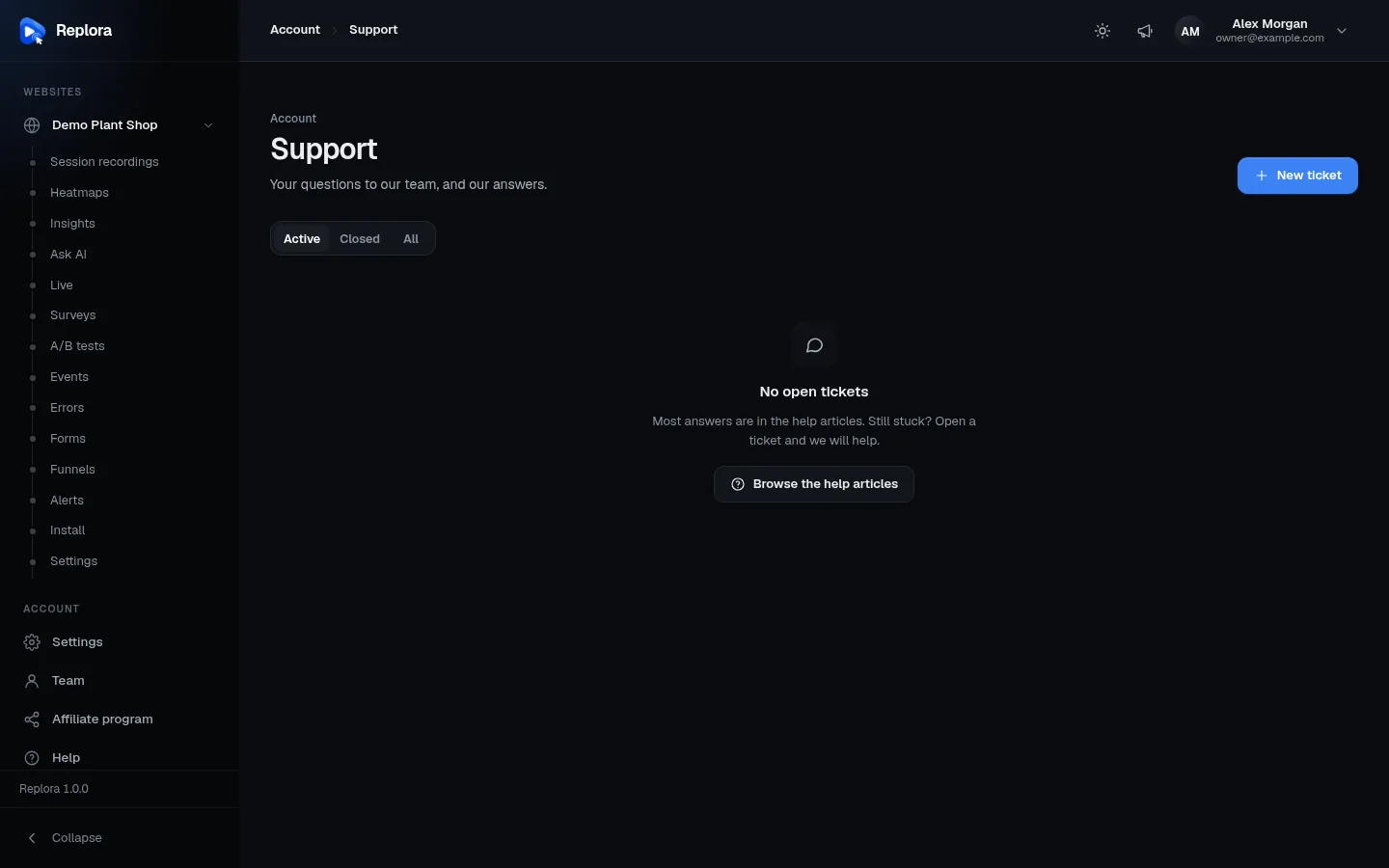
Your questions to our team, and our answers.
| Part | What it does |
|---|---|
| Active / Closed / All | Which tickets to list. Active is the default. |
| New ticket | Opens a new ticket. |
| Ticket | The subject, the reference number (#…) and the department. Click to open it. |
| Status | Waiting for us, Answered, On hold or Closed. |
| Priority | Low, Normal, High or Urgent. |
| Last activity | When something last happened. |
With no tickets you see Most answers are in the help articles. Still stuck? Open a ticket and we will help. and Browse the help articles.
Open a ticket
Click New ticket.
Write a Subject (up to 200 characters), a few words, e.g. “Replays show a blank page”. As you type, These articles may answer it lists up to five matching help articles: Read one of them first: most questions are answered there. If not, carry on below.
Choose the Department (if your support team has several), the Priority (Normal by default) and the Website it is about (or Not about one website).
Write the Message (up to 20,000 characters): what you did, what you expected, what happened instead.
Optionally Attach files: Up to 5 files, 10 MB each: images, PDF, text, logs, ZIP, short videos (the operator may set other limits).
Optionally open More details: page address, a session, copies, access for our team:
Field What for Page address The page where it happens. Link to a session that shows it Paste the link of a replay (see Share, export & notes): the fastest way to show the problem. Send copies to Up to 5 email addresses, separated by commas, of colleagues who should get copies. Private access details E.g. a test login. Stored encrypted, only our team sees them, erased when the ticket closes (up to 3,000 characters). Click Send ticket. Ticket sent. We will email you when we answer.
If you see Support tickets are closed at the moment., use the help articles or the contact link in the help panel.
Follow, reply and close
Open a ticket to see the whole conversation; answers from the team carry a Support team badge. The page checks for new answers every 20 seconds by itself.
| Part | What it does |
|---|---|
| Reply | Write a Message, attach files, and click Send reply. |
| Write again | On a closed ticket: Your message opens the ticket again. |
| Close ticket | Closes it when you’re done. |
| Side panel | Status, priority, department, website, page address, Open the session, copies, and Private access details (Stored encrypted, Erased or None). |
| Erase access details now | Deletes the private access details at once, without waiting for the ticket to close. |
Answered tickets close by themselves after some days without a reply from you (7 by default).
Rate the answer
Once the team has answered, How did we do? asks for one to five stars and A comment (optional) (up to 1,000 characters). Click Send rating. Ratings help the team improve.
Every person in the account, including viewers, can open and follow their own tickets.
What’s new
The megaphone in the top bar opens What’s new: announcements of new features and fixes, newest first. A number on the megaphone counts the ones you haven’t read; opening the panel marks them read.
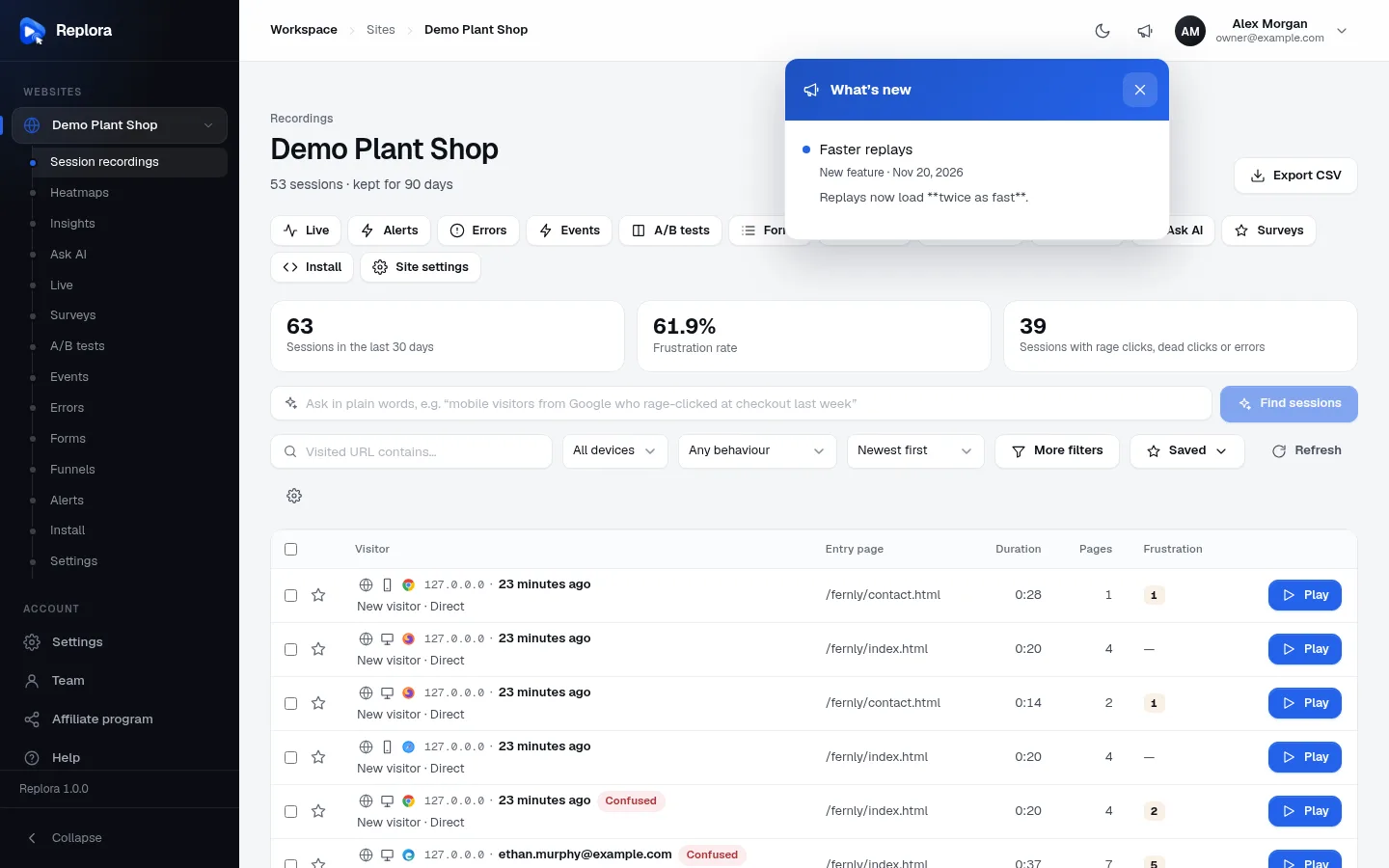
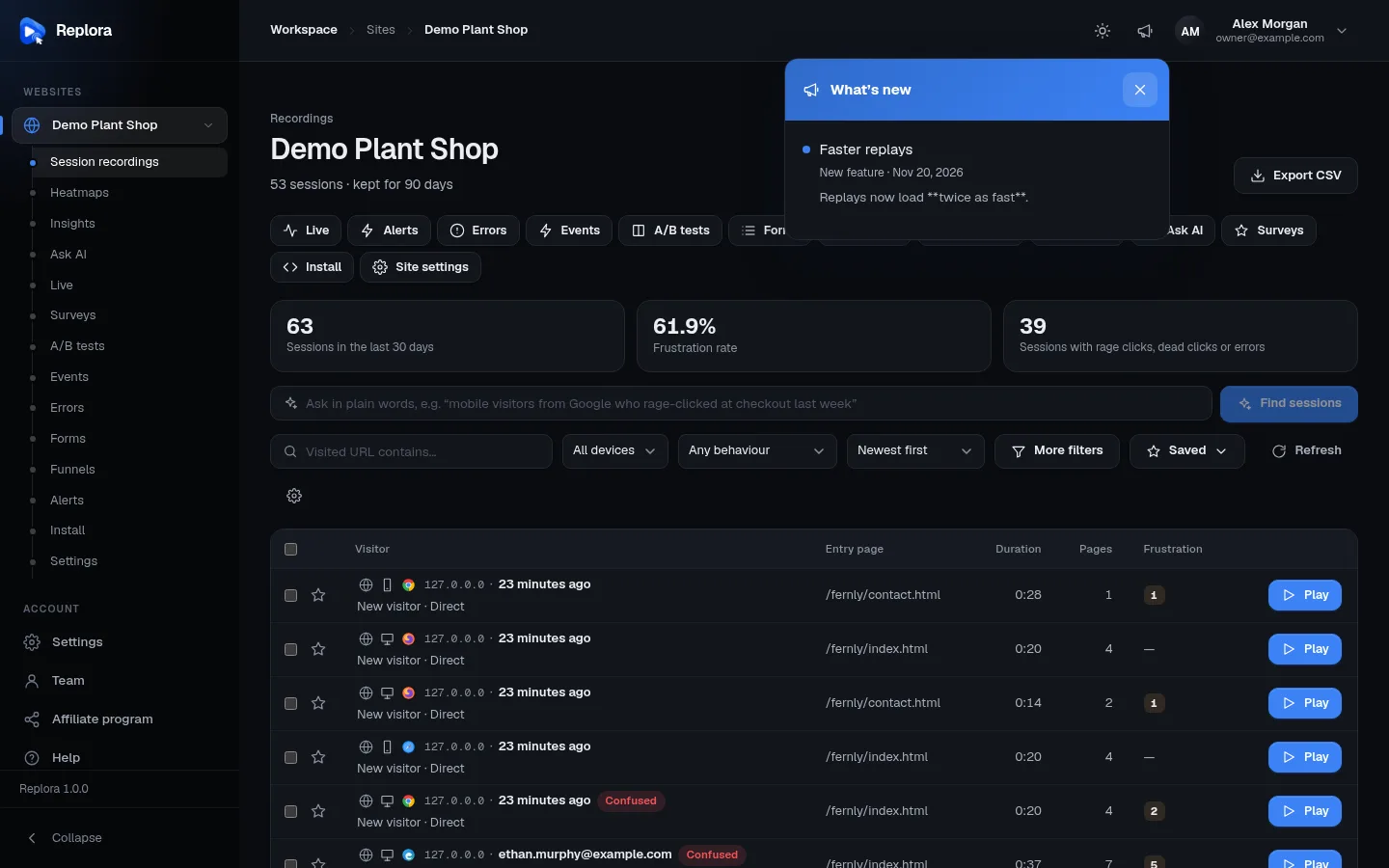
Each announcement has its kind (New feature, Improvement, Fix or News), its date, its text with links, and sometimes a picture. Show older news loads more. With nothing yet: No news yet. New features and fixes will show up here.
Affiliate program
Available inSingle userSaaSSaaS edition, when the operator runs an affiliate program.Where to find it: in the sidebar, Account › Affiliate program.
Recommend Replora and earn a share of what the accounts you refer pay. Before joining, the page explains the terms (the percentage, for how long, and how long a visitor is remembered) and shows Join the affiliate program (or The affiliate program is closed at the moment.).
Once you’ve joined:
| Part | What it shows / does |
|---|---|
| Your referral link | Your personal link with Copy link. Any page works: add ?ref=code to any address of our website. Anyone who opens it and signs up within the program’s number of days is your referral. |
| Counters | Clicks, Sign-ups, Paying accounts, Held for n days (new commissions are held that long before they become due), Due at the next payout, Paid to you. |
| Earnings per month | Per month: Payments and Earned. |
| Payouts | Each payout: Paid on, Reference, Amount and the Proof of payment. Payouts are made once a month from a minimum amount. |
| Commissions | Each payment of an account you referred, without tax, and what it earned you: date, account, payment, rate, commission and status (Held, Due, Paid or Void). |
| Where we pay you | Your bank details: Account holder, Bank, IBAN or account number, SWIFT / BIC (needed for transfers between countries), Country and Notes for the transfer. Save bank details; Change later. Only you and our administrators see it. You are only paid once they’re entered. |
If your link is paused, a notice says new payments don’t earn commissions.