
Appearance
API tokens
An API token is a key that lets another tool use Replora on your behalf: a script that exports sessions every night, your own dashboard, an AI app, a no-code automation. You create one token per tool, give it only the access it needs, and revoke it whenever you like without touching the others. The page also lists the devices signed in to the Replora mobile app.
Where to find it: in the sidebar, Developers › API tokens.
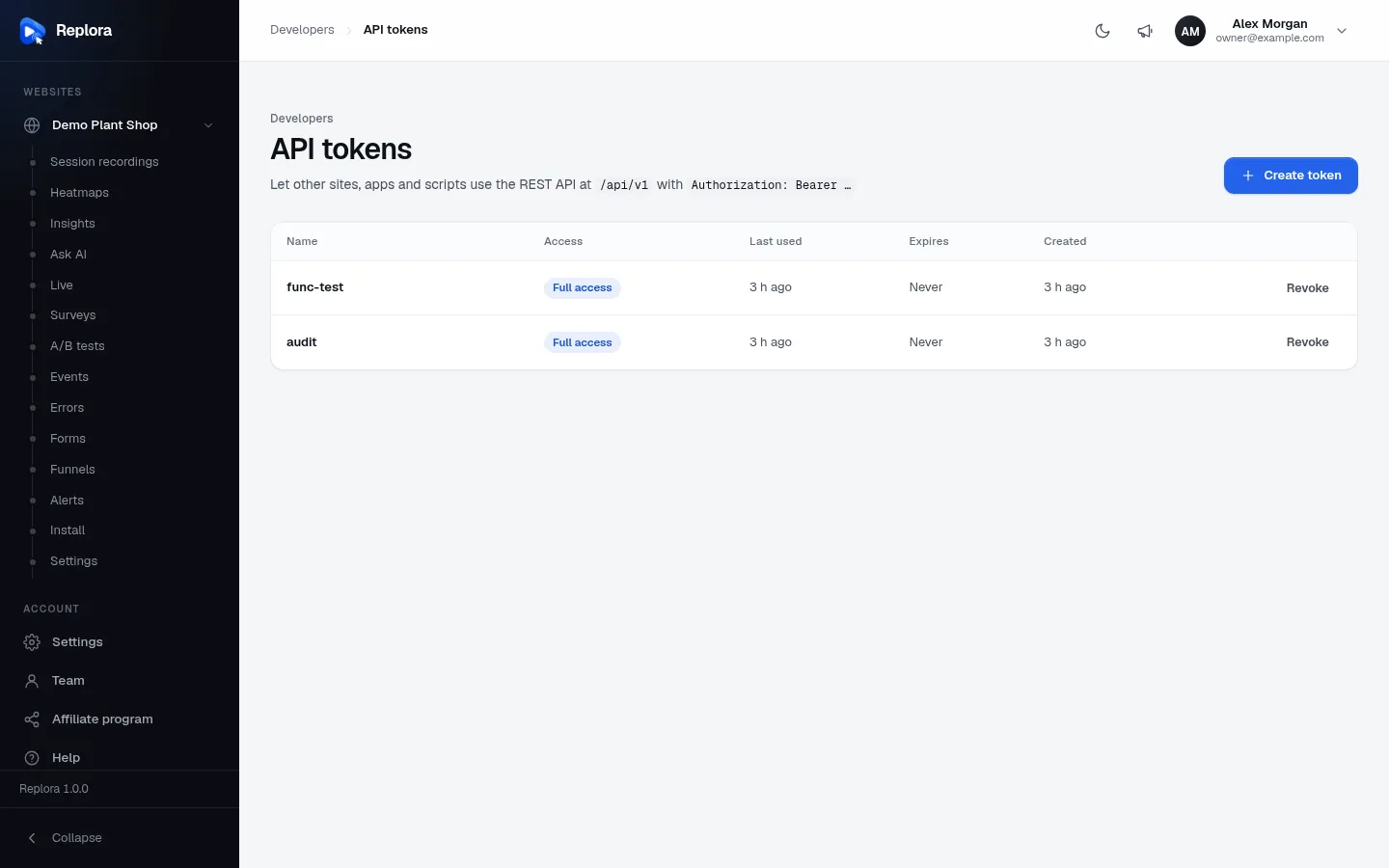
The subtitle reminds developers how to use a token: the REST API lives at /api/v1 of your Replora address, with the header Authorization: Bearer …. The full reference is in the Replora Docs.
The token list
| Column | Meaning |
|---|---|
| Name | What you called the token. This device marks the token of the device you are using (seen when you open this list in the Replora mobile app). |
| Access | Full access, or the abilities it was limited to (see below). |
| Last used | When a tool last used it, or Never. |
| Expires | The date it stops working, or Never. |
| Created | How long ago it was created. |
| Revoke | Turns it off for good. |
The list also includes the devices signed in to the Replora mobile app: the app creates one token per device when you sign in there. Revoking one signs that device out.
Each person sees and manages only their own tokens. A token can never do more than its owner: a viewer’s token can only read, and a token of someone limited to some websites only sees those.
Create a token
Click Create token.
Enter a Name (up to 120 characters): where it will be used, e.g. “Company website” or “iOS app”.
Choose its Access:
Access What it allows Full access Everything your account can do. The default. recordings:readList sites and sessions, replay recordings: read-only. recordings:writeCreate, change and delete sites and recordings. Ticking one ability unticks Full access; unticking all of them goes back to Full access.
Choose when it Expires: Never expires (the default), 30 days, 90 days or 1 year.
Enter Your password: Confirms it’s you before a new key to your account is created.
Click Create token.
Copy your new token now. It is shown only this once. Store it somewhere safe, like a password manager or your server’s environment variables. Click Copy, then Done.
Treat tokens like passwords
Anyone with the token can use your data with its access. Don’t paste it into emails, chats or public code. If one leaks, revoke it and create a new one.
Revoke a token
- Click Revoke on its row.
- Confirm with Revoke token: Anything using this token stops working at once. This cannot be undone.
Tokens of people removed from the team stop working automatically.
Tips
- One token per tool. When you stop using a tool, revoke its token and nothing else breaks.
- Read-only when possible. Reports and exports only need
recordings:read. - Set an expiry for tokens you give to contractors or for short projects.
Related
- Team & roles
- Account settings
- Share, export & notes
- Replora Docs: the REST API reference for developers.