
Appearance
Funnels
A funnel follows visitors through the steps that lead to a goal (for example product page, cart, checkout, thank-you page) and shows how many reach each step and how many drop out between them. Every number is clickable: you can watch the exact visits that gave up, which tells you why.
Where to find it: in the sidebar, under your website, click Funnels (for example Demo Plant Shop › Funnels). You can also create a funnel from a suggested path in Behavior insights › Journeys.
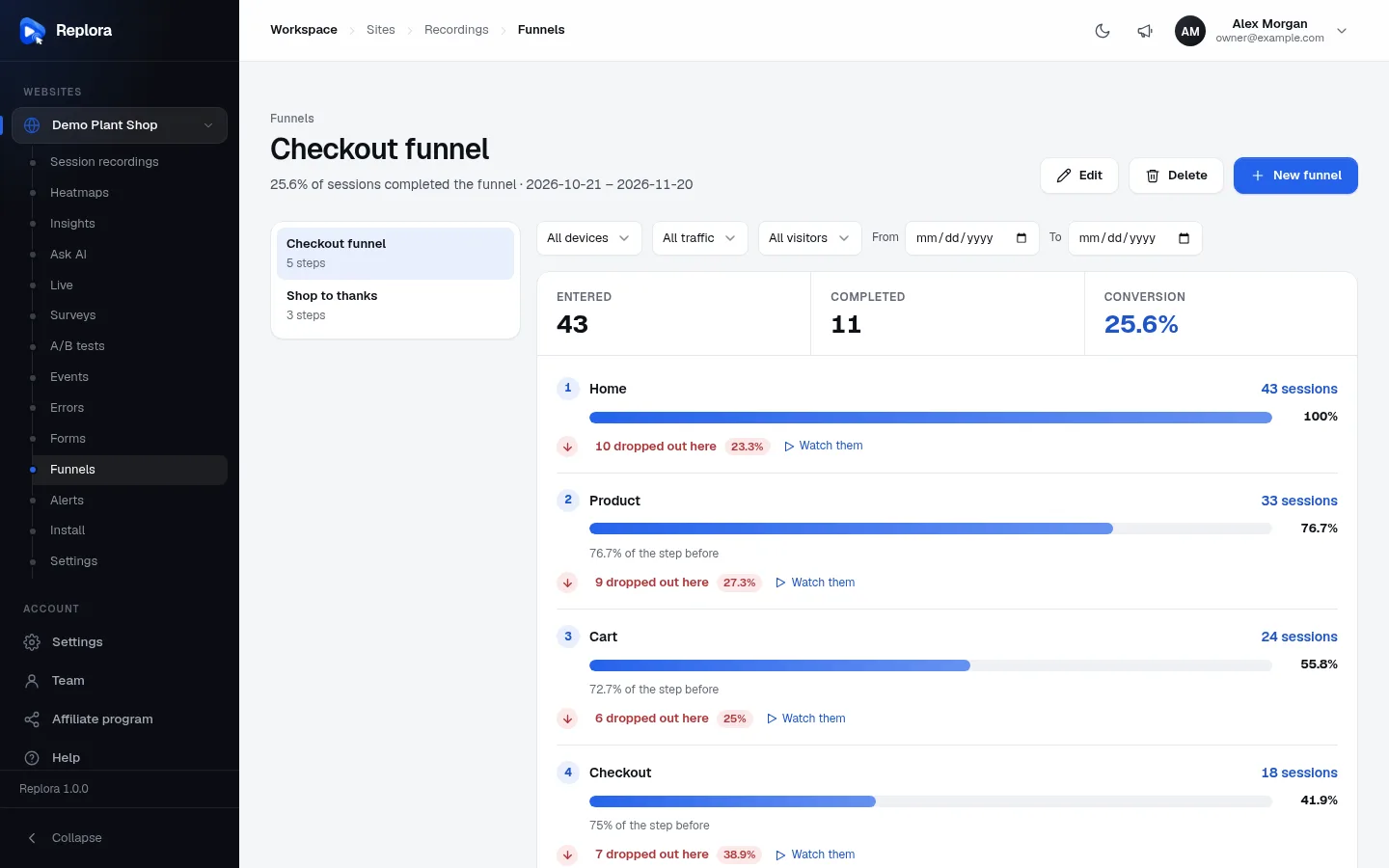
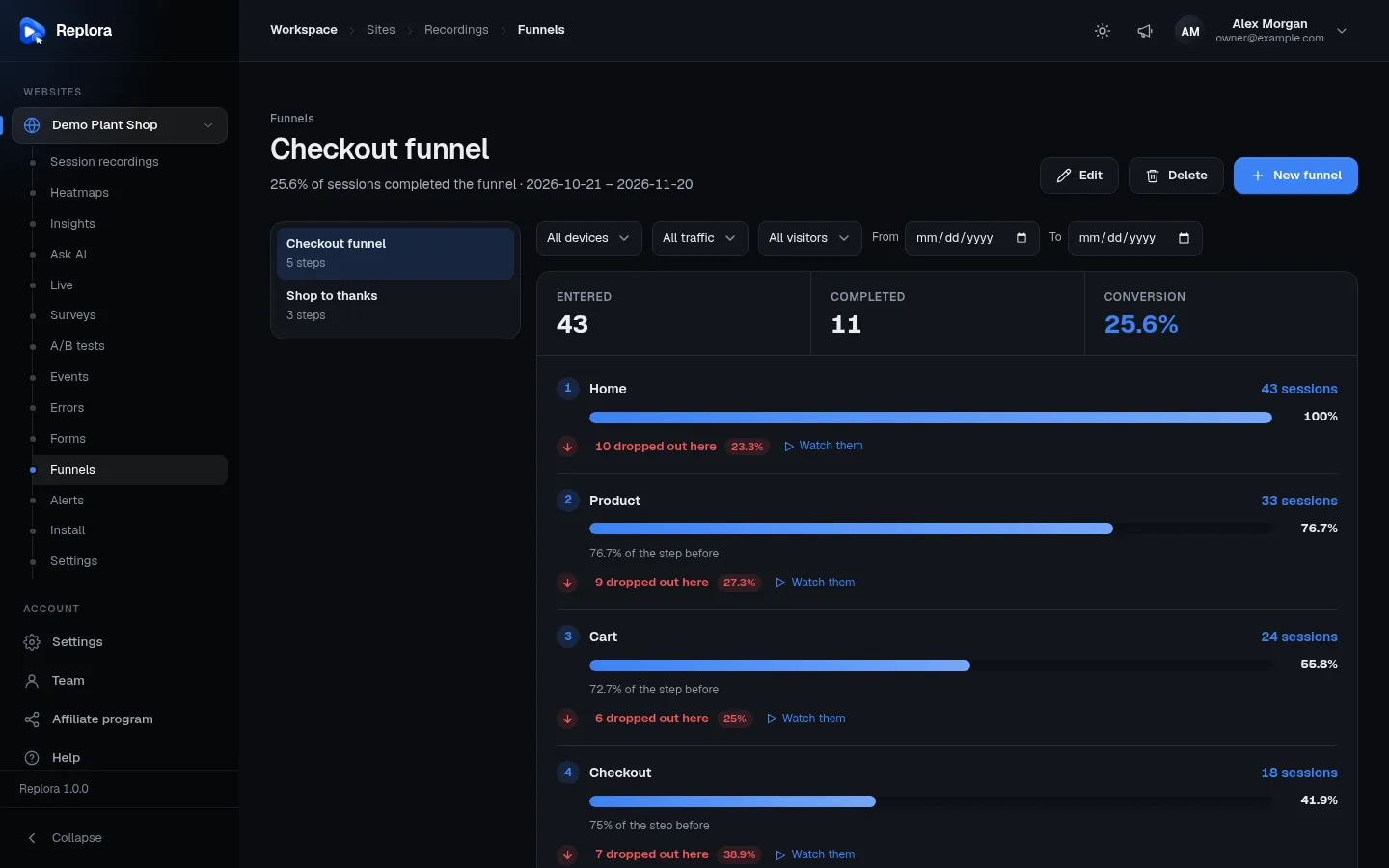
1. Edit, Delete, New funnelChange or delete the funnel shown, or build a new one. Viewers don’t see these buttons.
How a funnel counts
- A session counts for a step once it reaches that step after the step before, in the same visit. A visitor who goes straight to the cart without seeing a product page doesn’t count for the cart step of a “product → cart” funnel.
- Steps don’t have to follow each other directly: other pages and clicks in between are fine.
- The report covers the last 30 days unless you choose dates.
Read a funnel report
| Part | What it shows |
|---|---|
| Subtitle | “n% of sessions completed the funnel · from – to”. |
| Entered | Sessions that reached step 1. |
| Completed | Sessions that reached the last step. |
| Conversion | Completed ÷ entered, in percent. |
| Step number and name | The step’s display name, or a description such as Viewed a page that contains “/checkout”. |
| n sessions (blue link) | Sessions that reached this step. Click to list them below the report. |
| Bar and percentage | This step’s sessions as a share of step 1 (step 1 is always 100%). |
| n% of the step before | Of the sessions at the previous step, how many went on to this one. was n% follows when the period before had data, and a red Fell badge when it dropped for real. |
| n dropped out here + share | Sessions that reached this step but not the next one. Click to list them. |
| Watch them | Replays the sessions that dropped out here, one after the other, starting at the moment they reached the step. |
Sessions behind a number
Clicking n sessions or n dropped out here lists up to 50 of the latest matching sessions under the report (Sessions that reached step n or Sessions that dropped out after step n). Click a date to open that replay at the right moment. Open in the session list shows all of them in the session list, where you can add other filters, export them as CSV or save the search.
“Fewer visitors go on after …”
Replora compares each step with the period of the same length just before. When the share of visitors going on from a step fell for real, a notice at the top says, for example, Fewer visitors go on after “Cart”: 72% before this period, 55% now. “For real” means the fall passes a statistical test at 95% confidence, with at least 30 sessions at the step in each period; small wobbles on quiet funnels are ignored.
Account managers also get an email when a funnel’s last 7 days convert worse than the 7 days before, at most once a week per funnel.
Filters
| Filter | Choices |
|---|---|
| Device | All devices, Desktop, Tablet, Mobile |
| Traffic | All traffic, Direct, Search, Social, Email, Paid, Referral |
| Visitors | All visitors, New, Returning |
| From / To | Any dates. Empty: the last 30 days. |
The chosen funnel and filters are kept in the page address, so a report can be bookmarked or shared.
Create a funnel
- Click New funnel (top right).
- Enter a Name, up to 120 characters (for example Checkout).
- Set up step 1. A new funnel starts with two empty Viewed a page steps.
- Choose the step type (see Step types).
- Choose how to match (contains, is, begins with, matches pattern (*)) where the type has one.
- Enter the value, for example
/product. For page steps, the addresses visitors used most in your site are suggested as you type. - Optionally give it a Display name (optional) such as Product page (up to 80 characters). It replaces the technical description in the report.
- Set up step 2 the same way, and click Add step for more. A funnel has 2 to 10 steps.
- As soon as every step is complete, each step shows n sessions: how many sessions of the last 30 days would reach it. Use it to check your steps match what you expect before saving.
- Click Create funnel. The button stays greyed out until the funnel has a name and every step has its value.
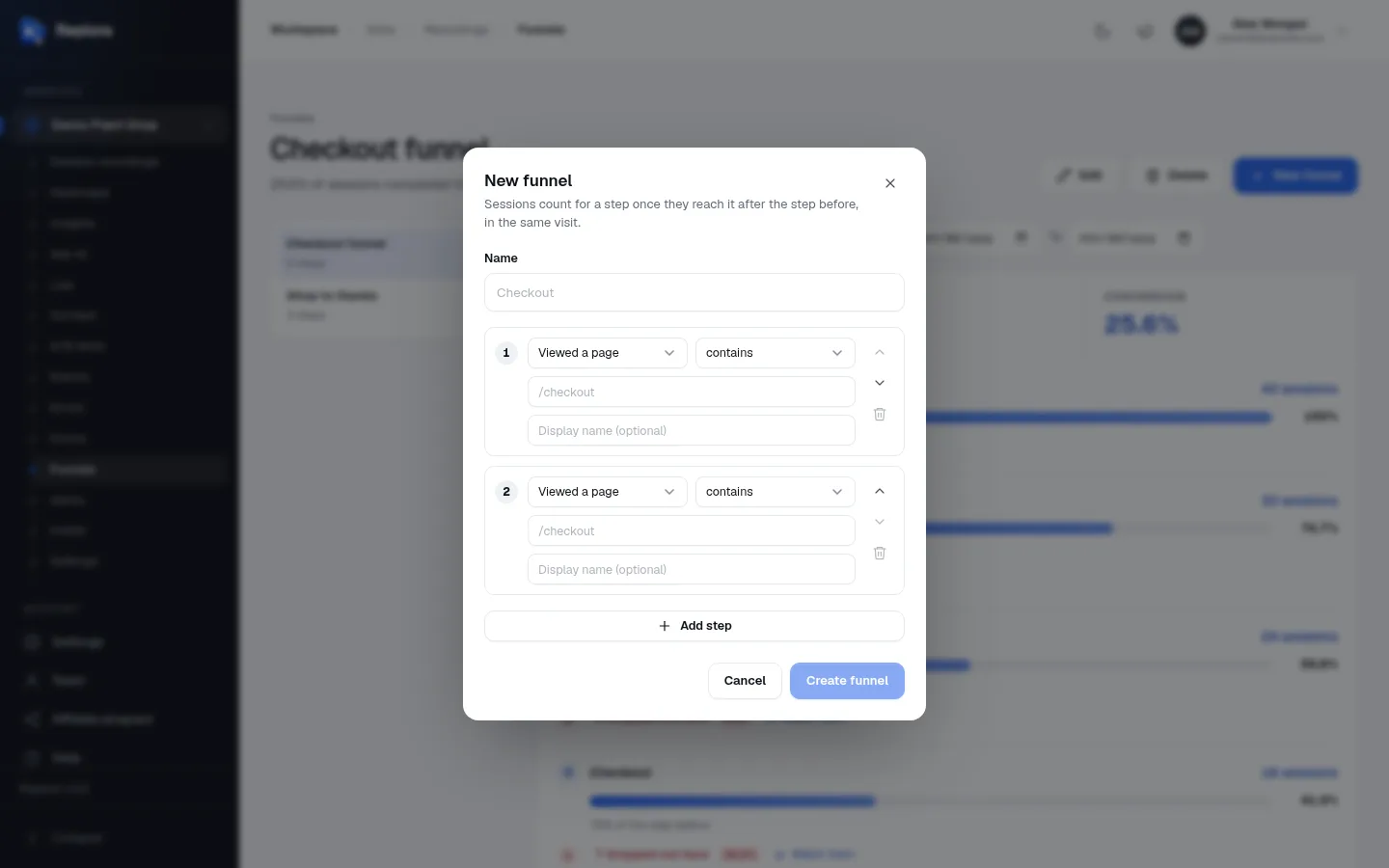
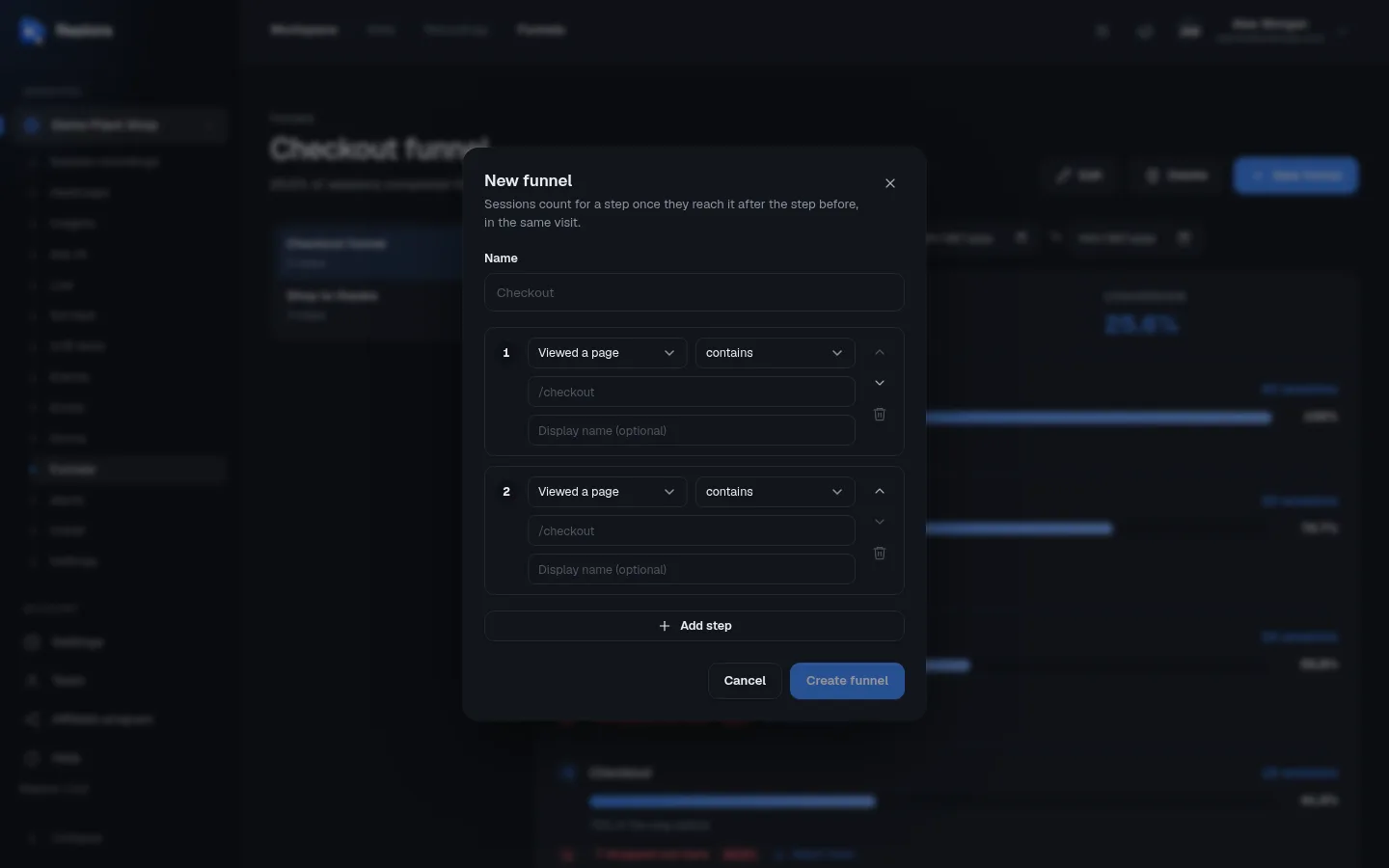
Reorder and remove steps
- Drag a step by its number to a new place, or use the Move up / Move down arrows.
- The bin (Remove step) deletes a step. A funnel always keeps at least two.
Step types
| Step type | Matches when the visitor… | Value | Match options |
|---|---|---|---|
| Viewed a page | opened a page whose address matches. | Part of the address, such as /checkout, or a full address with is. | contains, is, begins with, matches pattern (*) |
| Clicked an element | clicked something whose text (or its technical name, the CSS selector) matches. | Text on the button or link, such as Add to cart. | contains, is, begins with, matches pattern (*) |
| Typed in a field | typed in a form field whose name contains the value. | The field’s name, such as email. What visitors type is never used. | always “contains” |
| Has a tag | had this session tag, optionally with this value. | Tag: the tag’s name, such as plan (up to 64 characters). Value (optional): leave empty for any value (any value). | exact name and value |
Values can be up to 500 characters. Page, click and field steps ignore upper and lower case; tag names and values must match exactly.
The match options
| Option | Matches | Example |
|---|---|---|
| contains | the value anywhere. The default. | checkout matches https://shop.com/checkout/step-2 |
| is | exactly the value. For pages, that means the full address, including https:// and the host. For clicks, exactly the element’s text or its CSS selector. | https://shop.com/cart |
| begins with | values that start with it. | https://shop.com/blog/ |
| matches pattern (*) | the value with * standing for anything. | */product/*/reviews |
Pick the element on a page
For a Clicked an element step, Pick on a page opens a recorded copy of your page (the page of the closest Viewed a page step before it, or any page). Point at the element and click it: the step is filled in with its text (contains), or, when it has no text, with its CSS selector (is).
Tags and grouped pages
Has a tag steps use session tags your site sets (for example after a purchase, with tagSession). Pages your developer grouped with the pageUrl command (such as every product page as /product/*) are matched by that group address. See the JavaScript API.
Edit or delete a funnel
- Edit opens the same dialog with the funnel’s steps. Changes apply to the whole report at once (past sessions are counted again with the new steps); click Save.
- Delete asks “Delete this funnel?”. Only the funnel is deleted; recordings stay.
Limits and who can do what
- 2 to 10 steps per funnel; names up to 120 characters, display names up to 80, values up to 500.
- In the SaaS edition your plan sets how many funnels your account may have (all websites together). When you reach it: “Your plan allows n funnels. Upgrade the plan or delete a funnel first.”
- Managers and members create, edit and delete funnels. Viewers see the reports and the sessions, but not the Edit, Delete and New funnel buttons.
Tips
- Start broad, then narrow. Use contains with a short path first; switch to is if other pages match by accident (the live session counts in the dialog help).
- Name your steps. Display names such as Cart and Payment make the report readable for everyone.
- Compare devices. If mobile converts much worse at one step, watch some mobile visits that dropped out there.
- Use Watch them. Five replays of people who dropped out at the same step usually reveal the problem.
Related
- Behavior insights: suggested funnels from real journeys.
- Form analytics: which form field makes visitors give up.
- Filters & search
- Watching a replay
- Alerts